New in DriveNest 2.1

Ask AI where your storage went

Let Claude or GPT explore your Google Drive or OneDrive scan, work out what is taking up space and suggest what to clean up. It runs on your own Anthropic or OpenAI API key, sees names and sizes but never what is inside your files, and changes nothing until you say so.

Google Drive + OneDrive Claude (Anthropic) GPT (OpenAI) Bring your own API key Ultimate

The AI assistant is a second way to read your scan. DriveNest’s dashboards show you what it has already worked out; the assistant starts from the raw measurements instead and investigates your storage the way a person would — look at the overview, drill into the biggest folders, compare duplicates, check what is shared — then writes up what it found as cleanup suggestions, each with a reason, a confidence level and an exact size. You decide what happens to every one.

How it works

From switching it on to the record it leaves behind. The screenshots are from a real session on a live scan.
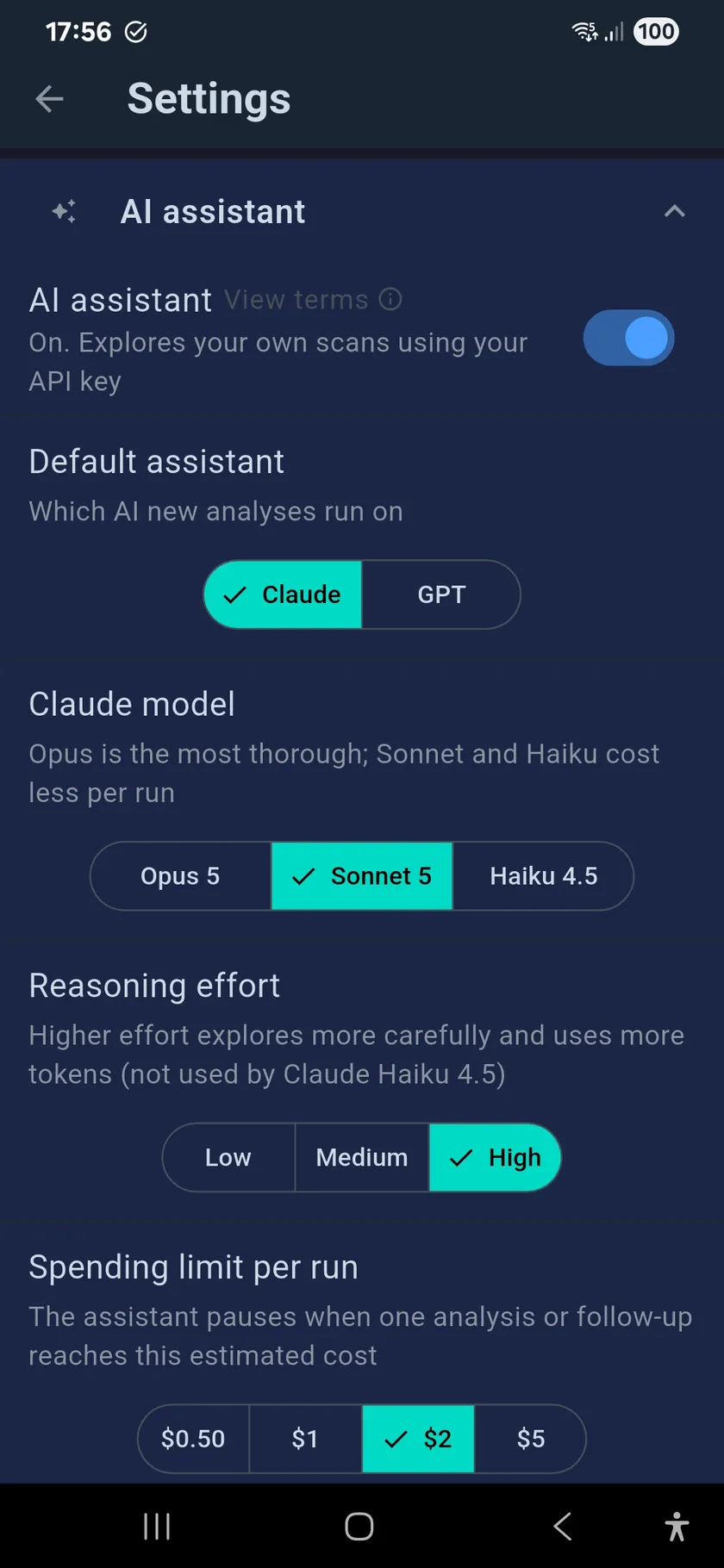
DriveNest Settings, AI assistant section: switch on, default assistant Claude or GPT, Claude model Opus 5, Sonnet 5 or Haiku 4.5, reasoning effort and spending limit per run
Settings › Scan & Storage › AI assistant

1Switch it on and add your key

The assistant is off by default. Turn it on in Settings, read and accept the AI assistant terms, then paste an API key from console.anthropic.com or platform.openai.com — or one of each. DriveNest checks the key with the provider before it saves it.

  • Default assistant — Claude or GPT for new analyses
  • Model — one choice per provider, from the most thorough to the cheapest
  • Reasoning effort — Low, Medium or High; higher explores more carefully and uses more tokens
  • Spending limit per run — $0.50, $1, $2 or $5; the assistant pauses when an analysis or follow-up reaches it
  • Starting prompts — edit the one-tap prompts the assistant offers, up to 12 of your own
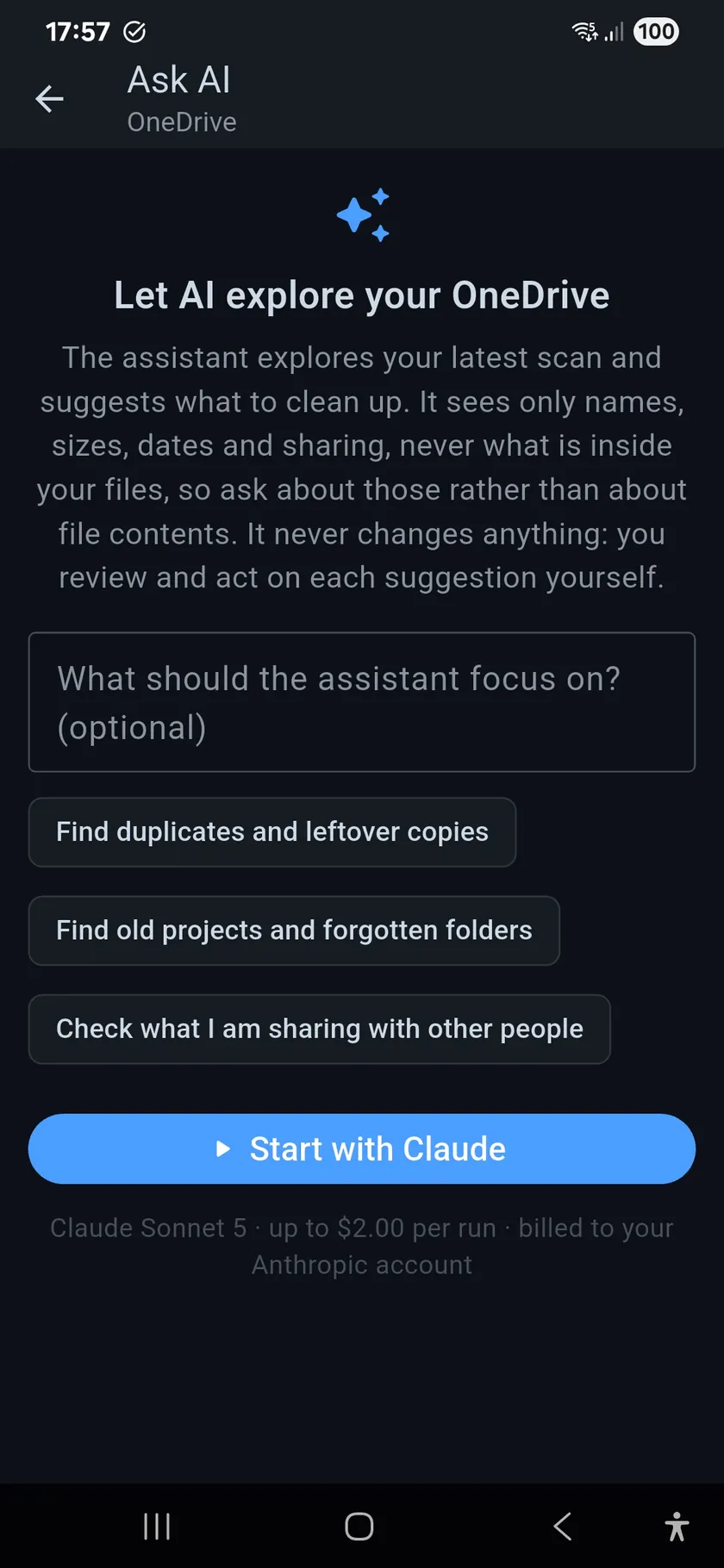
Ask AI start screen for OneDrive: explanation that the assistant sees only names, sizes, dates and sharing, an optional focus field, three starting prompts and a Start with Claude button
Ask AI on a OneDrive scan

2Tell it what to look for

Tap Ask AI on the storage card of your Google Drive or OneDrive dashboard. Type a goal, tap one of the starting prompts, or just press Start — the default goal is to free up as much space as possible.

  • Free up as much space as possible
  • Find duplicates and leftover copies
  • Find old projects and forgotten folders
  • Check what I am sharing with other people

The line under the button tells you exactly what you are about to spend: the model, the per-run limit and whose account is billed.
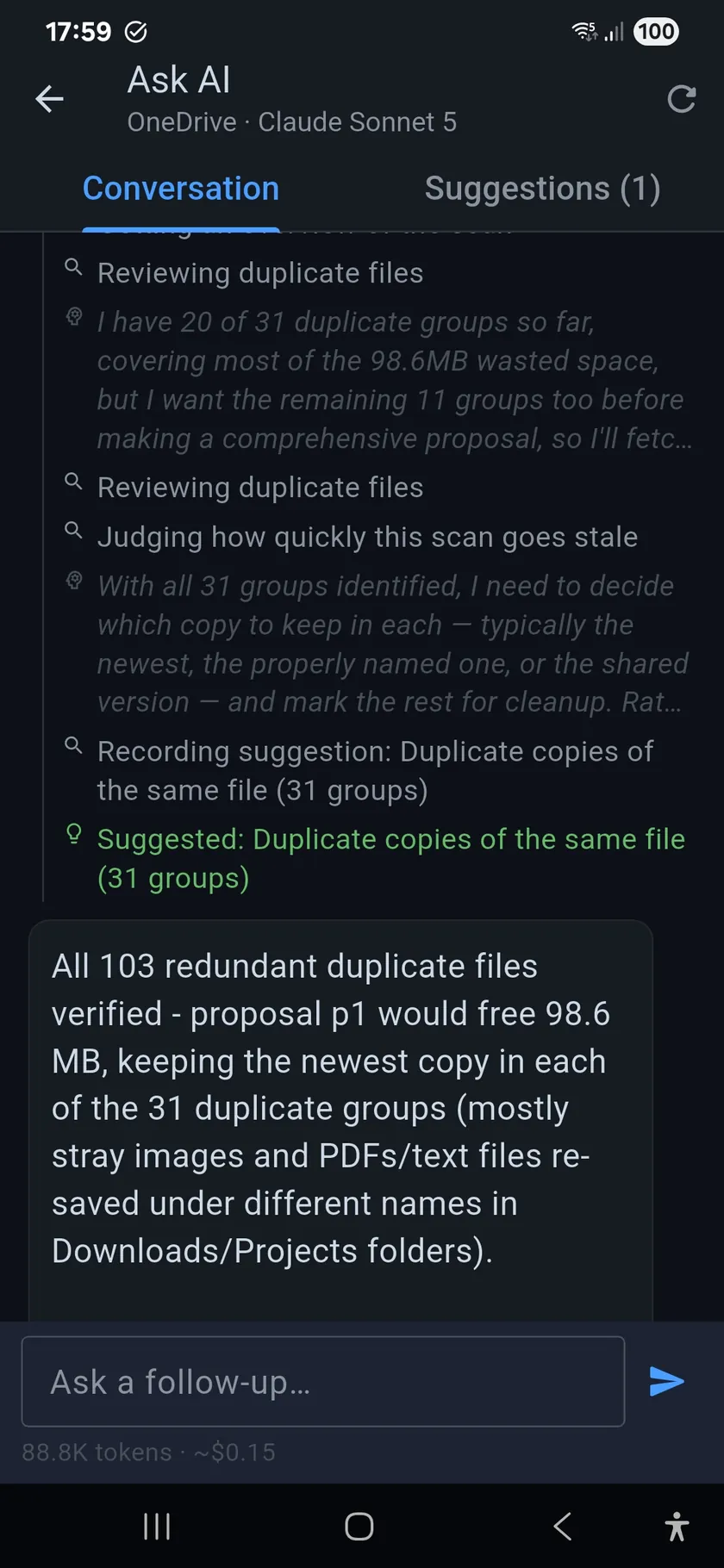
Ask AI conversation tab: the assistant reviewing duplicate files, judging how quickly the scan goes stale, recording a suggestion for 31 duplicate groups, and a summary that 103 redundant files would free 98.6 MB
The assistant at work — every step visible

3Watch it explore

The Conversation tab shows each step as it happens — Reviewing duplicate files, Recording suggestion — along with a summary of the model’s reasoning, so you can see why it looked where it did. A running token count and cost estimate sits under the input box.

The assistant explores through a set of read-only tools: an overview of the scan, folder listings and statistics, file search by size, age, type, sharing and version overhead, duplicate groups and item details. DriveNest does the arithmetic: every count and size the model quotes back was computed by the app from your scan, not estimated by the AI.

When it is done, ask a follow-up in the same conversation — “leave the Photos folder alone”, “what about files older than five years?” — and it can refine, replace or withdraw its suggestions. Leave the screen and come back while the app is open, and the session is still there.
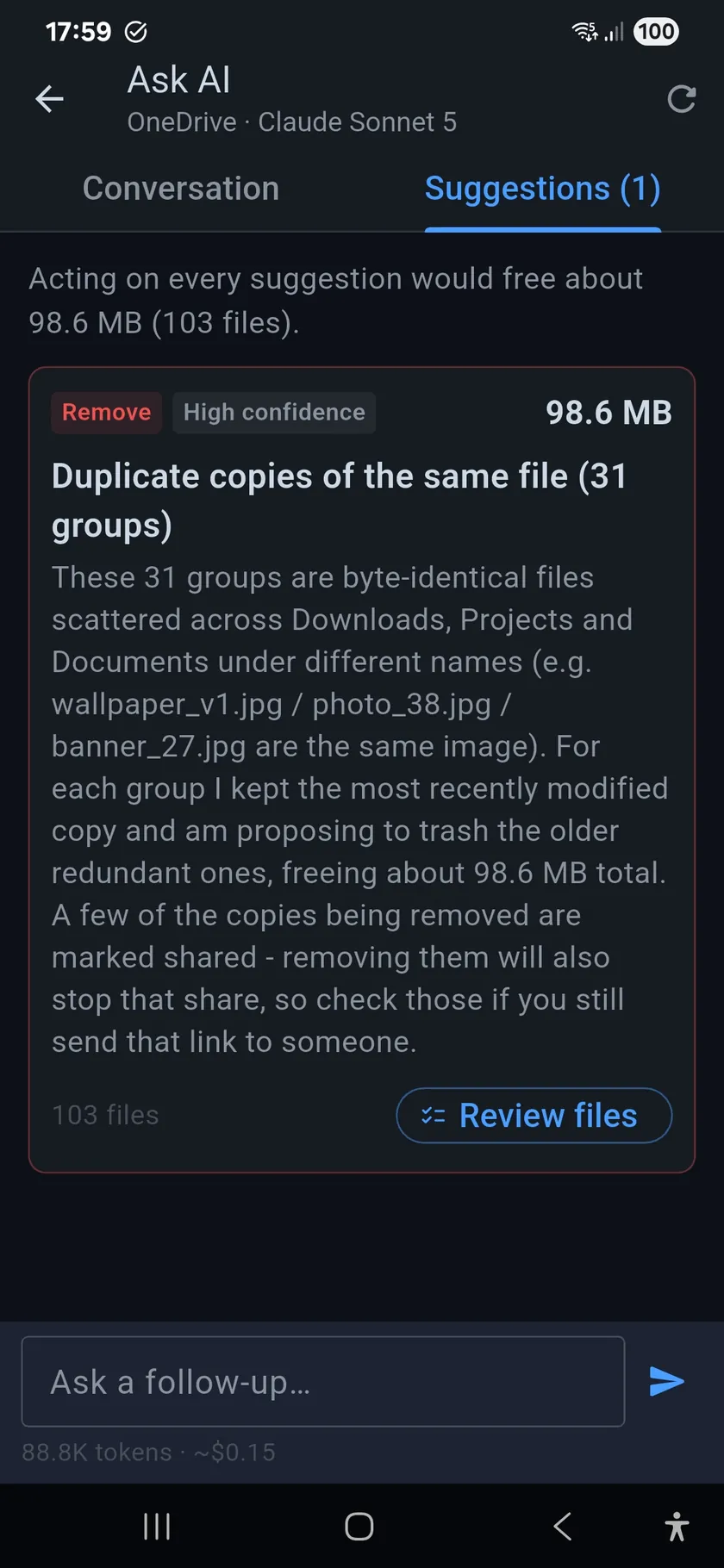
Suggestions tab: a Remove, high-confidence suggestion of 98.6 MB for duplicate copies across 31 groups, with the reasoning and a Review files button
A suggestion card, ready to review

4Review the suggestions — then decide

The Suggestions tab collects everything the assistant proposed, with the total space you would free by acting on all of them. Each card has an action, a confidence level, the exact size and file count, and a plain-language reason.

  • Remove — move the files to the bin
  • Unshare — stop sharing files you shared with others
  • Remove old versions — reclaim version history charged to your quota
  • Review — worth a look, but no action proposed

Review files opens the full file list. From there you act exactly as you would anywhere else in DriveNest — an Apps Script you deploy and run on Google Drive, an in-app action on OneDrive — with the same confirmation, scripts, action history and undo. The assistant adds no new way to delete anything.
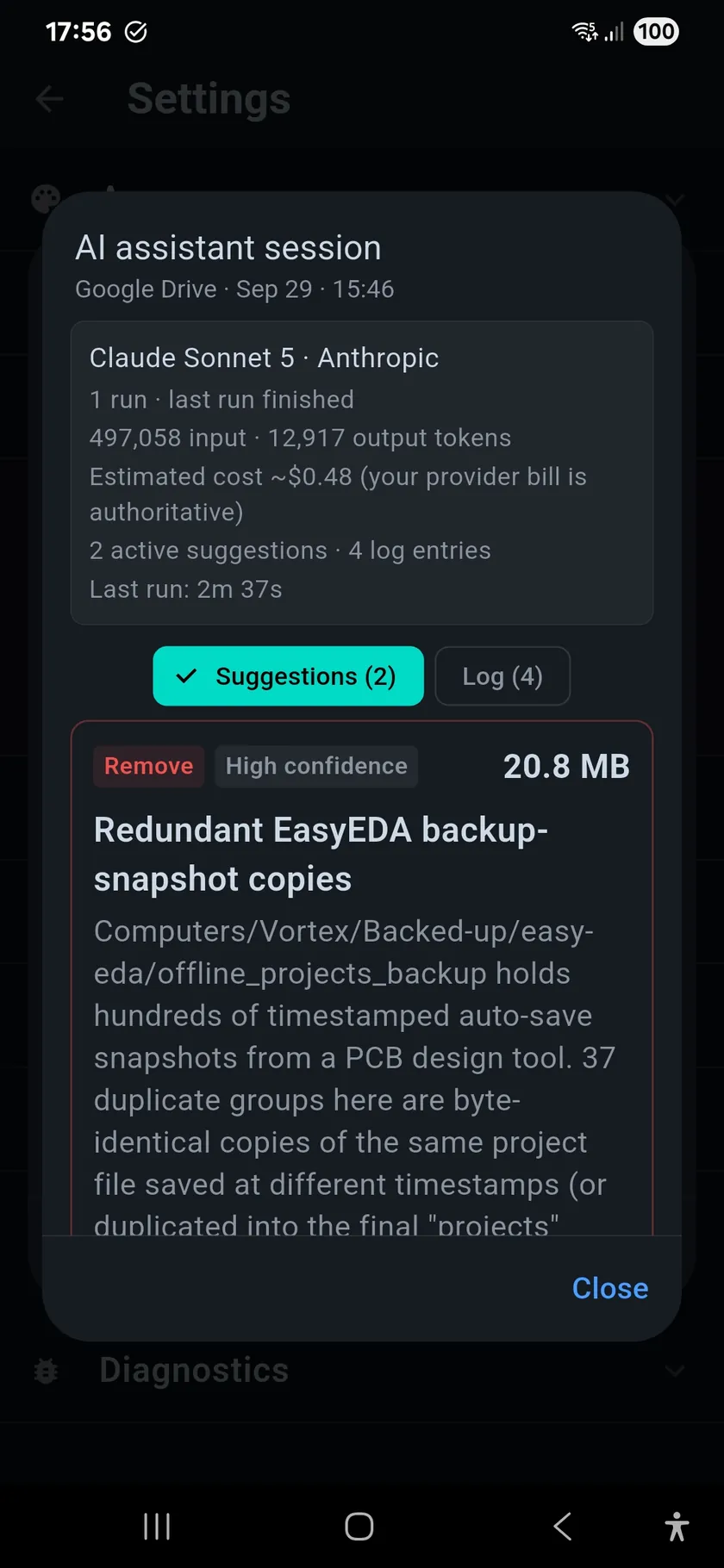
Action history entry for an AI assistant session on Google Drive: Claude Sonnet 5, one run, input and output tokens, estimated cost of about $0.48, two active suggestions and four log entries
Settings › Audit logging › Action history

5Keep a record

Every session is written to Action history: the provider and model, how many runs, the tokens used, the estimated cost, how long the last run took, the messages you sent and every suggestion — including the exact list of files each one covered. Cleanups you start from a suggestion are tagged as coming from it, so you can always trace an action back to the advice behind it.

The assistant’s own replies are deliberately not logged, because they contain your file names and paths. History is for reference only; acting on a suggestion always goes through a live session.

What it sees — and what it never does

The assistant works from the scan already stored on your phone. It does not connect to your cloud at all.

What it can see

File and folder names, paths, sizes, types, dates, ownership, sharing status, duplicate groups and version history overhead — the metadata in your scan. The parts it looks at are sent to the provider you chose.

What it can never see

The contents of any file. It cannot open, read or download a document, photo or anything else — so ask it about sizes, dates and sharing rather than what a file says.

What it can never do

Delete, move, share or change anything. Its only write is recording a suggestion. Nothing happens to a file until you review it and confirm the action yourself.

Guardrails the app enforces, whatever the model says

  • Your protections hold — files you excluded from cleanup are dropped from every suggestion
  • Only your own files — files someone else owns can appear in a Review suggestion, never in an action
  • One copy always stays — a removal that would delete every copy of a duplicate group is refused
  • No invented files — the model refers to files through short handles the app issues; anything it makes up fails validation
  • Sizes are measured, not guessed — the app computes every suggestion’s size and file count itself
  • Bounded runs — each run stops at your spending limit or after 40 turns, and you can cancel at any time
  • Live scans only — the assistant does not run on demo data

Bring your own key

DriveNest has no server and ships no AI key. The assistant talks straight from your phone to Anthropic or OpenAI, on your account, under that provider’s terms and privacy policy.

You pay the provider, not us

Usage is billed by Anthropic or OpenAI at their own rates, with no DriveNest markup. You can see and cap every request on your provider’s dashboard.

Keys stay on the device

Keys are kept only in Android’s secure keystore, never in normal app storage, and are never included in a DriveNest settings backup. Only the last four characters are ever shown.

Off means gone

Turning the assistant off, or declining its terms, permanently deletes every saved key from the phone. Remove a single key at any time from the same screen.

A cost you can see

Tokens and an estimated cost update as the assistant works, and each run pauses at your limit. Press Continue to carry on, or stop there. Your provider’s bill is authoritative.

Choose Claude or GPT

Add a key for either provider, or both, and pick which one new analyses start on. A conversation stays with the provider it started on; start a new analysis to switch.

ProviderModelsWhere to get a key
Anthropic — Claude Opus 5default — the most thorough
Sonnet 5 — lower cost per run
Haiku 4.5 — the cheapest; no reasoning-effort setting
console.anthropic.com
OpenAI — GPT GPT-6 Soldefault — balanced cost and depth
GPT-6 Astra — the most capable, and the most expensive
GPT-6 Luna — the cheapest
platform.openai.com

An API key is separate from a Claude.ai or ChatGPT subscription: it comes from the provider’s developer console and is billed per use. GPT-6 Astra costs about twice as much per token as Claude Opus 5, so it reaches the default $2 limit sooner on a large scan.

What you need

  • DriveNest 2.1 or later from Google Play
  • The Ultimate plan — perpetual licence or subscription
  • A completed scan of Google Drive or OneDrive (Dropbox support is coming to DriveNest next)
  • An API key from Anthropic or OpenAI, with API credit on that account

Frequently asked questions

Can the DriveNest AI assistant read my files?

No. The assistant works from the scan already stored on your phone. It sees file and folder names, paths, sizes, types, dates, ownership, sharing status, duplicate groups and version overhead. It cannot open, read or download the contents of any file. The metadata it looks at is sent to the AI provider you chose — Anthropic or OpenAI — for processing.

Can the AI assistant delete my files?

No. Every tool the assistant has is read-only, apart from recording and withdrawing suggestions. It cannot delete, move, share or change anything. A suggestion only becomes an action when you open it, review the files and confirm — and then it runs through the same cleanup path, action history and undo as any other DriveNest action.

Why do I need my own API key?

DriveNest has no server and ships no AI key, so requests go straight from your phone to Anthropic or OpenAI using your own account. You pay the provider directly at their rates, with no markup, and you can see and cap every request on your provider’s dashboard. The key is kept only in Android’s secure keystore and is never included in DriveNest settings backups.

How much does an AI analysis cost?

It depends on the model, the reasoning effort and the size of your scan. In the session shown above, Claude Sonnet 5 analysed a Google Drive scan in one run for an estimated $0.48. DriveNest shows the tokens used and an estimated cost as the assistant works, and pauses each run when it reaches your spending limit: $0.50, $1, $2 (the default) or $5. The estimate uses the providers’ list prices; your provider’s bill is authoritative.

Which plan includes the AI assistant?

The AI assistant is an Ultimate feature, on both the perpetual licence and the subscription, from DriveNest 2.1. It works on Google Drive and OneDrive scans. The Anthropic or OpenAI API usage is billed separately by that provider.

Does it replace the Cleanup and Duplicates screens?

No, it complements them. The Cleanup and Duplicates screens apply DriveNest’s own scoring. The assistant is given the plain measurements instead of those verdicts and reaches its own conclusions — a genuinely independent second opinion, which you can steer in your own words.

The AI assistant arrives with DriveNest 2.1. Update from Google Play, then find it under Settings › Scan & Storage › AI assistant.

Get it on Google Play