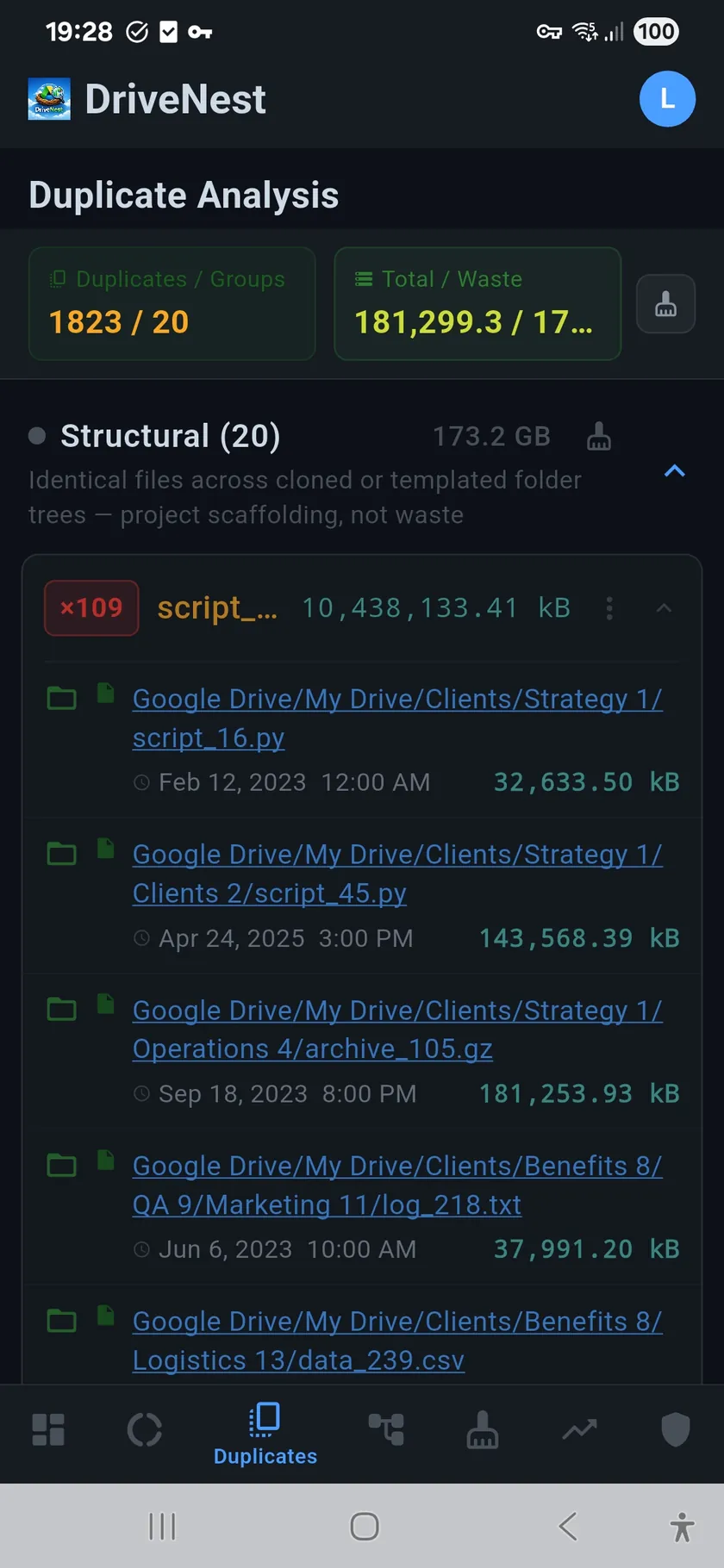
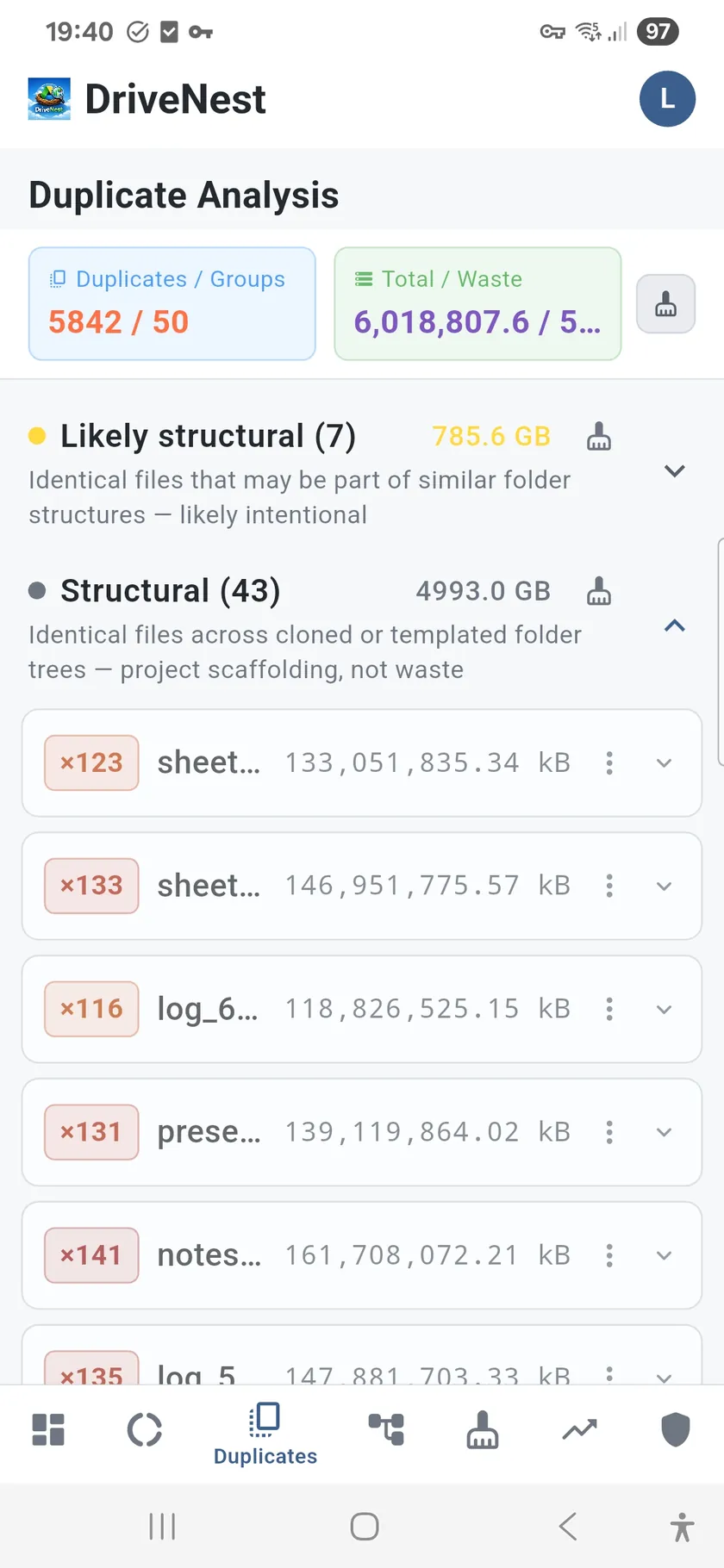
MD5 detection is just the foundation
Any tool can match checksums. DriveNest starts with MD5 to find byte-for-byte identical files regardless of name or location — but that's just step one. The real value is what happens next.
Heuristic scoring: the intelligence layer
Not every duplicate is waste. A shared template copied into multiple project folders is structural, not junk. DriveNest applies heuristic scoring that analyzes path depth, folder structure, access recency, and copy count to classify each duplicate group with a waste confidence score. High confidence = safe to remove. Low confidence = likely intentional. You clean what matters, not what breaks things. You can also mute groups, recategorize them, or create custom rules to refine the classification.
How duplicate detection works
- MD5 checksum matching — the foundation for content-level detection
- Heuristic waste scoring — analyzes path, structure, and access patterns to classify waste vs. structural
- Grouped by wasted space — biggest savings opportunities appear first
- Confidence rating — high confidence = safe to remove, low = likely intentional
- Mute and recategorize — create rules for duplicate groups you want to keep
- Direct links — open any file in the Google Drive app or browser, or in OneDrive on the web
- Cleanup script generation — generate scripts to remove confirmed duplicates
Sorted by impact
Duplicate groups are ranked by total wasted space, not file count. A single pair of 500 MB video duplicates matters more than fifty copies of a 10 KB text file. DriveNest puts the highest-impact groups at the top so you can reclaim the most space with the least effort.
Why cloud drives fill up with duplicates
Duplicates rarely come from carelessness; they come from the way cloud storage gets used. The same photo arrives from your phone’s camera upload and again inside a shared album. An invoice PDF is saved from the email that delivered it and again from the one that chased payment. Google’s desktop client mirrors a laptop folder into Computers while you also keep a copy in My Drive; OneDrive’s Known Folder Move backs up Desktop and Documents while the same files also sit in a synced project folder. A colleague’s shared folder is copied “just in case” and never opened again. None of these show up as “Copy of”, and none are visible from either provider’s storage page, which only lists your largest files.
On Google Drive, DriveNest scans My Drive and the Computer Backups partition together, so duplicates that straddle the two are found, not just duplicates within one folder tree. On OneDrive it covers the whole personal drive the same way. Each cloud is scanned and reported separately, so a copy on Google Drive and a copy on OneDrive are shown as what they are: two independent stores, not one duplicate group.
What the providers’ own tools can and can’t do
Google Drive’s storage page and OneDrive’s “What’s taking up space” view both sort files by size, which is useful for finding the one 2 GB video you forgot about, but neither can tell you that the same video exists three times under different names. The Google One storage manager finds large files, old emails and blurry photos, but not duplicates; Microsoft 365’s storage tools stop at the same point. Third-party web tools can find duplicates but typically require full access to your drive and process your file list on their servers. DriveNest runs the whole comparison on your phone with a read-only metadata permission, so no list of your files ever leaves the device.
From duplicate list to free space
Confirmed duplicate groups feed straight into the cleanup list, where they sit alongside stale and oversized files ranked by risk. From there DriveNest generates a cleanup script that moves the extra copies to trash — or, on OneDrive, runs the removal in-app after you confirm. The original in each group is kept; only the surplus copies are touched. The related waste that no duplicate list can show — earlier versions of the same file, which both clouds bill against your quota — is measured separately on the version history overhead panel. For a step-by-step walkthrough, including the manual methods that work without any app, see the guide to finding and deleting duplicate files in Google Drive and OneDrive. Surplus copies can also be pinned and combined with files from other screens into one cleanup — see pinning files for a single bulk cleanup.
Free vs. Premium
The free tier scans your entire cloud — no file or size cap — and finds and scores every duplicate group, so you see exactly how many duplicates you have and how much space they cost. It lists the first three groups in each section. Premium and Ultimate unlock the complete list and the scripts to remove them. Whichever plan you own applies to Google Drive and OneDrive alike.
Duplicate finder questions
Does Google Drive or OneDrive have a built-in duplicate finder?
No. Both can search by name, type, owner and date, but neither has a way to find two files with identical content. Searching for “Copy of” only catches files that kept the default name a duplicate is given. DriveNest compares files by their content hash, so renamed and relocated copies are found too.
How does DriveNest know two files are really duplicates?
It uses the content hash (MD5 on Google Drive, the provider hash on OneDrive) that the storage service already computes for every file. Two files with the same hash are byte-for-byte identical regardless of name, folder or upload date. DriveNest never downloads or reads file contents to do this — it only reads metadata.
Will DriveNest delete my duplicates automatically?
No. DriveNest never deletes anything on its own. On Google Drive it holds read-only access and generates a Google Apps Script that you review and run yourself; on OneDrive it can carry out the removal in-app, but only after you confirm each action and grant write permission at that moment. Either way, files go to the trash or recycle bin, not to permanent deletion.
Is the duplicate finder free?
Yes, to try. The free tier scans your entire cloud with no file or size cap, finds every duplicate group and scores it, so you see how many duplicates you have and how much space they waste. It lists the first three groups per section; the complete list and the cleanup scripts are part of Premium and Ultimate. There are no ads on any tier.
Does it find duplicates in OneDrive as well as Google Drive?
Yes. Connect either cloud or both; each is scanned independently and gets its own duplicate groups, cleanup list and history. One Premium or Ultimate purchase covers both clouds, and Dropbox support is next in line.