In this guide
Duplicate files are the most common kind of waste in a cloud drive and the hardest to see. Neither Google Drive nor OneDrive has a duplicate finder built in, both count every copy you own against your quota, and the copies rarely announce themselves with a name like “Copy of”. This guide covers what you can do by hand on each service, where the manual methods stop, and how to find duplicates by content instead of by name.
Why cloud drives fill up with duplicates
Duplicates come from the way cloud storage gets used, not from carelessness. The same photo arrives once from the phone’s camera upload and again inside a shared album. An invoice PDF is saved from the email that delivered it and again from the reminder. A whole shared folder is copied “just in case”. And the desktop sync clients quietly create the biggest duplicates of all:
Google Drive
Google Drive for desktop backs up chosen laptop folders into the Computers section, separate from My Drive. Anything you also keep in My Drive now exists twice, in two partitions that Drive’s own search treats separately.
OneDrive
OneDrive’s PC folder backup (Known Folder Move) uploads Desktop, Documents and Pictures. Files you also dropped into a synced project folder, or that Windows placed in both Pictures and a camera-roll folder, are stored twice.
Finding duplicates by hand — what works and what doesn’t
Search for default copy names
Google Drive
- In the search box type “Copy of” — the prefix Drive adds when you use Make a copy.
- Also try (1) and (2), which browsers append when the same file is downloaded and re-uploaded.
- Add owner:me so files shared with you (which don’t use your quota) are excluded.
OneDrive
- Search for “ - Copy”, the suffix Windows adds when you copy a file in the same folder.
- Also try (1) and (2) for re-uploads and email attachments saved twice.
- Sort the results by size to check the big ones first.
This catches the duplicates that kept their default name and nothing else. A photo uploaded twice from two devices, a document re-uploaded from a backup, or a file someone renamed before sharing it back to you all look like unique files.
Sort by size and look for repeats
Google Drive’s Storage page (left sidebar) and OneDrive’s What’s taking up space view (Settings → Options → Manage storage) both list your files largest first. Scanning that list for the same size appearing twice in a row is the only content-based check either service offers, and it does work for big videos and archives, which are the duplicates worth the most. It does not scale past the top hundred files or so, and two files of the same size are not necessarily identical.
Check the sync-client partitions against each other
On Google Drive, open Computers in the sidebar and compare the backed-up folder names against My Drive. On OneDrive, check Settings → Sync and backup → Manage backup to see which PC folders are being uploaded, then look for the same folders elsewhere in your drive. If a folder is backed up and also synced, decide which one is the copy and stop the other.
Where the manual methods stop: they find duplicates by name or by eyeballing sizes. They cannot tell you that holiday.mp4, VID_20240812.mp4 and final cut.mp4 are the same 1.8 GB file, and they say nothing about the thousands of small duplicates that add up to gigabytes.
Finding duplicates by content with DriveNest
Both Google Drive and OneDrive compute a content hash for every file they store — a fingerprint that is identical only when the bytes are identical. It is exposed in the file metadata but not in either service’s user interface. DriveNest reads that metadata and groups every file that shares a fingerprint, regardless of name, folder or upload date, then ranks the groups by how much space the surplus copies waste.
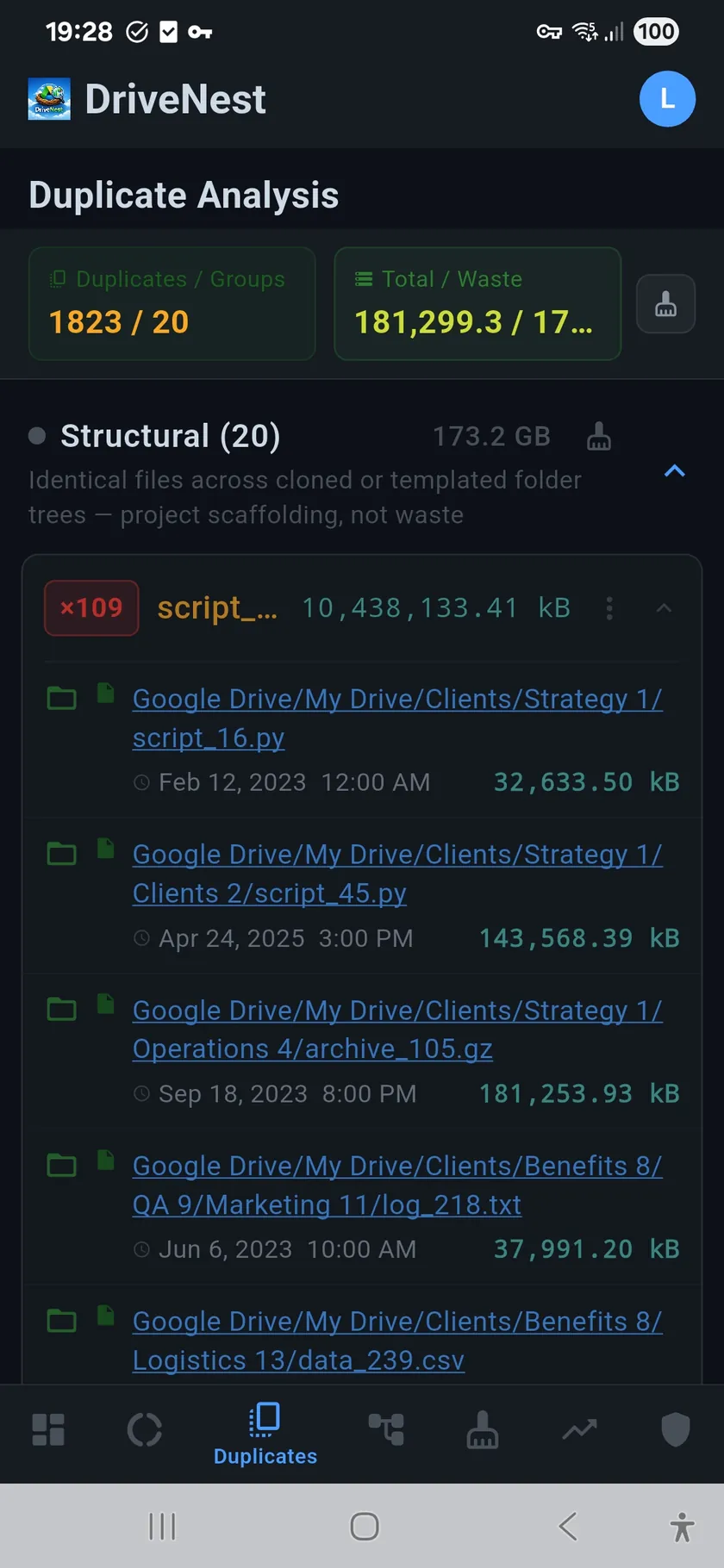
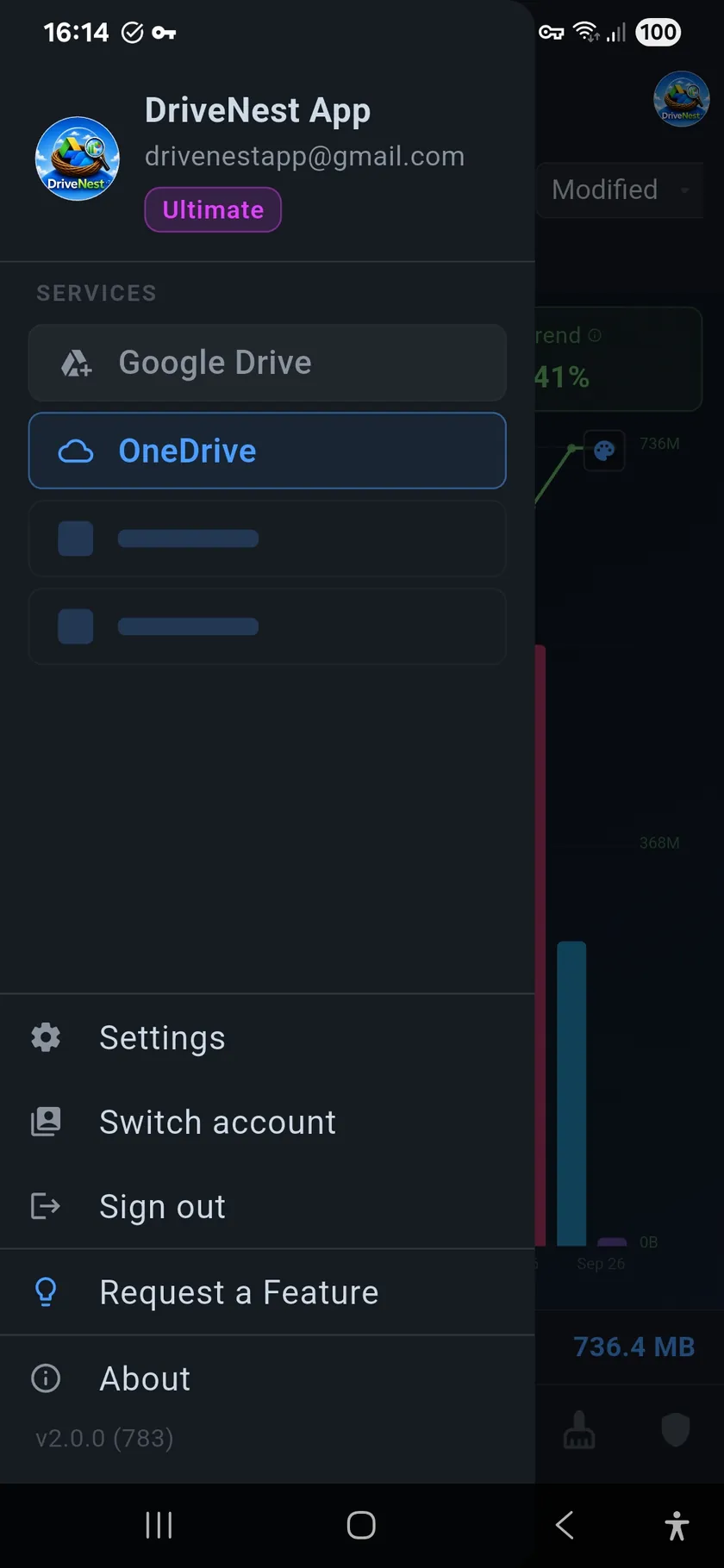
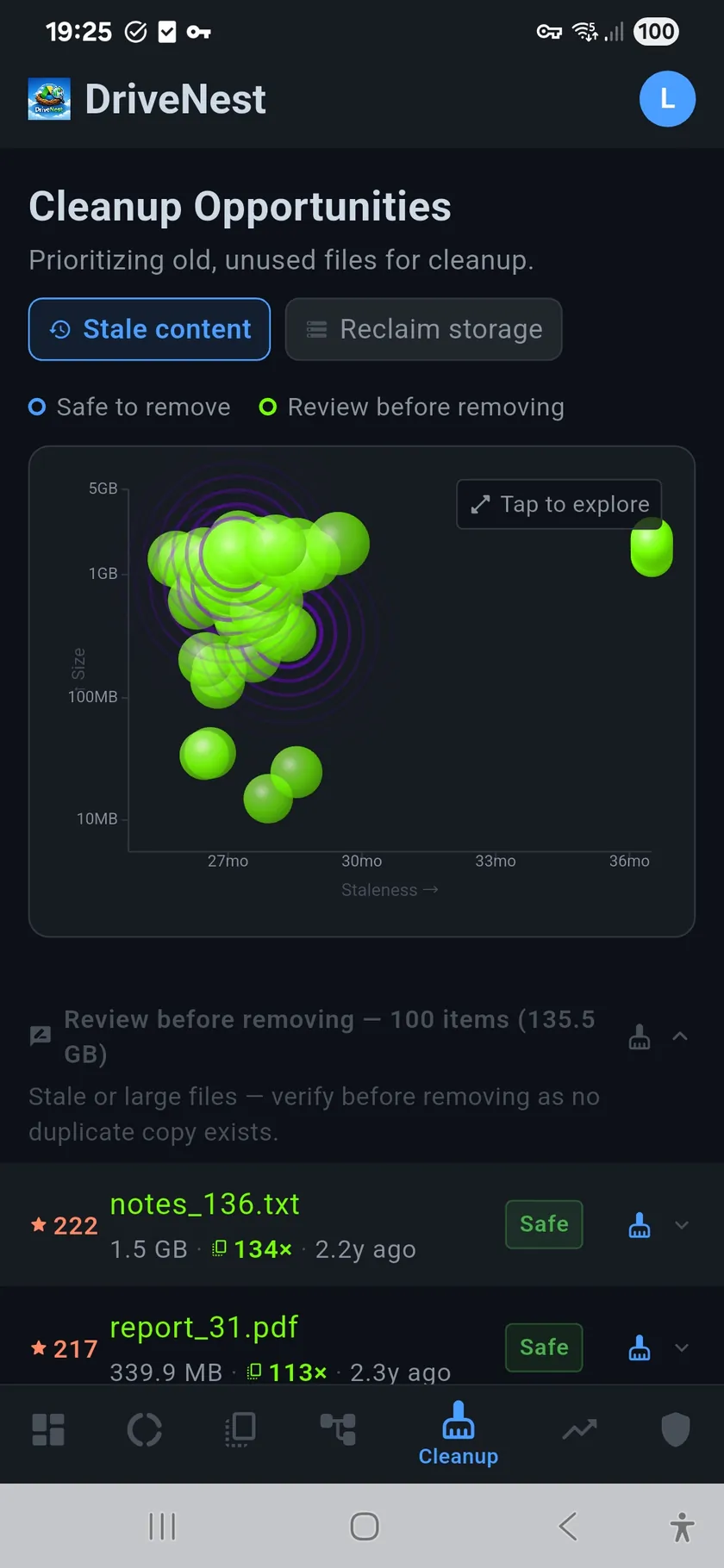
- Install and sign in. Get DriveNest on Google Play and connect Google Drive, OneDrive, or both. Sign-in requests read-only metadata access only.
- Scan. Every scan is complete on every tier — the whole cloud, including Google Drive’s Computers partition, with no file or size cap. The free tier finds and scores every duplicate group and lists the first three per section; Premium shows the complete list.
- Review the groups. Each group shows every copy with its path, the total wasted space, and a waste-confidence score. High confidence means the copies look like accidents; low confidence means they look structural, like a template deliberately placed in several project folders.
- Keep what you mean to keep. Mute a group, recategorise it, or add an exclusion rule for a folder that should never be suggested.
- Remove the surplus. On Google Drive, DriveNest generates a Google Apps Script you run in your own account; on OneDrive it can carry out the removal in-app after you confirm. In both cases the original is kept and the extra copies go to trash or the recycle bin.
Every cloud is scanned and reported independently, so a Google Drive duplicate group never mixes with a OneDrive one. Dropbox support is next, on the same engine. See the duplicate finder page for how the scoring works.
Free to try, no ads, no DriveNest server. DriveNest reads only file metadata and does all analysis on your phone.

The duplicates you can’t see: version history
There is one kind of duplicate no search and no size sort will ever show you. Every time a file is saved or re-uploaded, Google Drive and OneDrive keep the previous version — and both bill every stored version against your quota, even though the file list shows one file at one size. A presentation saved thirty times is, for quota purposes, thirty copies. Google calls them revisions, Microsoft calls them versions.
Google Drive
Revisions of non-Google files (PDF, images, Office, ZIP) count; Docs, Sheets and Slides revisions are free. Right-click a file → Manage versions to see and delete them — one file at a time.
OneDrive
Versions of every file type count. Right-click a file on OneDrive on the web → Version history to see and delete them — again, one file at a time.
Because neither service shows which files carry the most version weight, DriveNest measures it: the version history overhead panel ranks files by the quota their stored versions consume beyond the current file, and cleans them up with a script on Google Drive or in-app on OneDrive, keeping the current version and a configurable number of recent ones. On drives that have been in use for years this is often worth more than the duplicate list itself.
Deleting duplicates safely
- Keep the copy in the better place. When two copies are identical, keep the one in the organised folder and remove the one in Downloads, the root, or a backup partition.
- Trash, don’t delete. Google Drive keeps trashed files for 30 days; OneDrive’s recycle bin keeps them for 30 days on personal accounts (93 days on work and school accounts; DriveNest connects to the personal kind). Wait out the period before emptying, then empty — trashed files still count against quota until you do.
- Check sharing before removing. If the copy you plan to remove is the one other people have a link to, remove the other one instead, or re-share. DriveNest’s security audit lists who has access to each file.
- Mind the sync client. Removing a file from a synced or backed-up folder removes it from the computer too. Move it out of the synced folder first if you want a local copy.
Stopping duplicates coming back
- Back up each laptop folder to one place: either the sync client’s backup (Computers / PC folder backup) or a synced folder inside the drive, not both.
- Send camera uploads to one destination. Photos backed up by Google Photos and also copied into Drive, or by OneDrive’s camera upload and also synced from a phone folder, are stored twice.
- Use shortcuts (Google Drive) and shared links (OneDrive) instead of copying shared folders into your own drive.
- Rescan on a schedule. DriveNest’s scheduled scans show new duplicate groups as they appear, before they grow.
Frequently asked questions
Can Google Drive or OneDrive find duplicate files by itself?
No. Both services search by name, type, owner and date, but neither compares file contents, so two copies with different names are invisible to their search. You can catch some duplicates by searching for “Copy of” or “(1)”, but only the ones that kept a default name.
Are duplicate files counted twice against my storage?
Yes. Every copy you own consumes quota on both Google Drive and OneDrive. The only exception is files that other people have shared with you — those count against the owner’s quota, not yours.
Is it safe to delete duplicates?
Deleting the surplus copies of a byte-for-byte duplicate is safe as long as one copy remains. Keep the copy in the better-organised location, move the others to the trash or recycle bin rather than deleting permanently, and check that the copy you remove is not one that other people have a share link to.
Do shared files or shortcuts show up as duplicates?
A Google Drive shortcut or a OneDrive shared link is a pointer, not a copy, so it takes no space and is not a duplicate. Real duplicates are separate files you own with identical content. DriveNest compares content hashes, so shortcuts are never flagged.
Does DriveNest upload my files to find duplicates?
No. It reads only the metadata each provider exposes — names, sizes, dates, folder structure and the content hash the provider already computed — and compares them on your phone. File contents are never read, and no list of your files is sent anywhere.
What about duplicates between Google Drive and OneDrive?
DriveNest scans each cloud separately and reports duplicates within each one. A file you keep on both clouds on purpose is not flagged as a duplicate, because the two stores are independent and have separate quotas.
Do old file versions count as duplicates?
Not in the duplicate list, but they behave like hidden copies: both Google Drive and OneDrive bill every stored version of a file against your quota while showing only the current one. DriveNest reports them separately in its version history overhead panel and can remove surplus versions on both clouds.