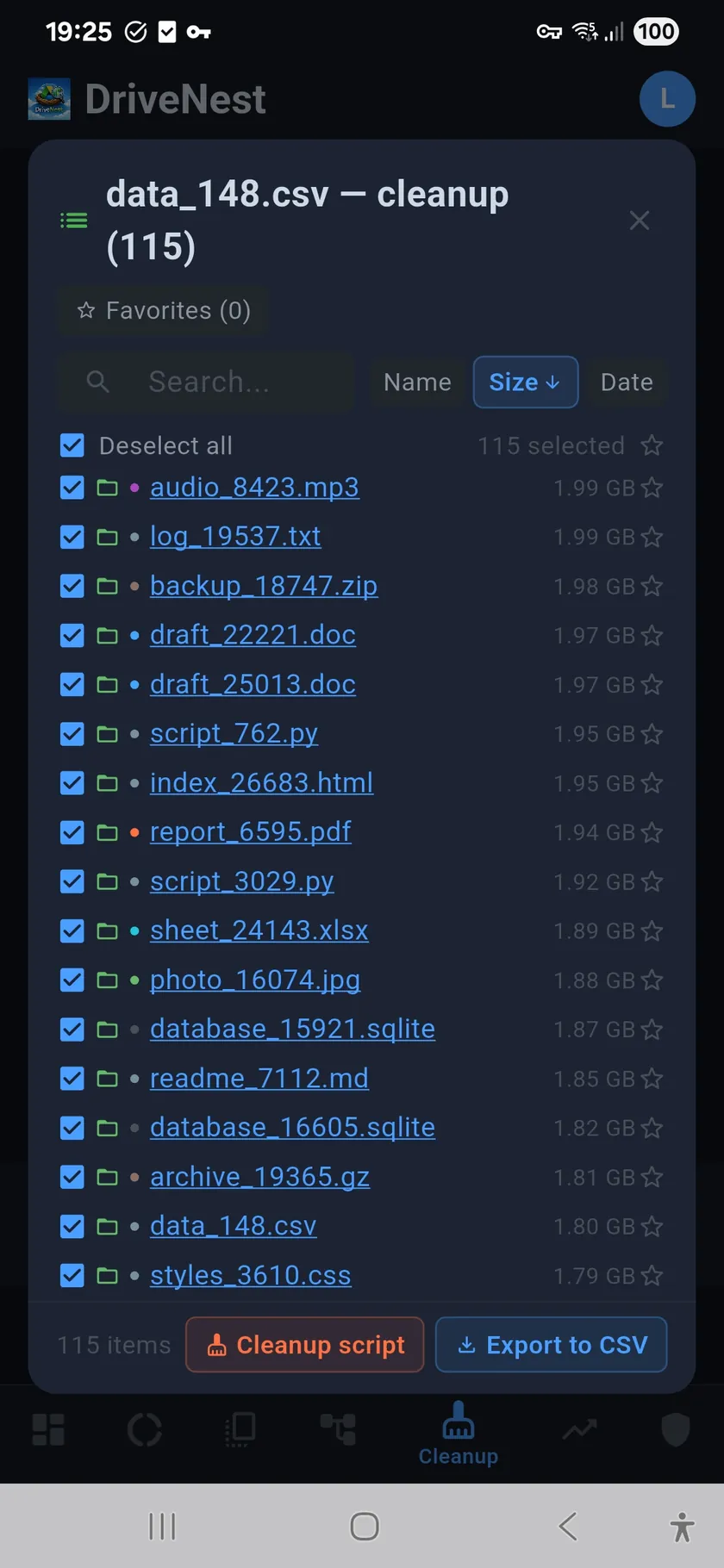
A cloud storage analyzer for Android — and since version 2 it covers
Google Drive and Microsoft OneDrive side by side.
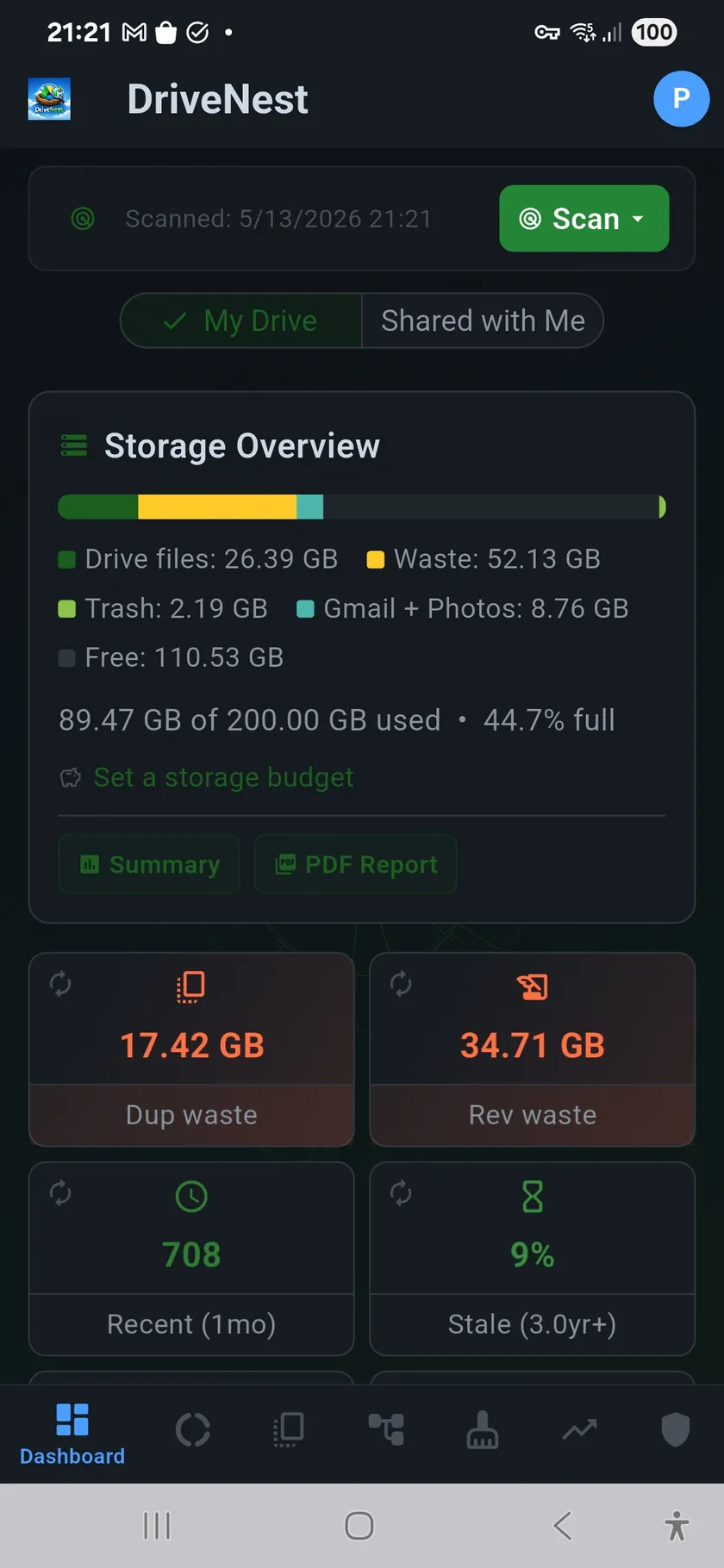
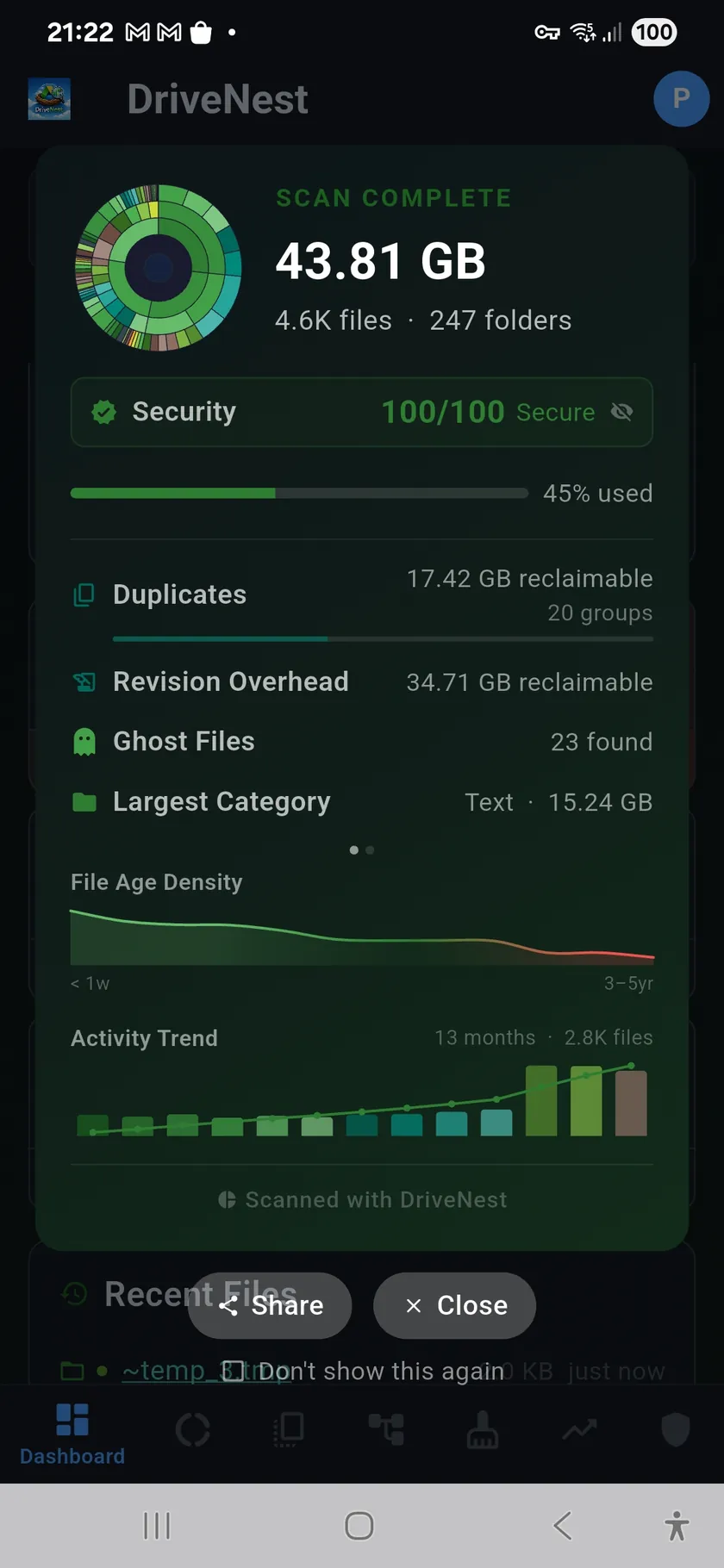
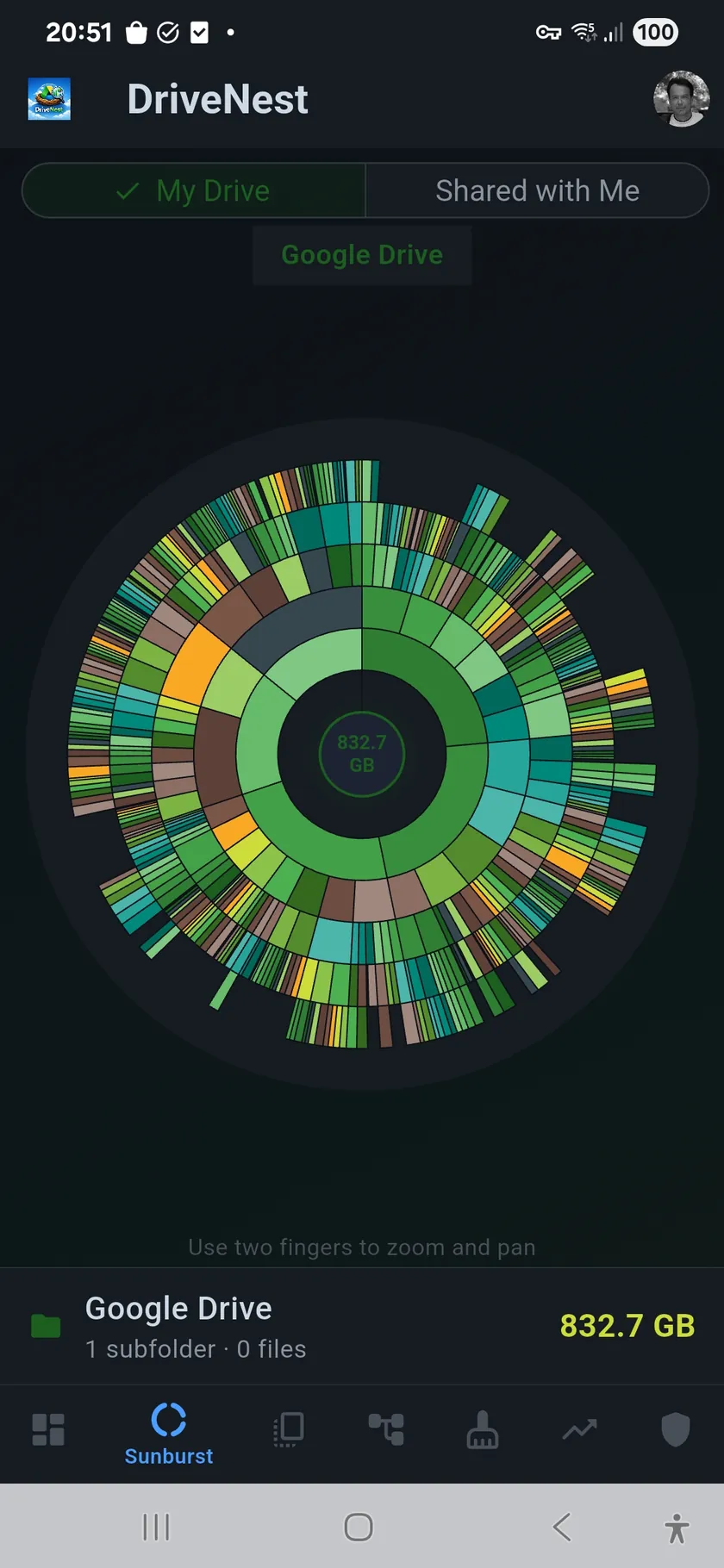
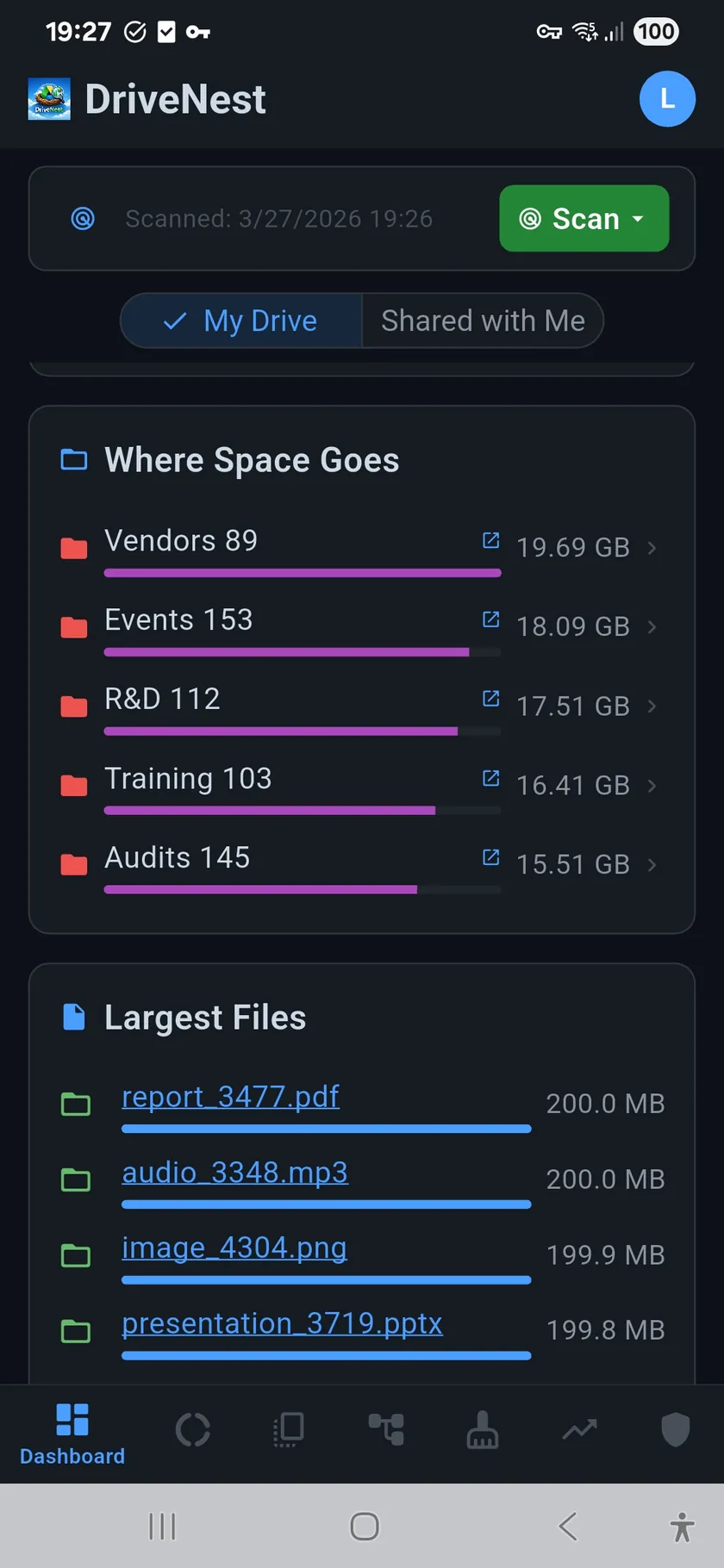
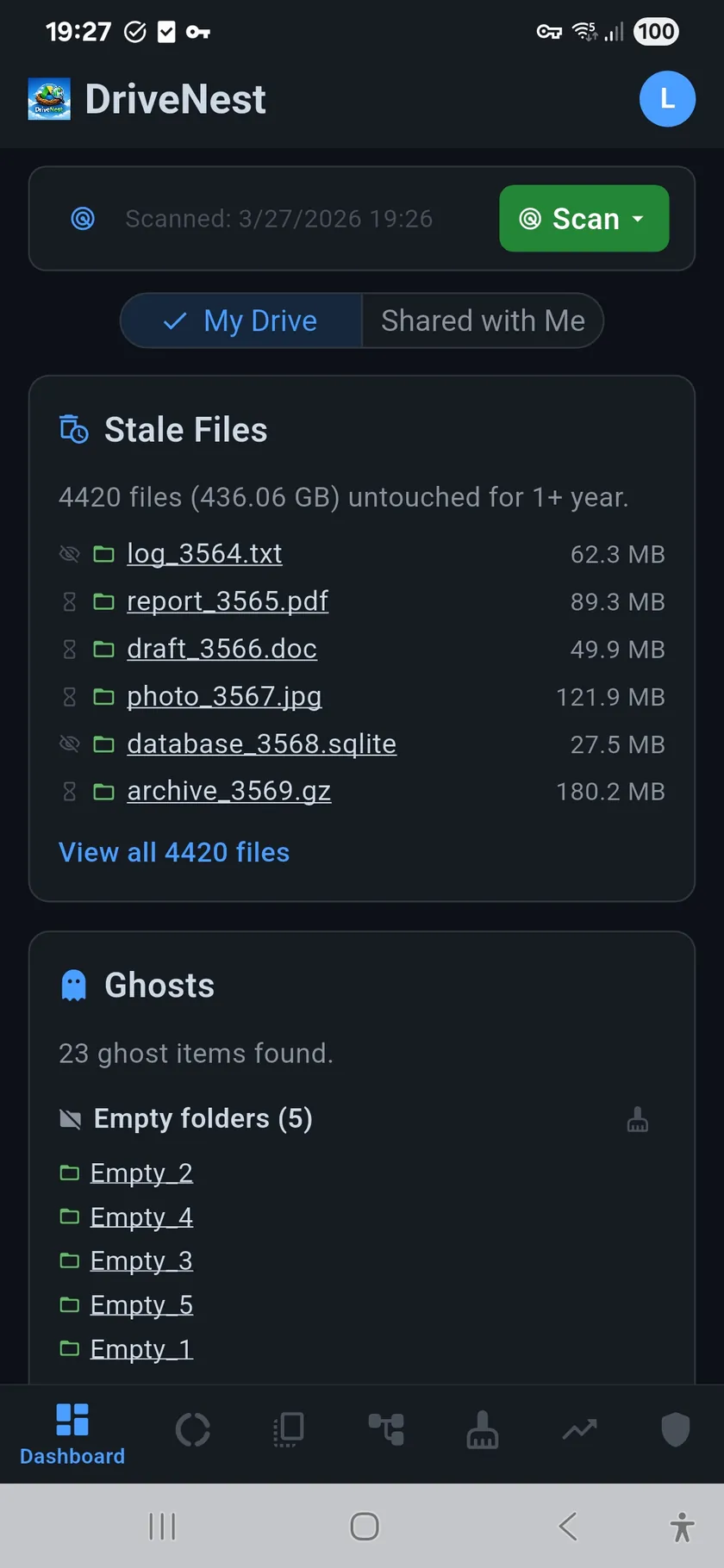
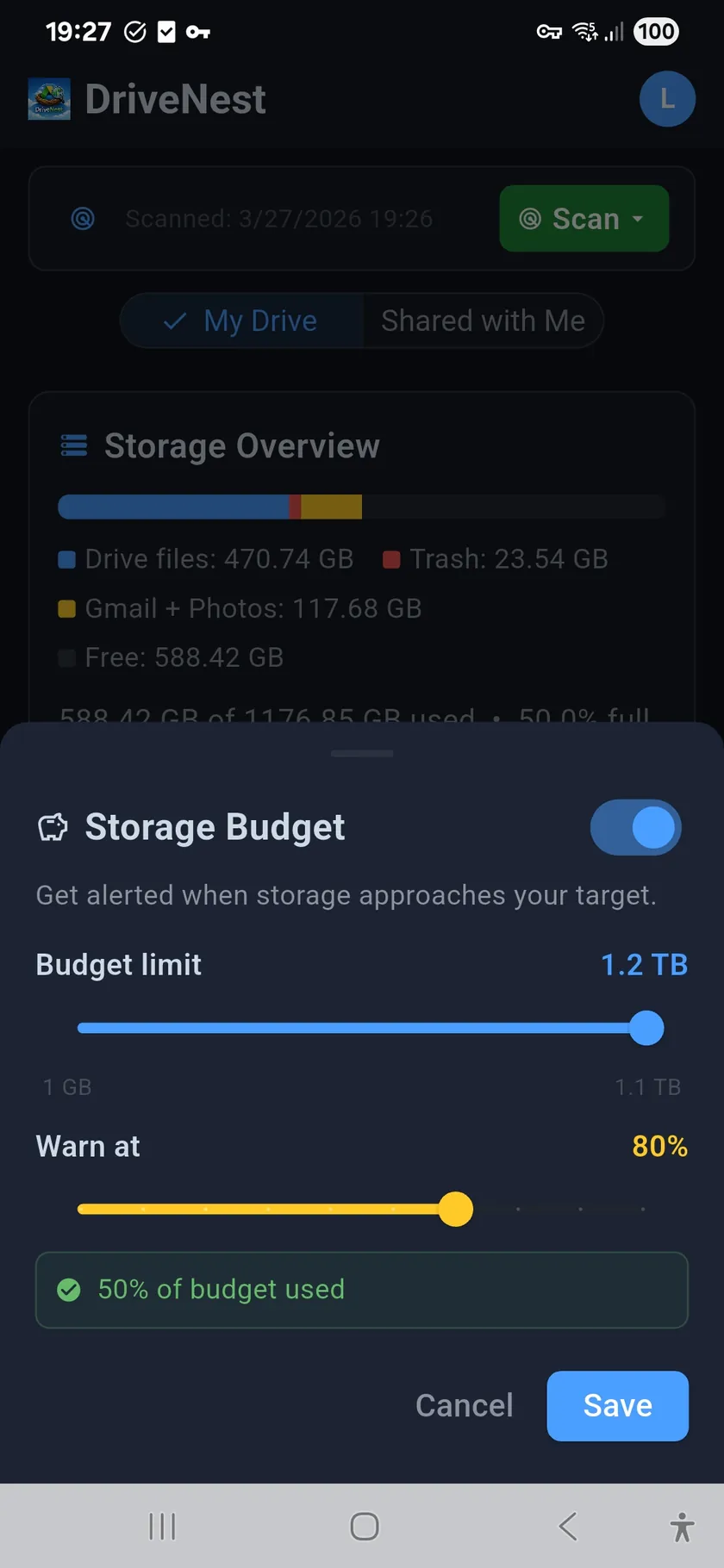
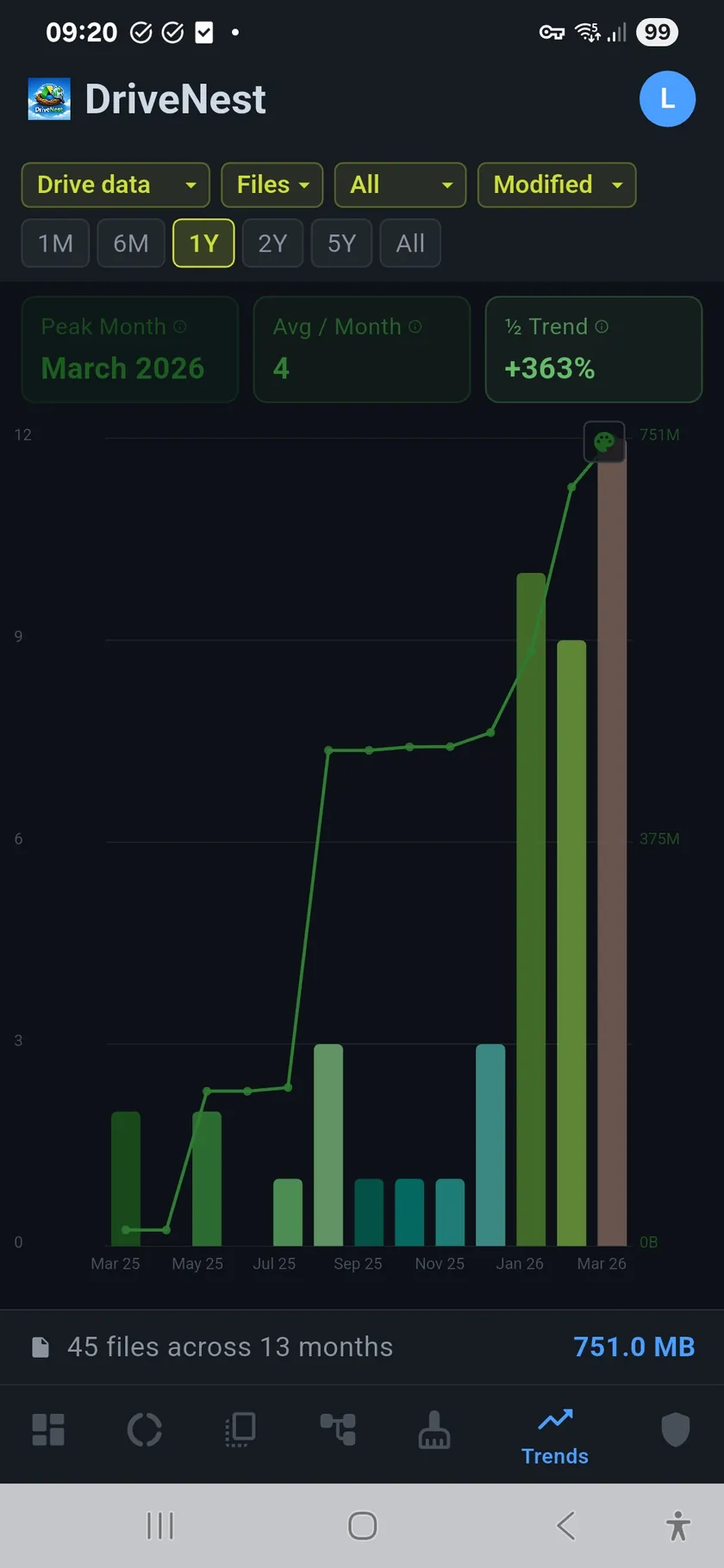
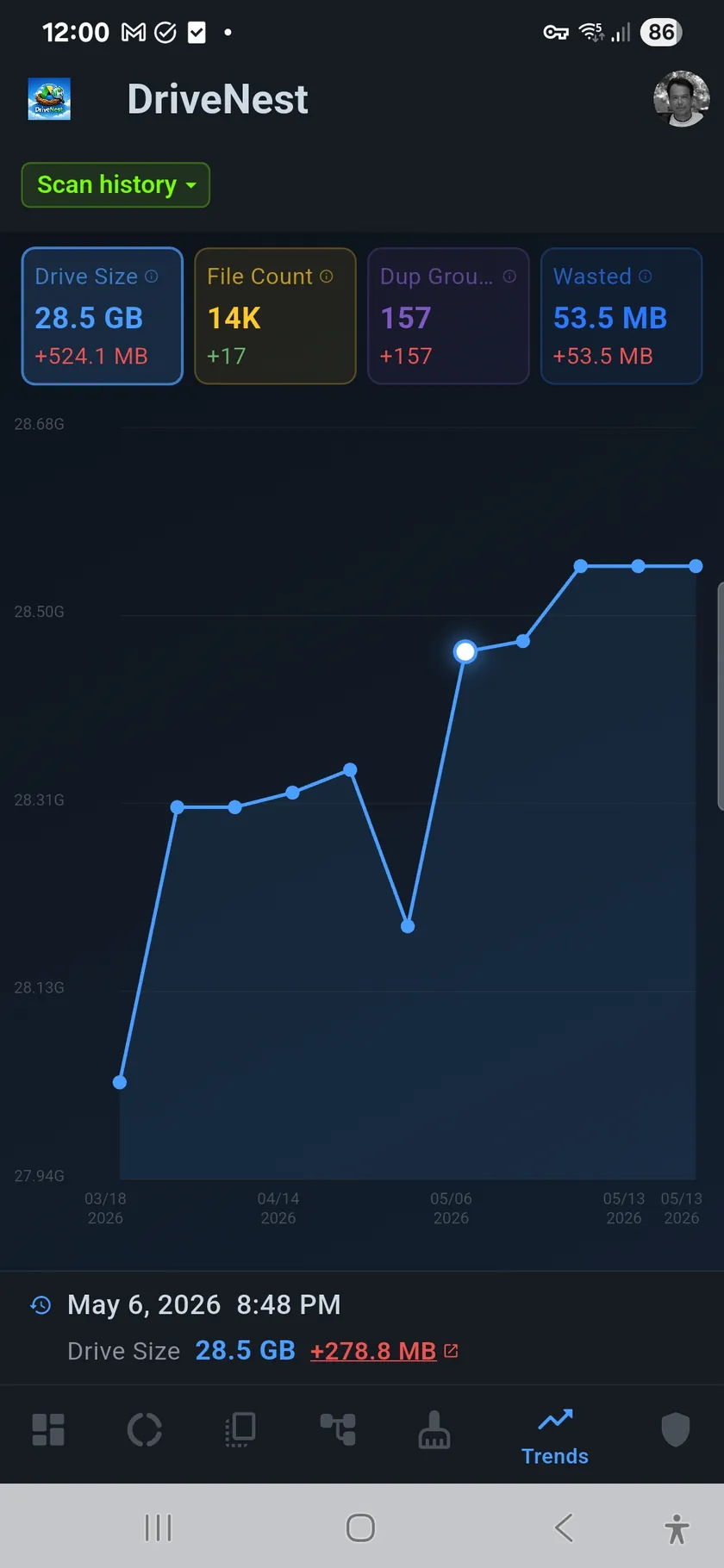
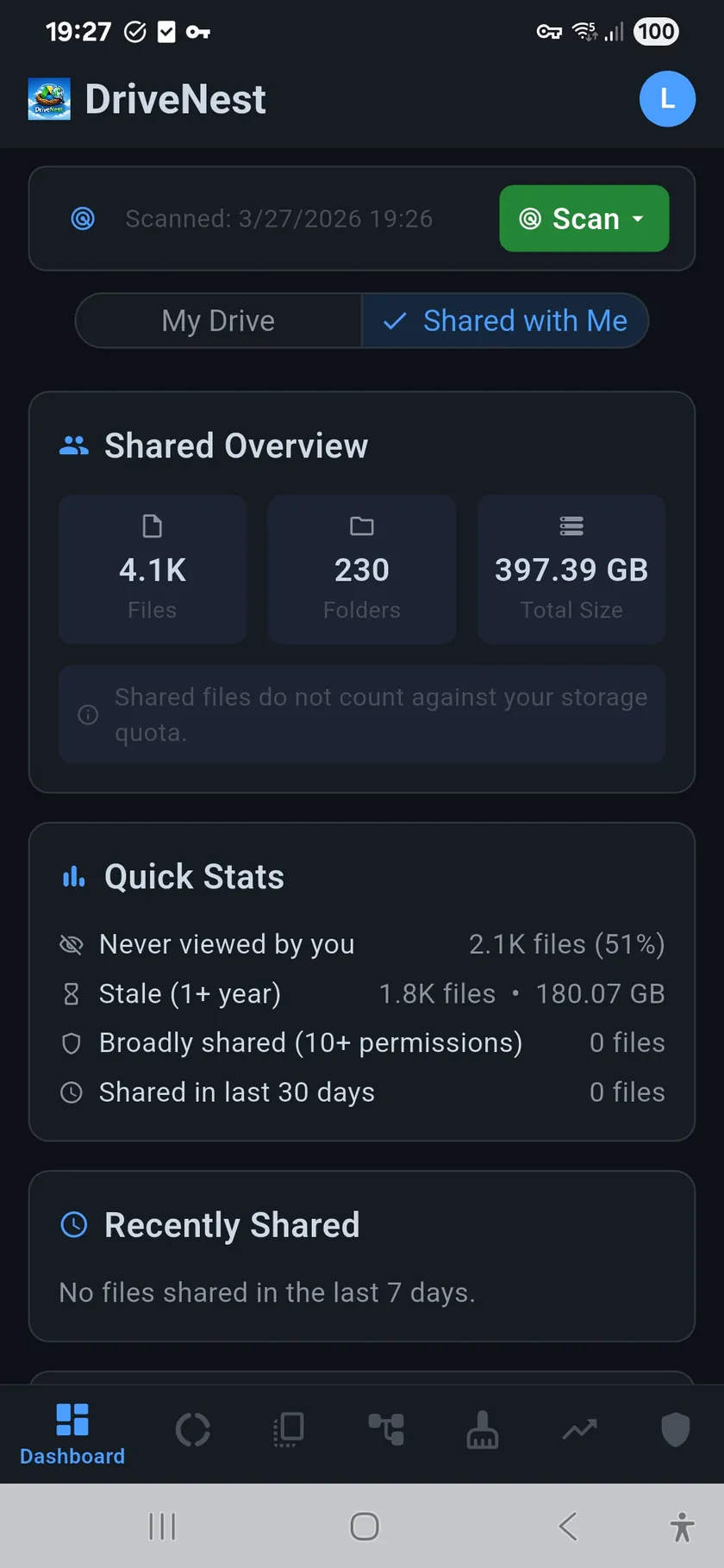
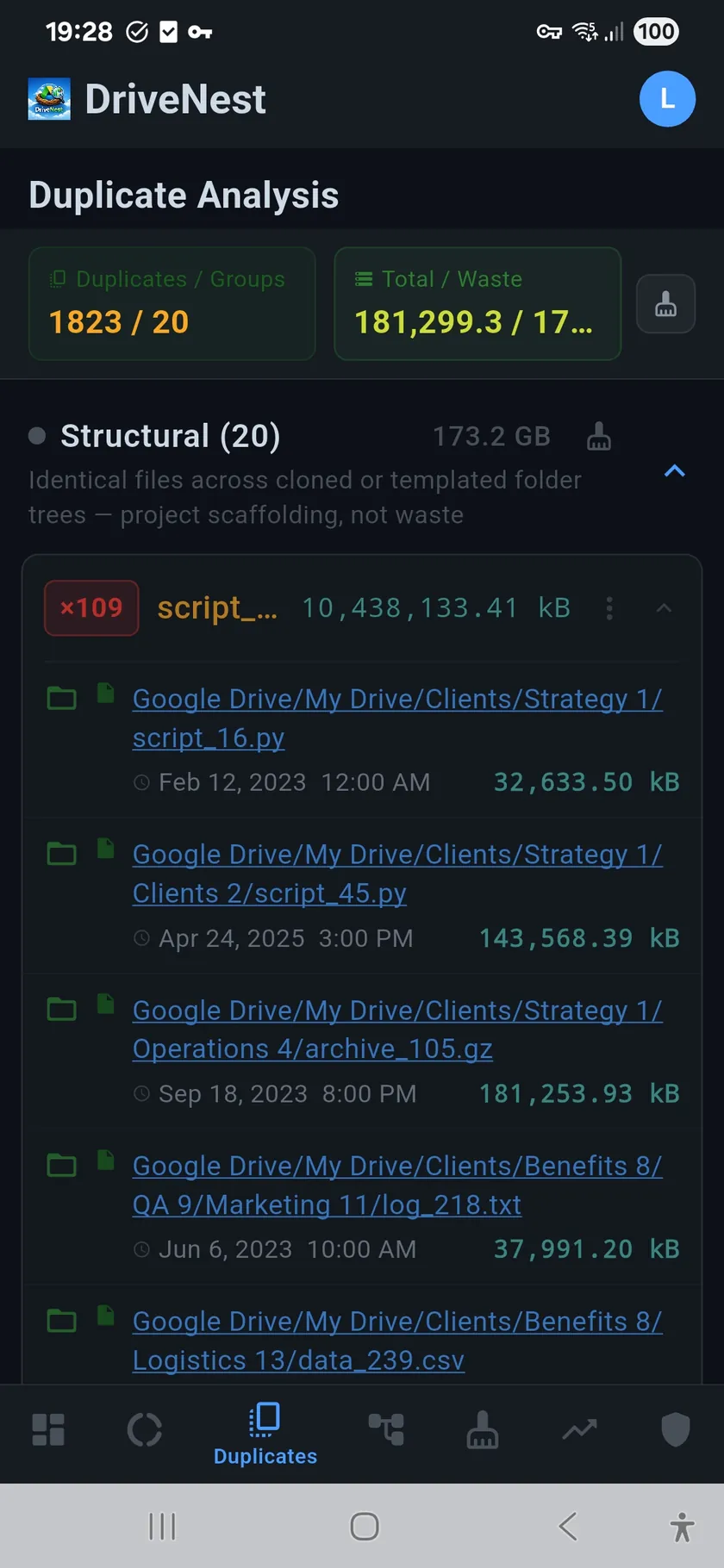
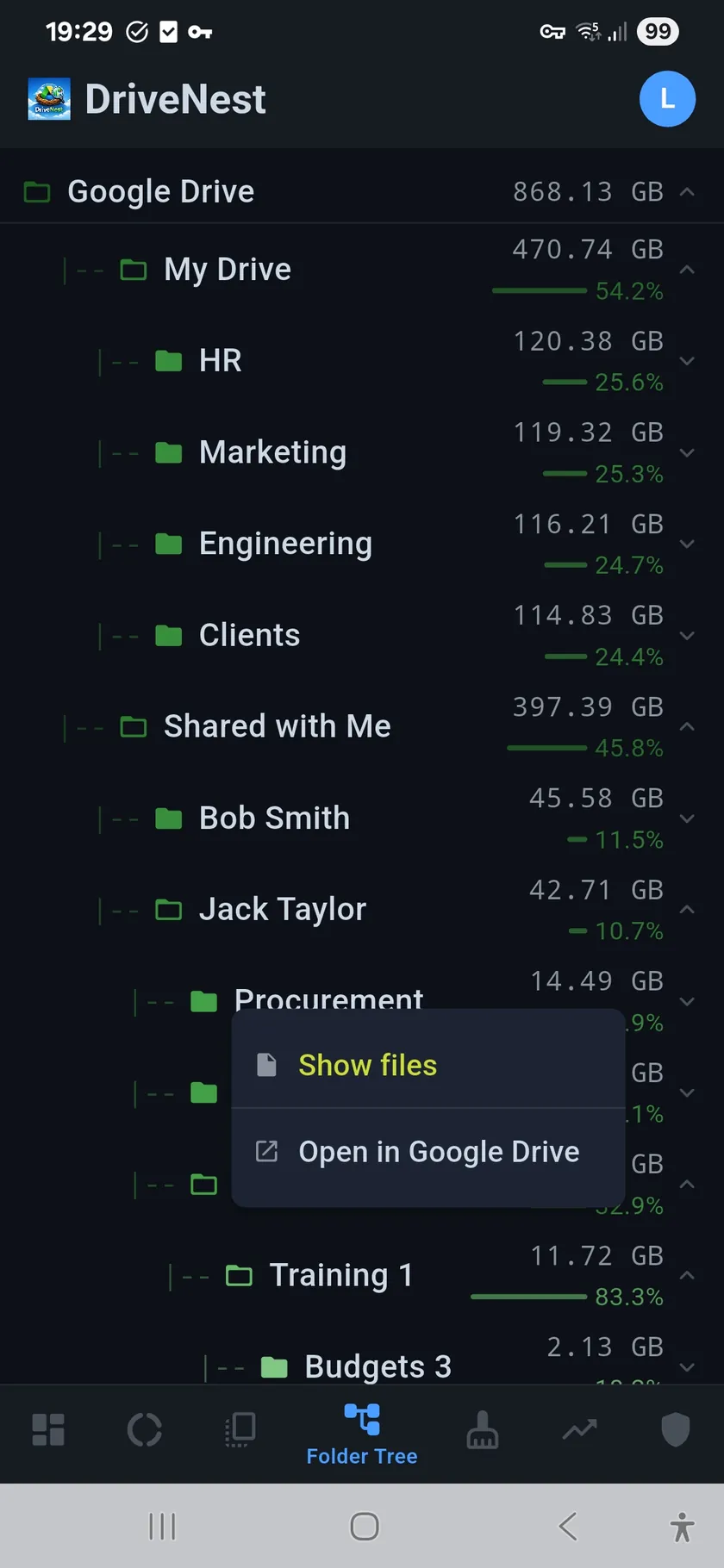
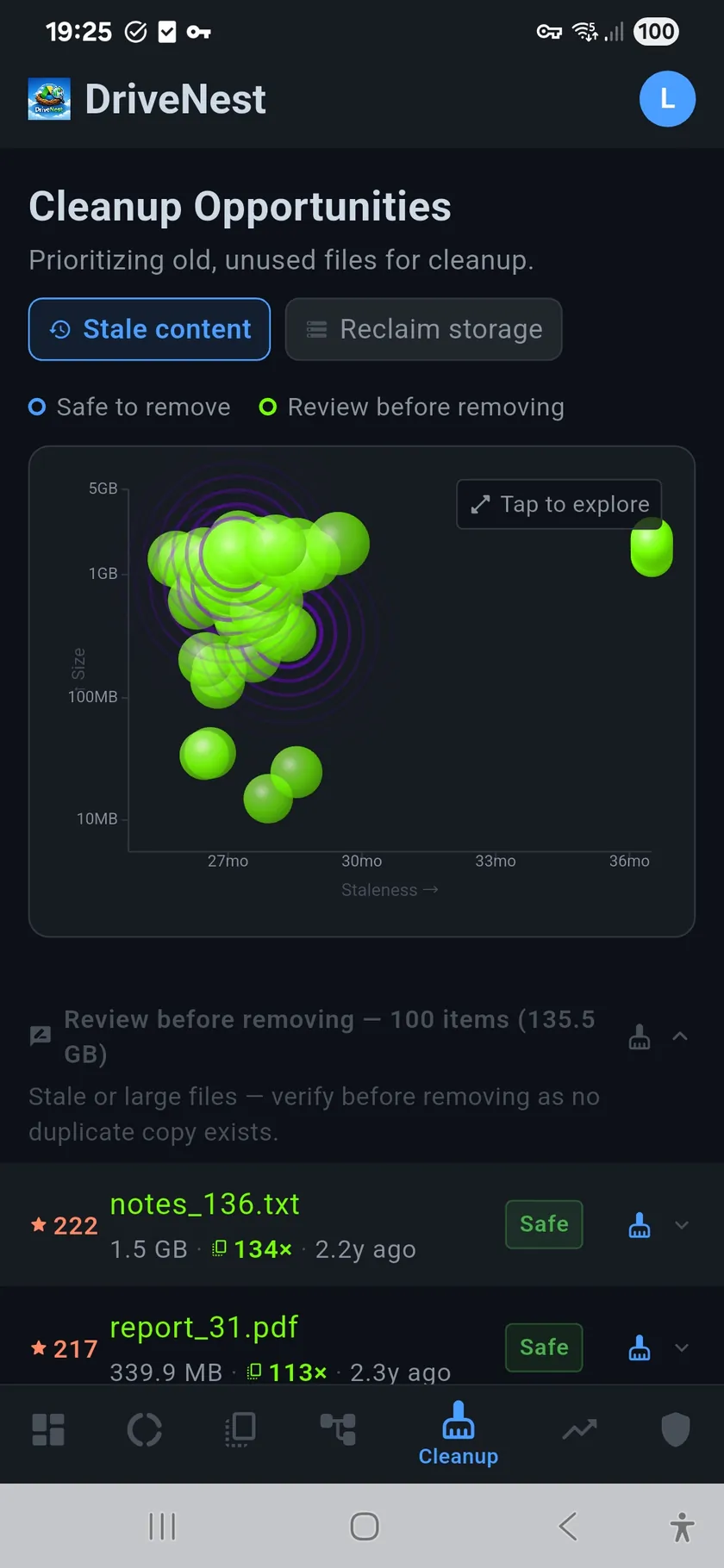
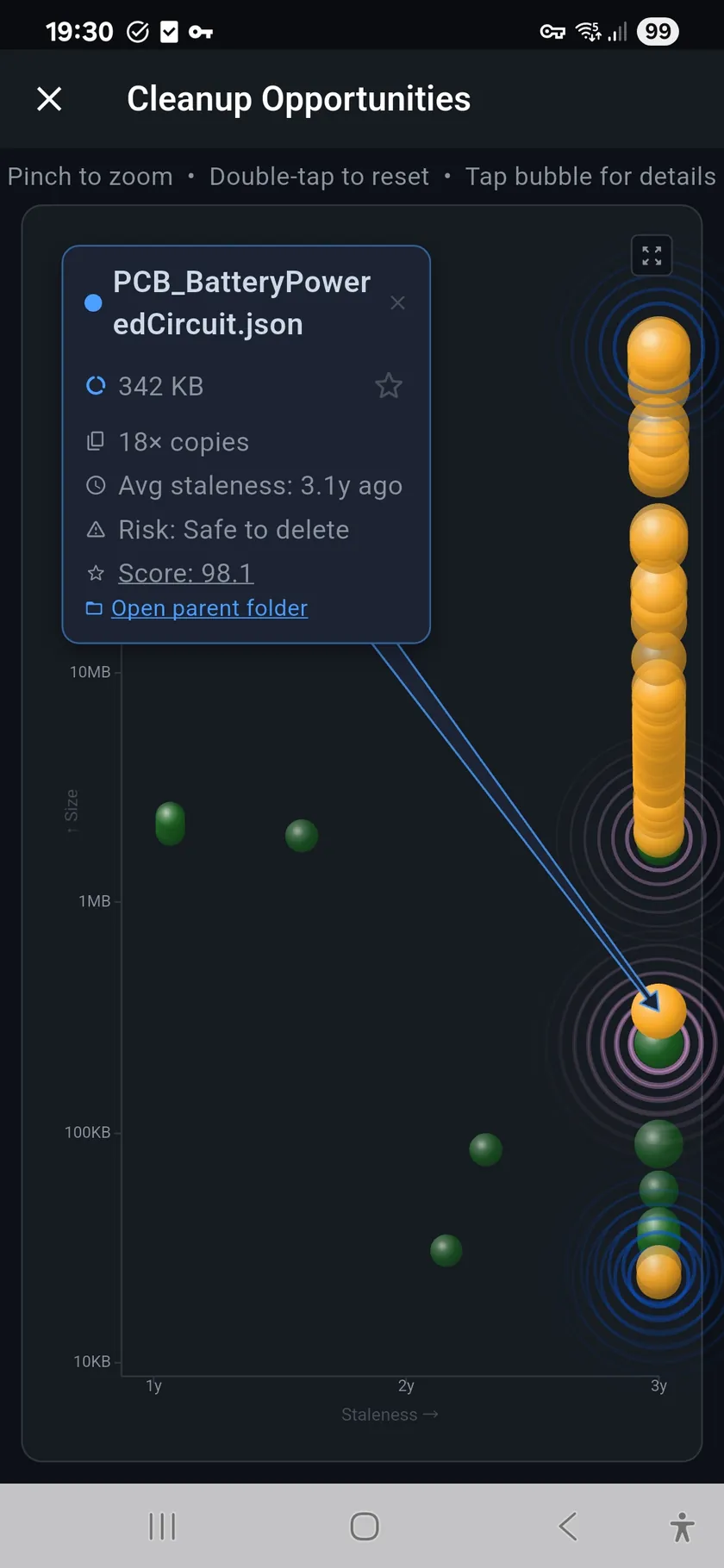
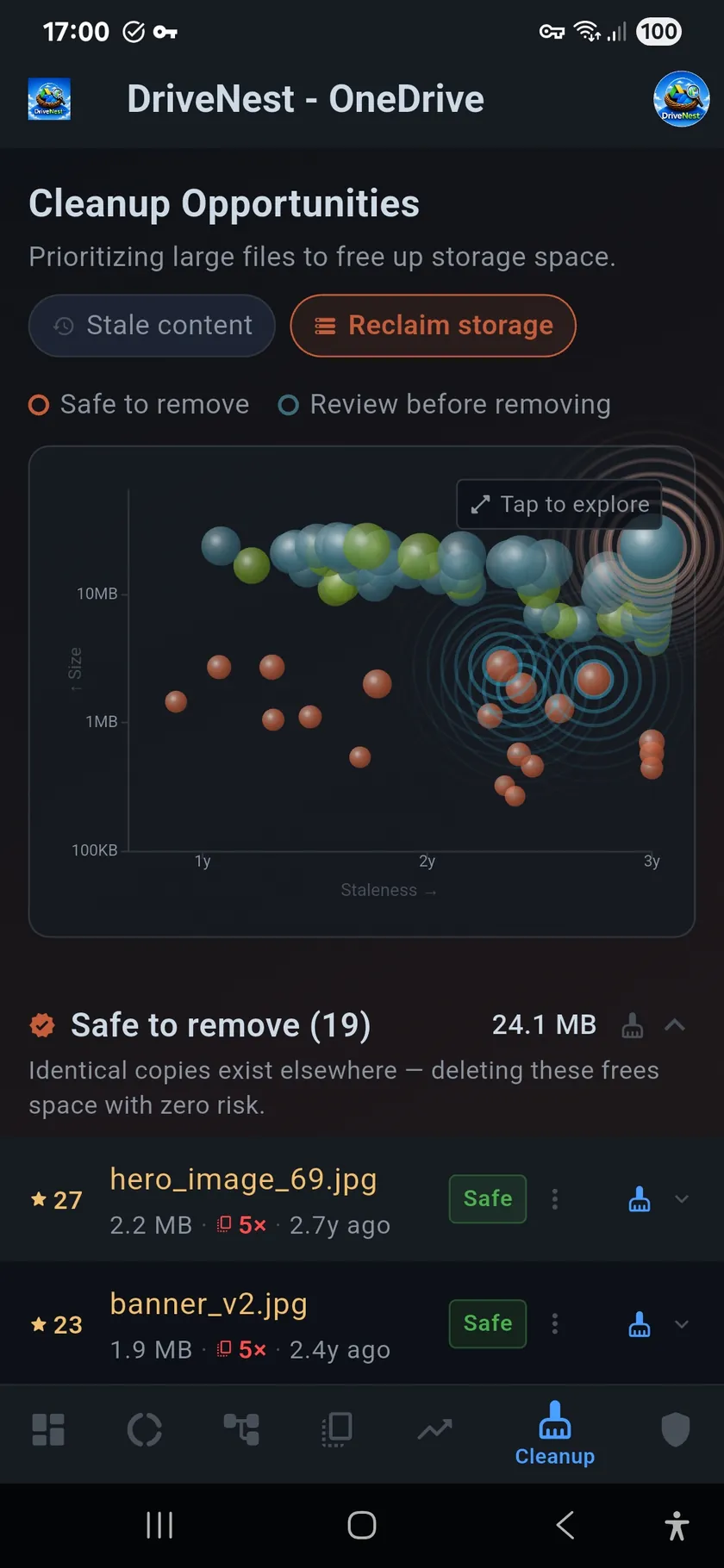
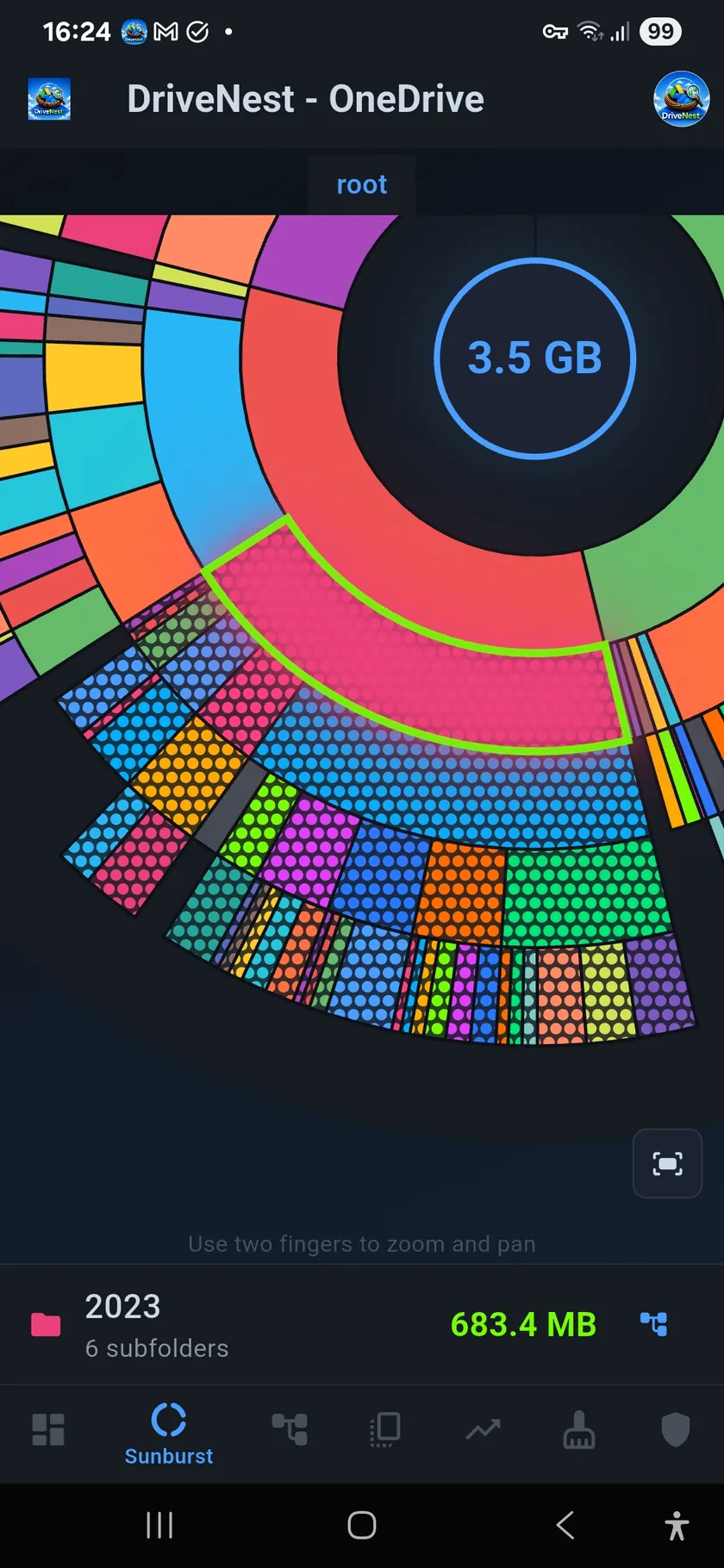
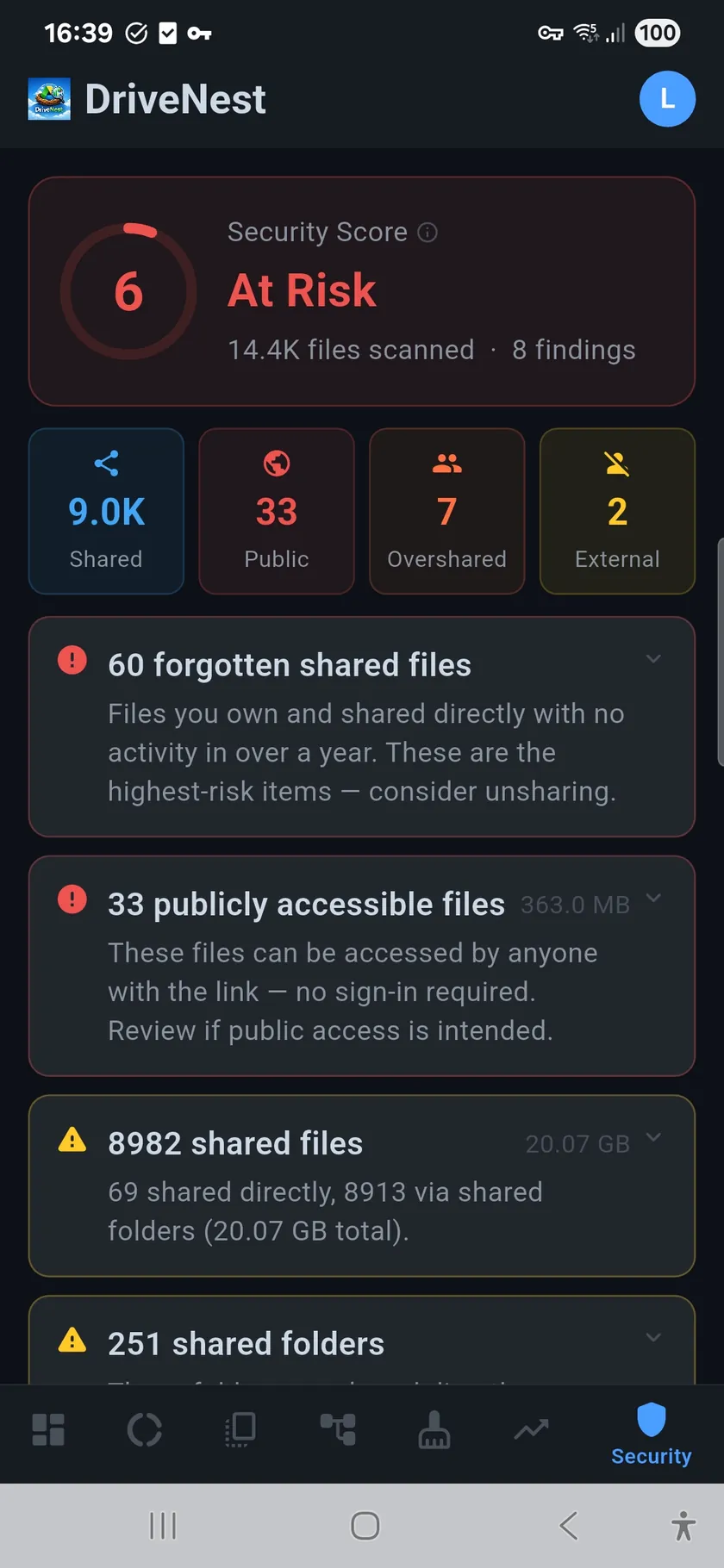
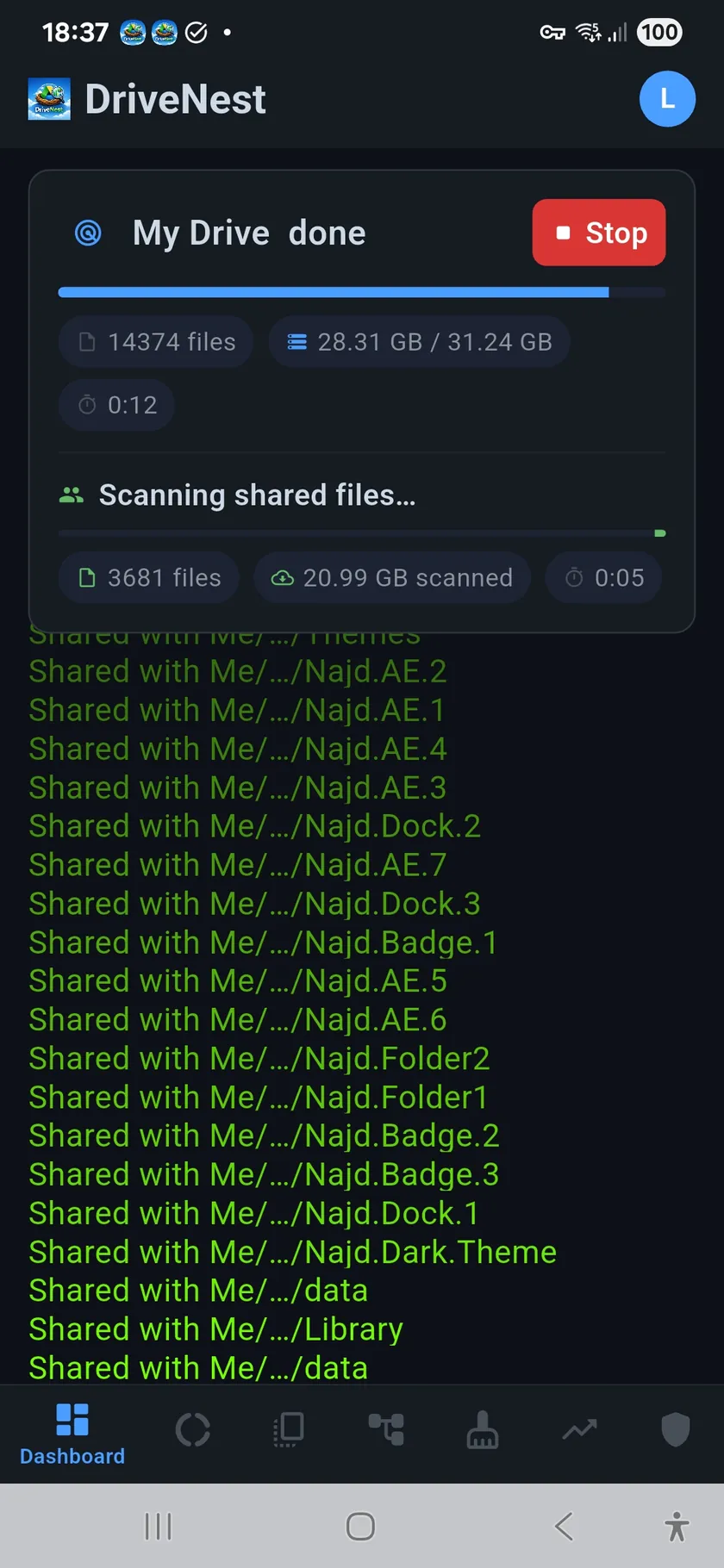
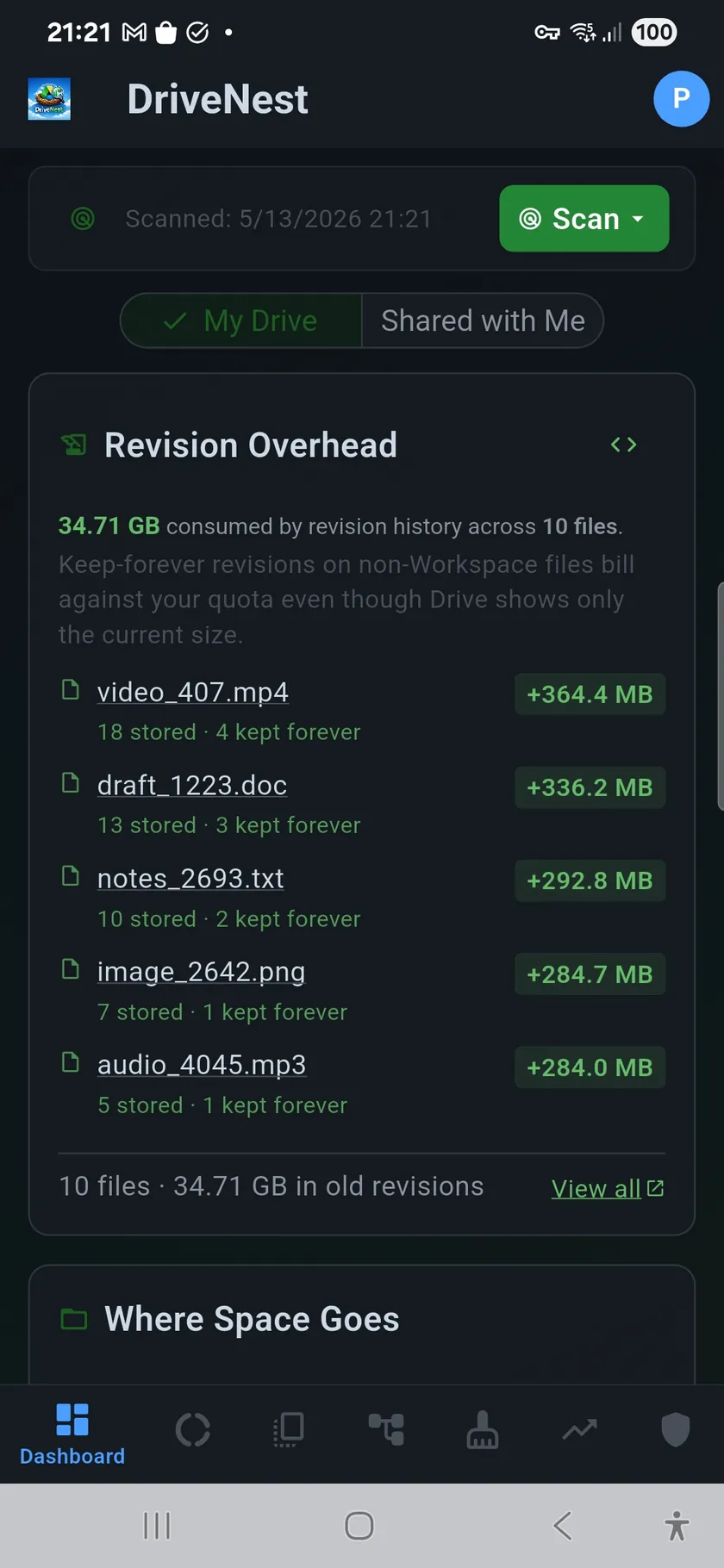
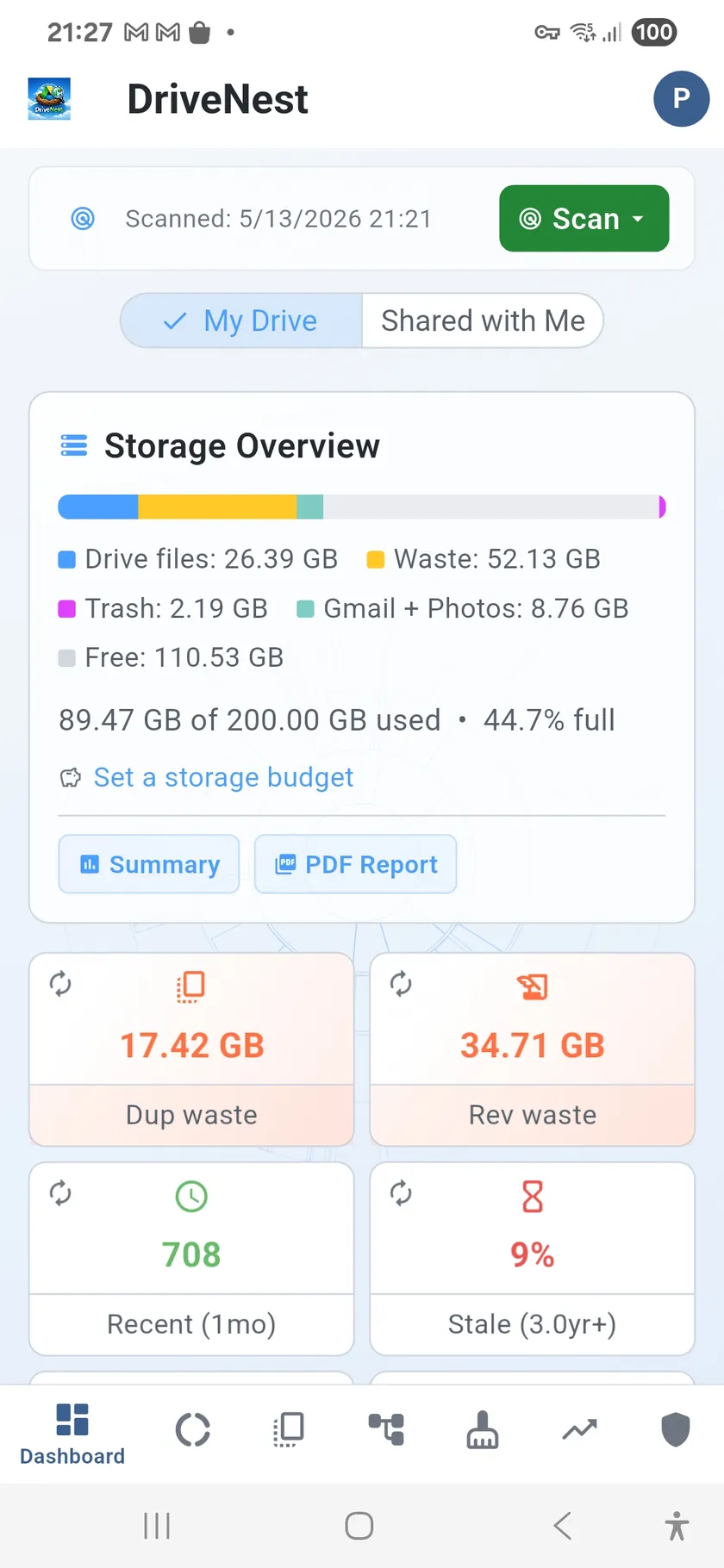
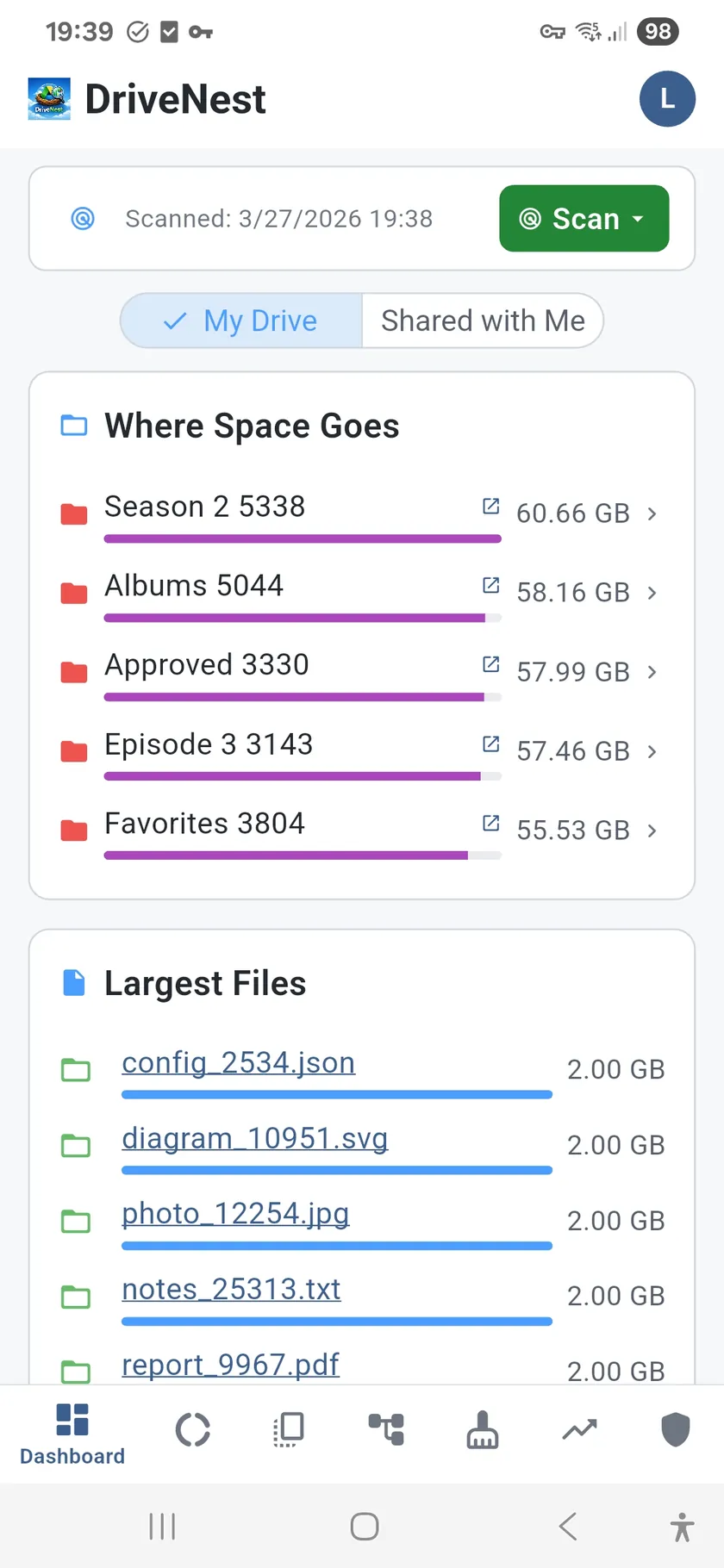
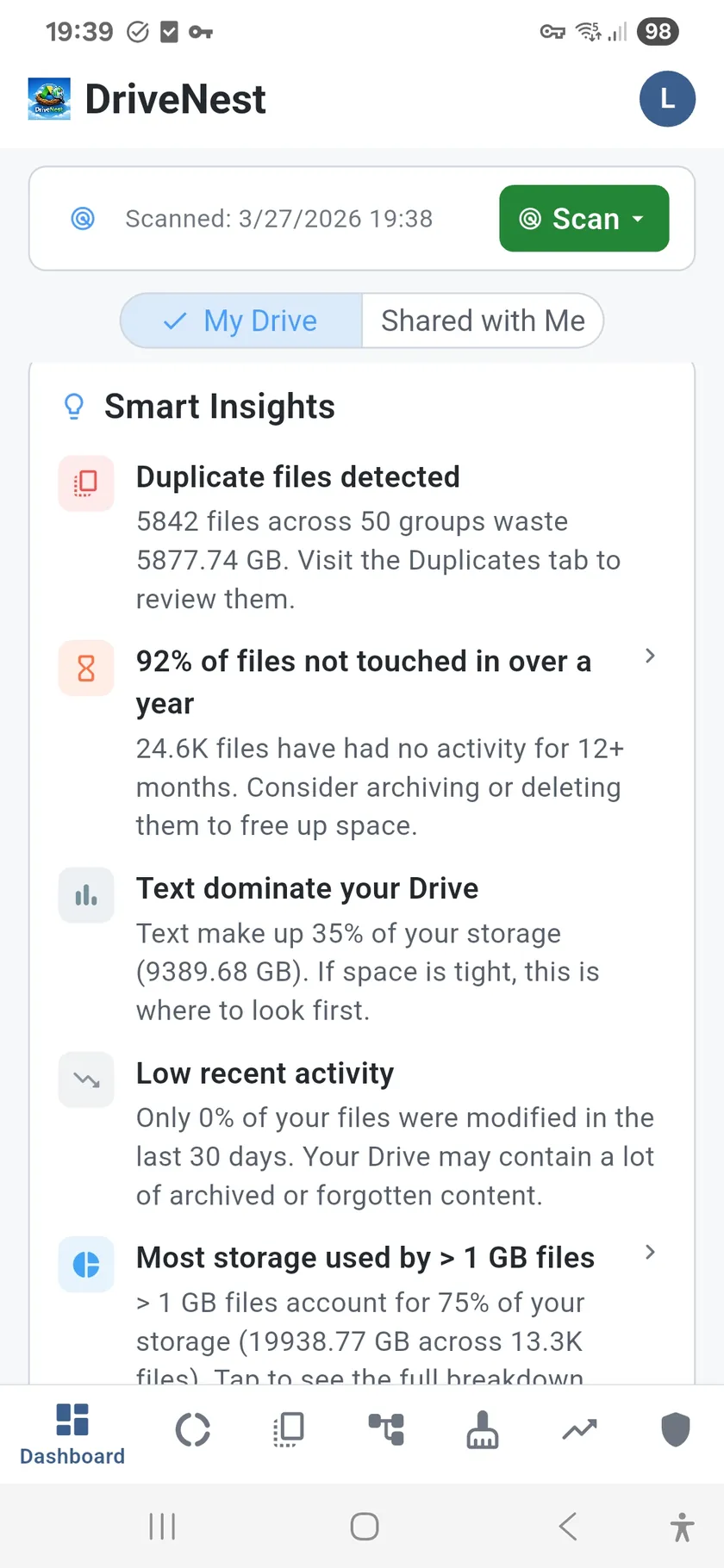
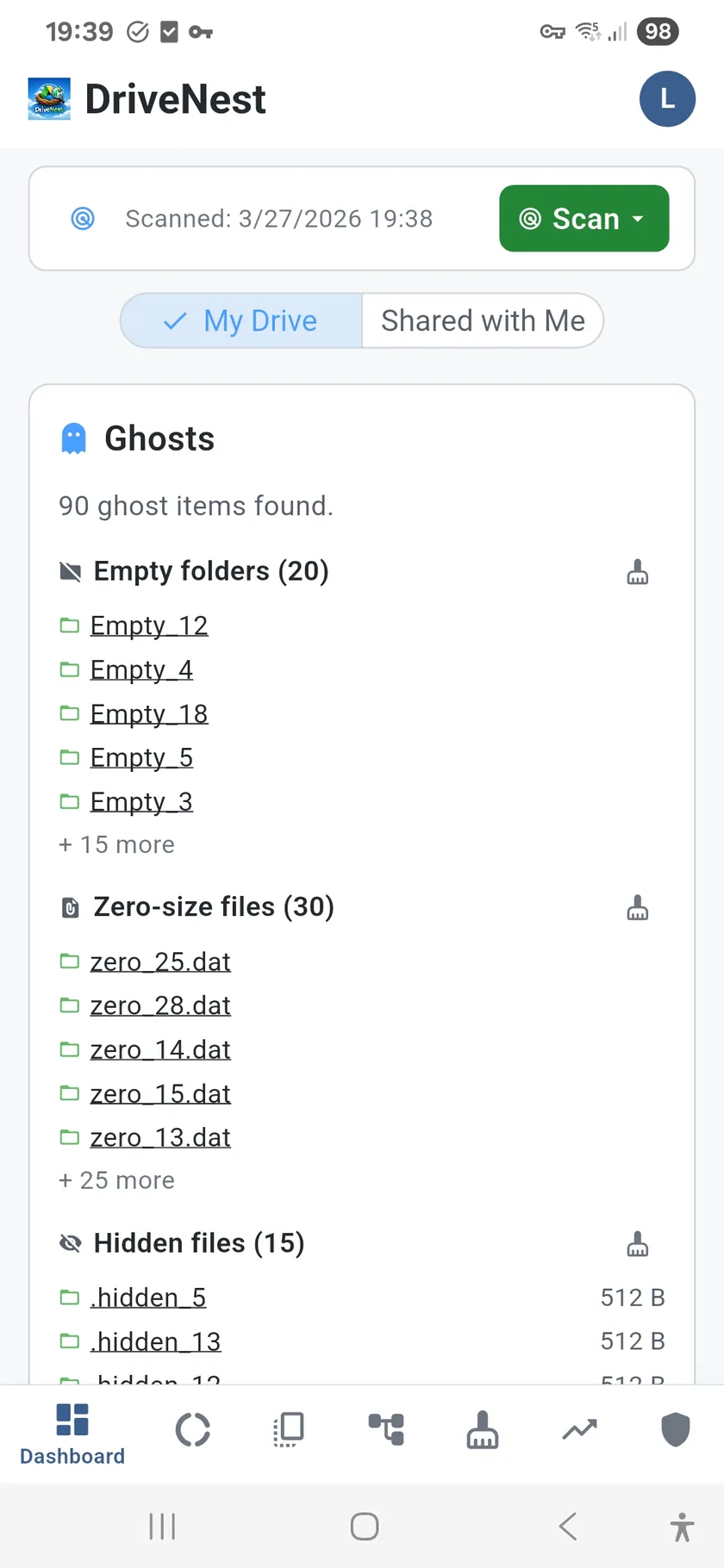
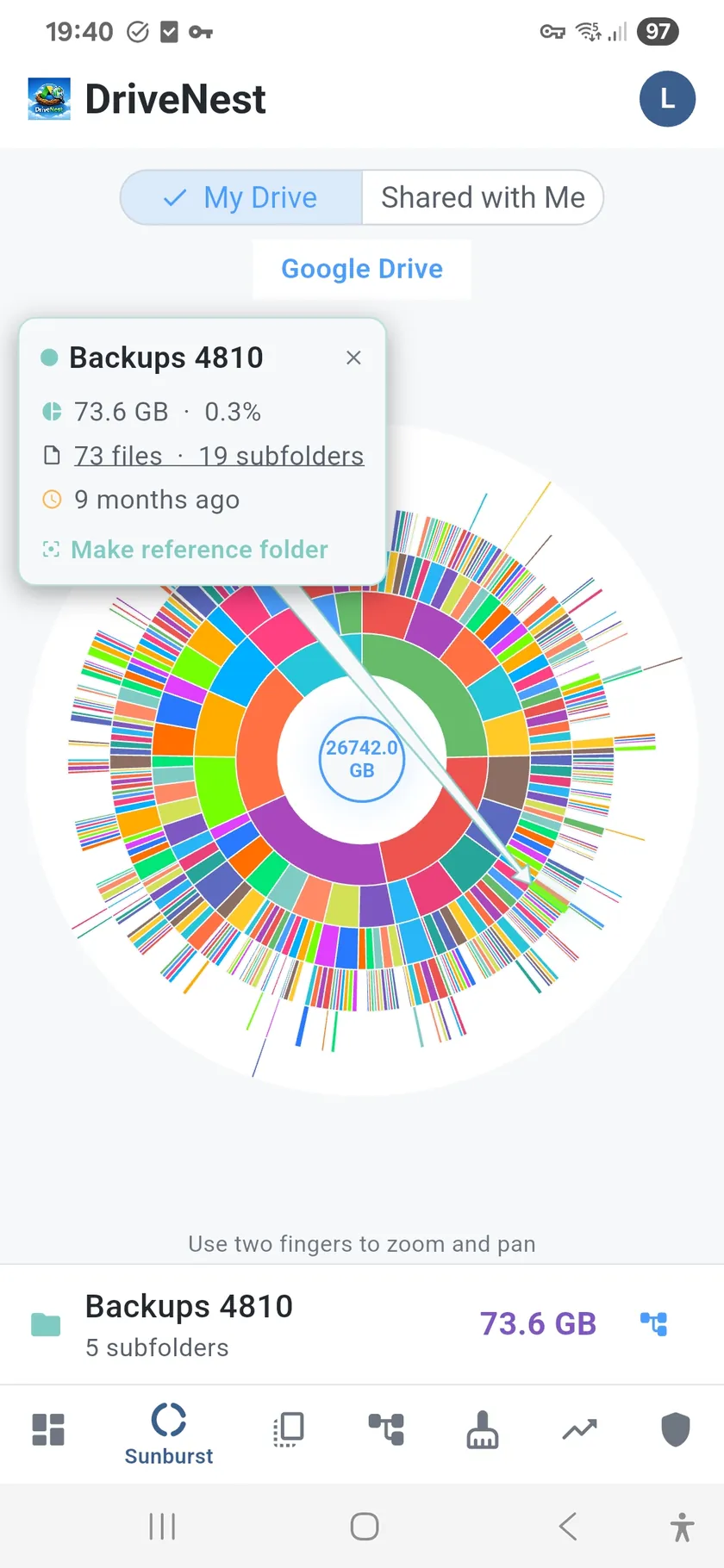
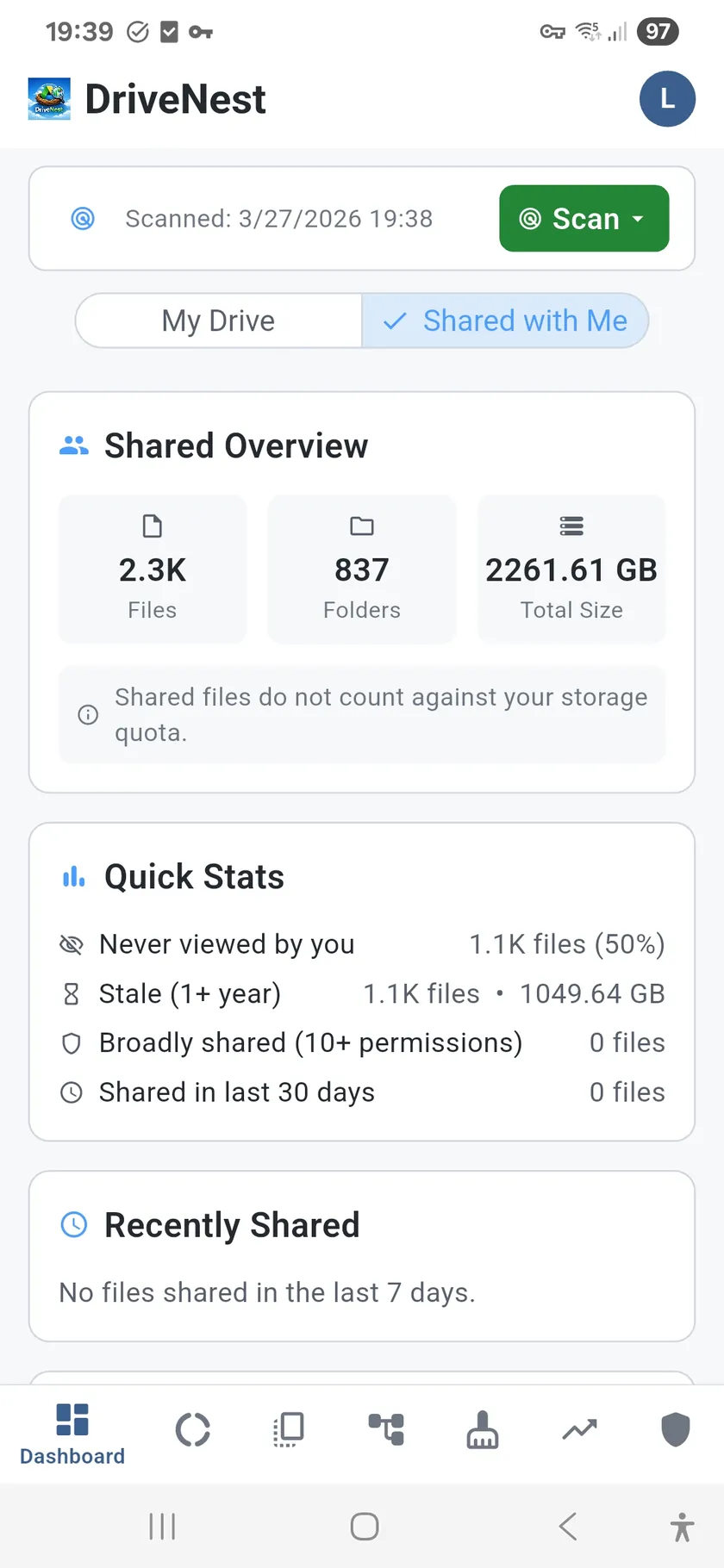
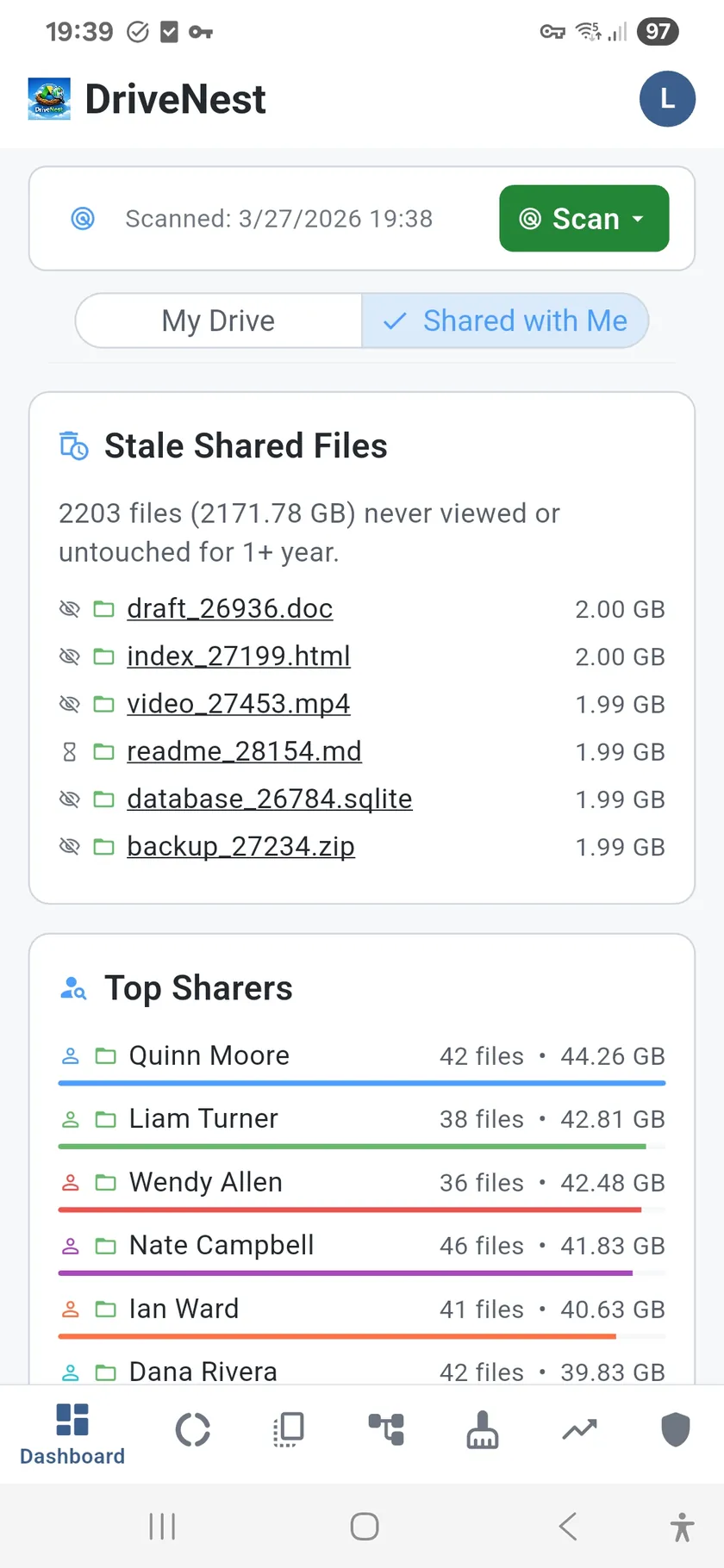
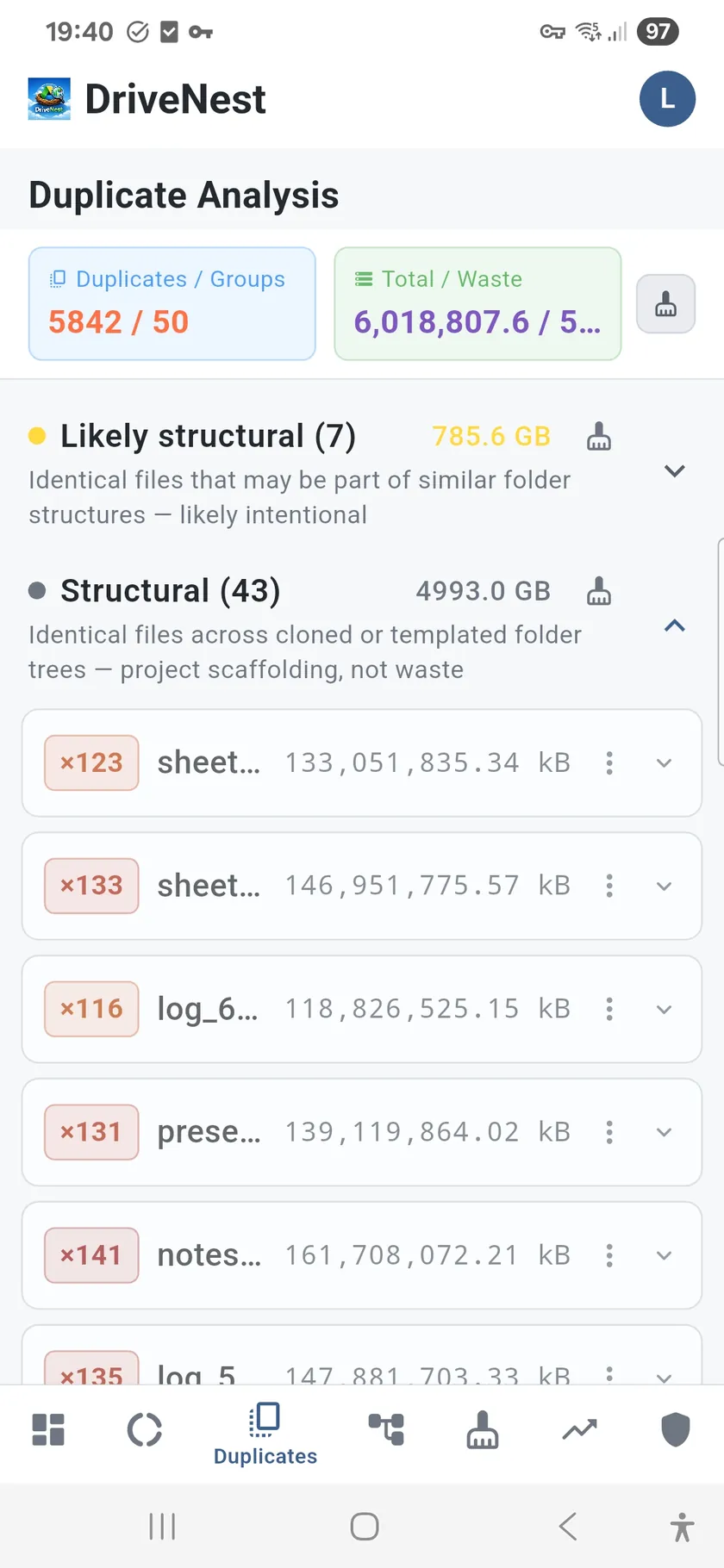
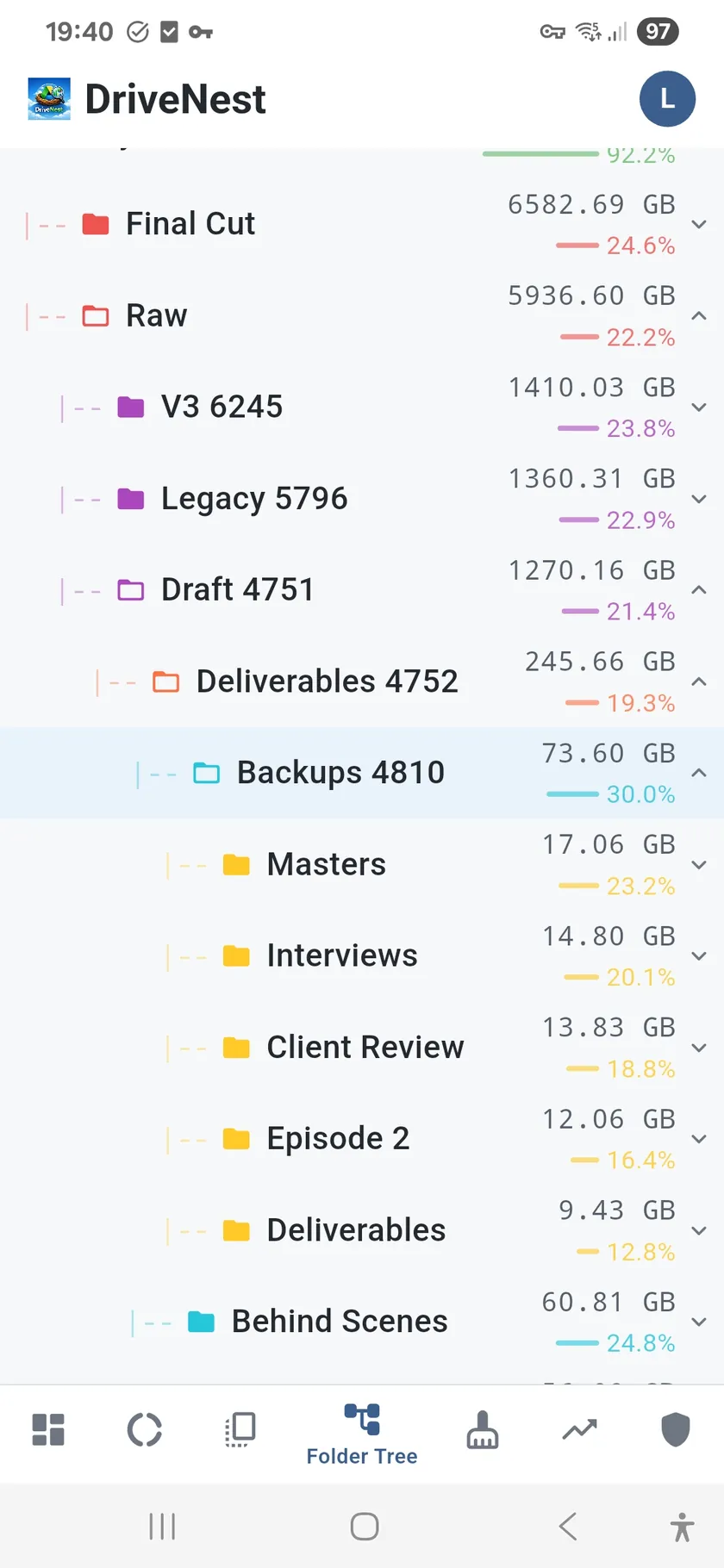
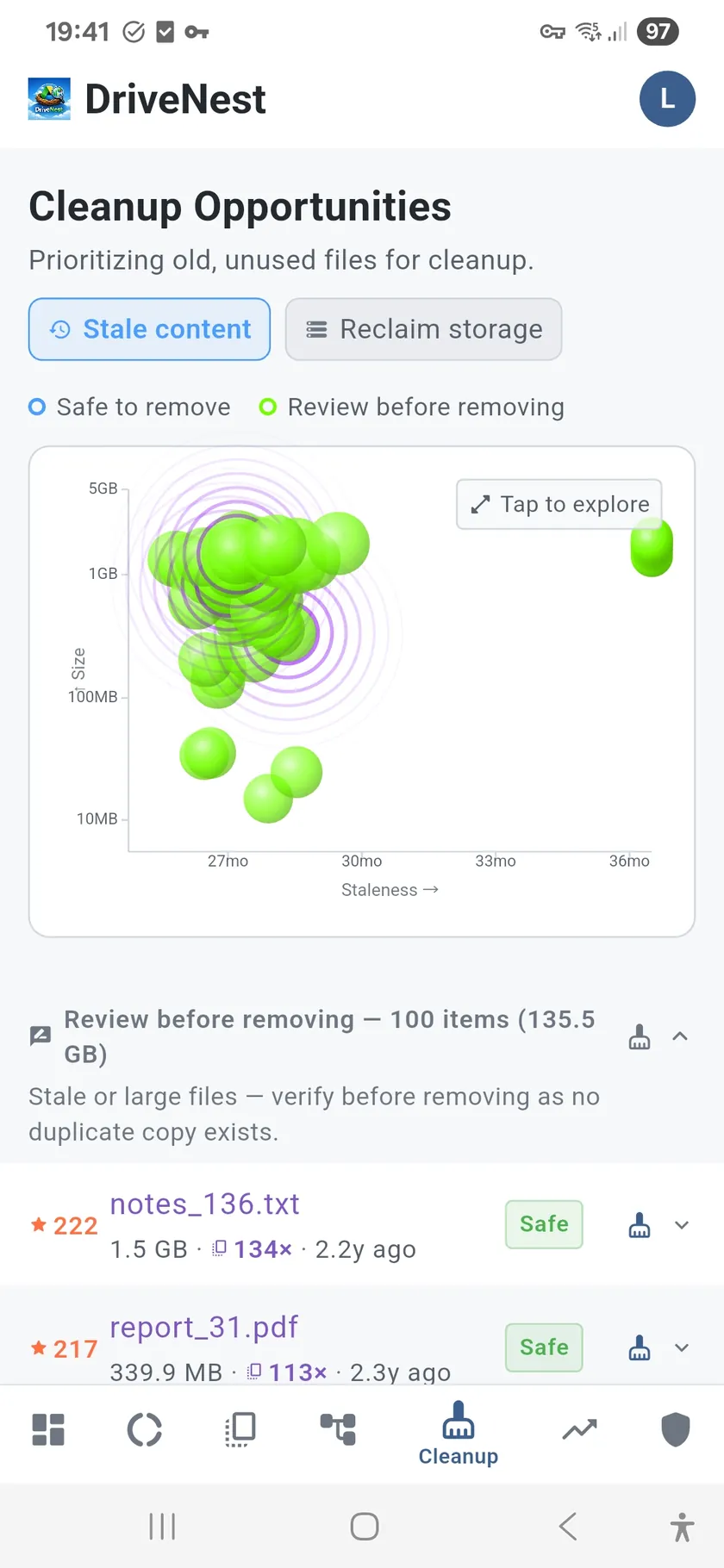
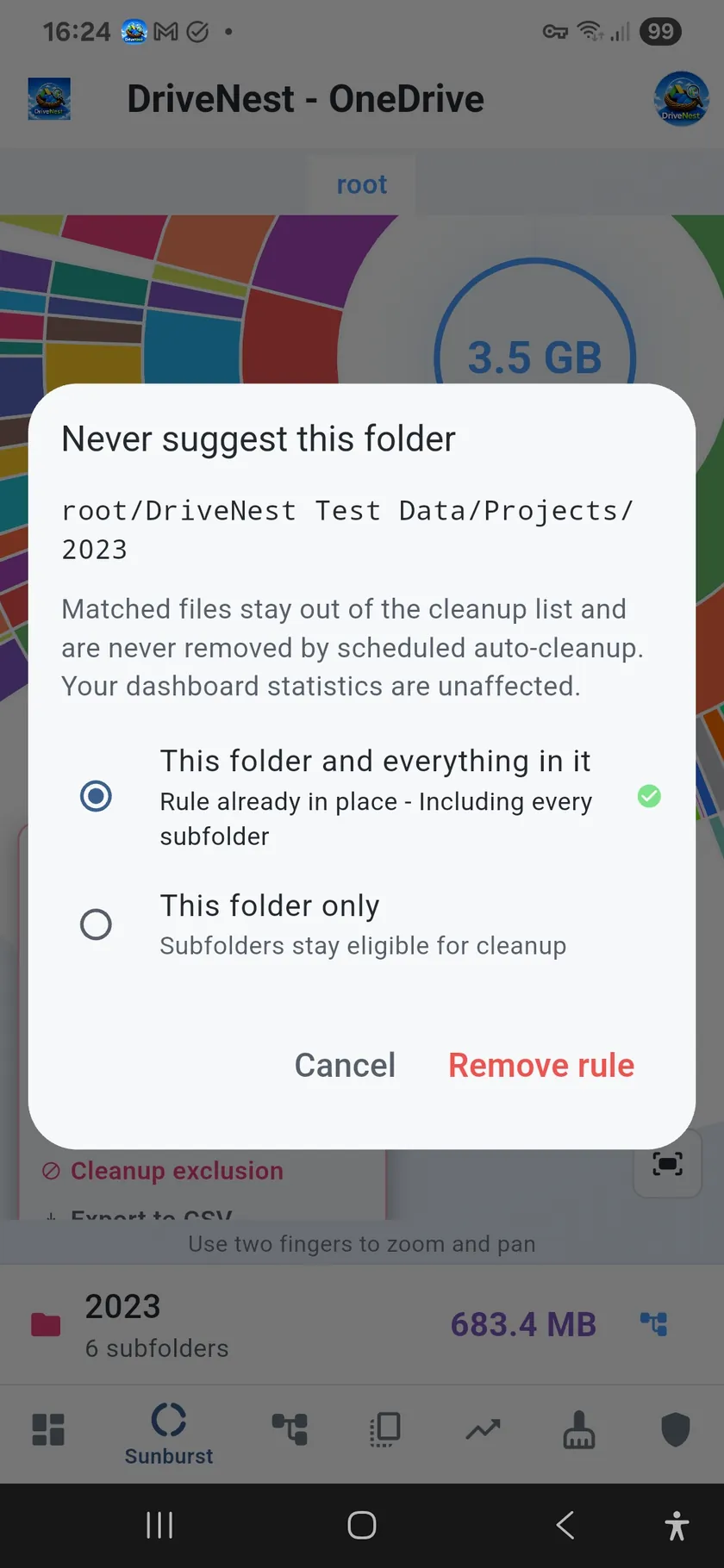
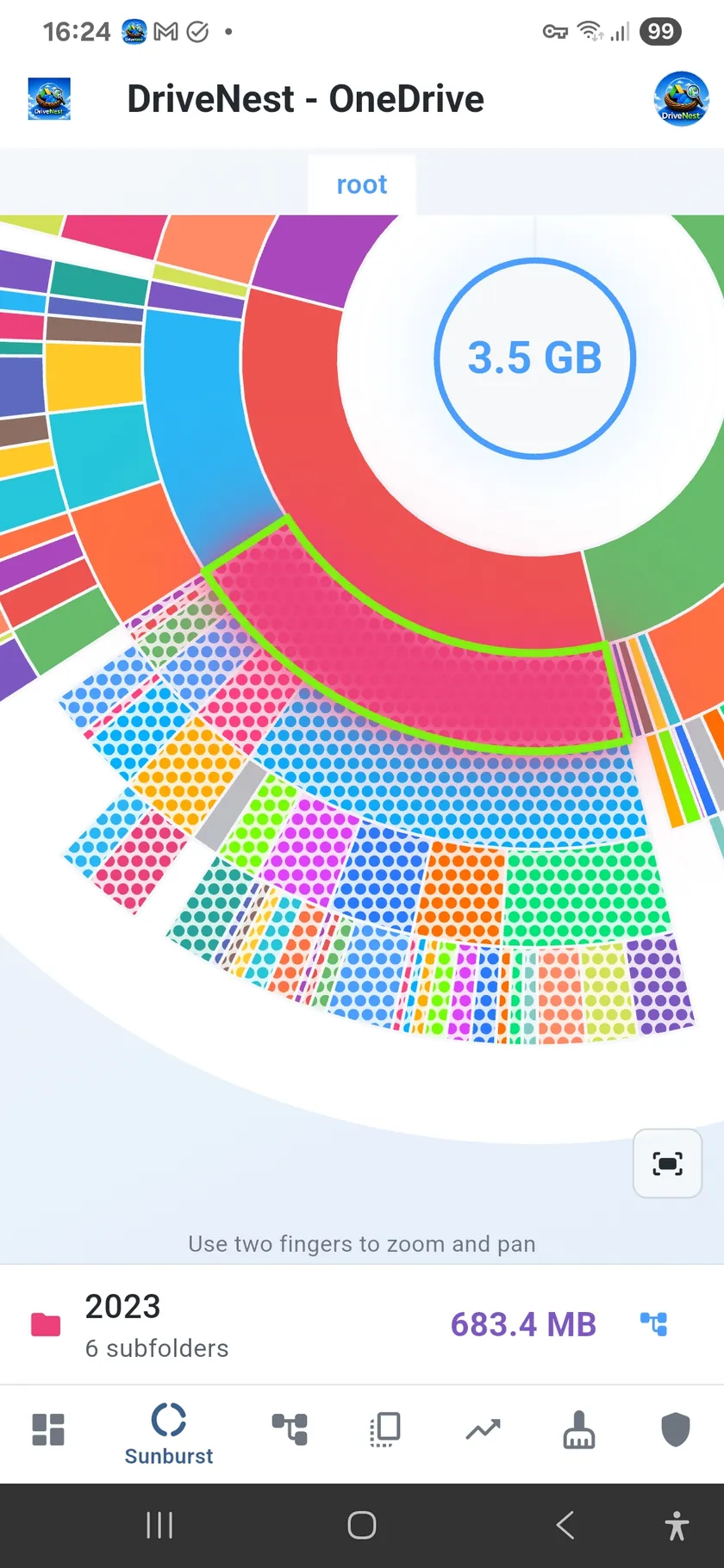
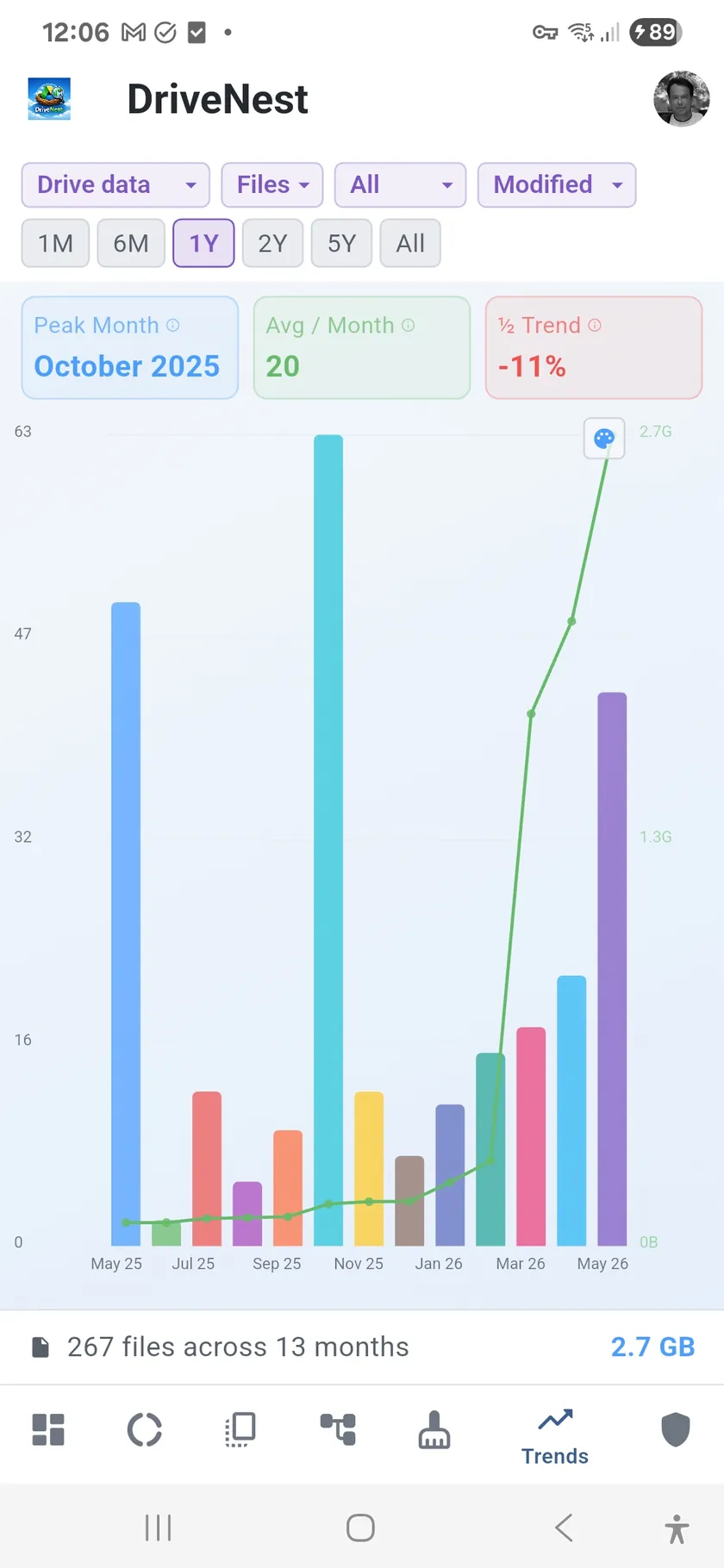
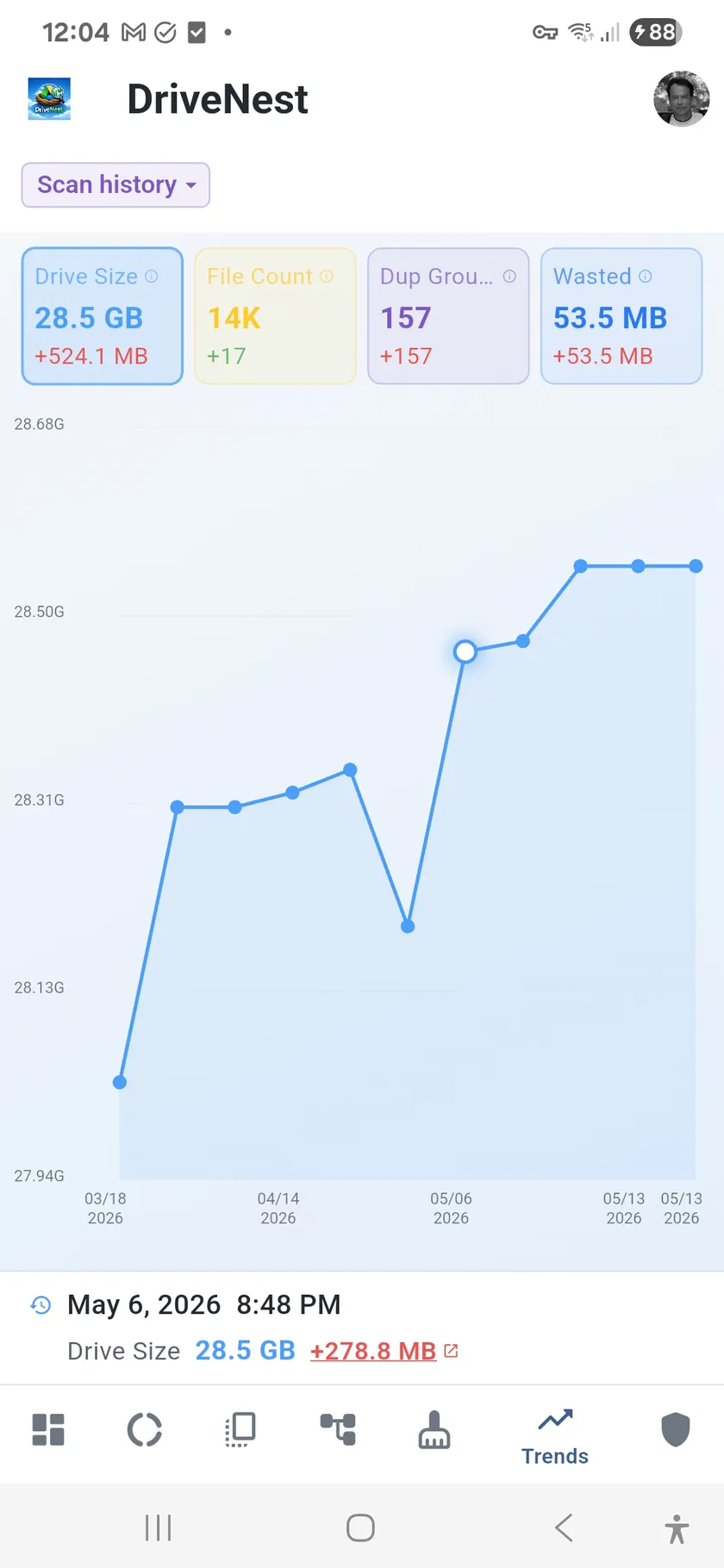
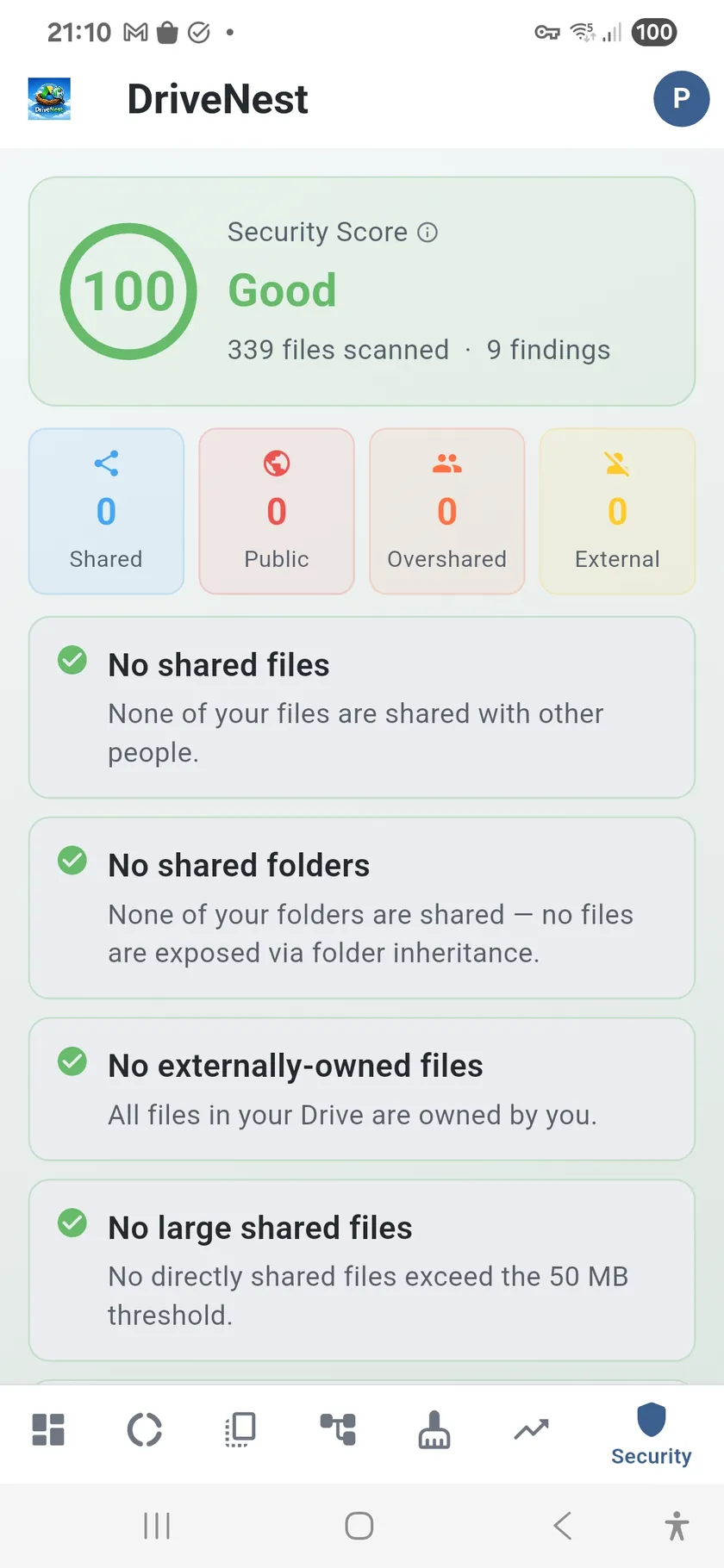
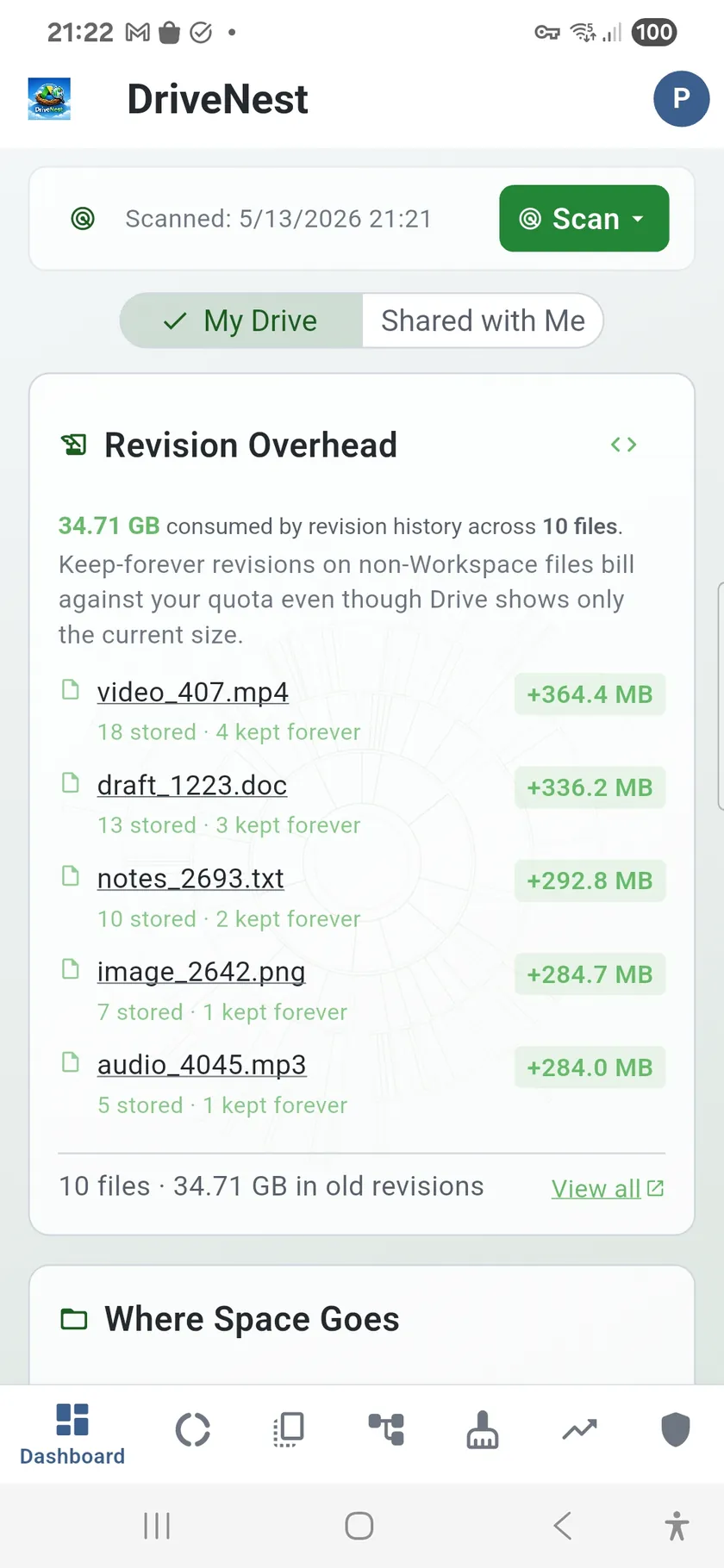
DriveNest turns a flat list of files into a clear, interactive picture of your storage. Instead of a single “you’ve used 47 GB” number, it shows you which folders eat your quota, which duplicates waste space, which files you’ve shared and forgotten, and how your storage has grown over time — then helps you safely reclaim the wasted space.
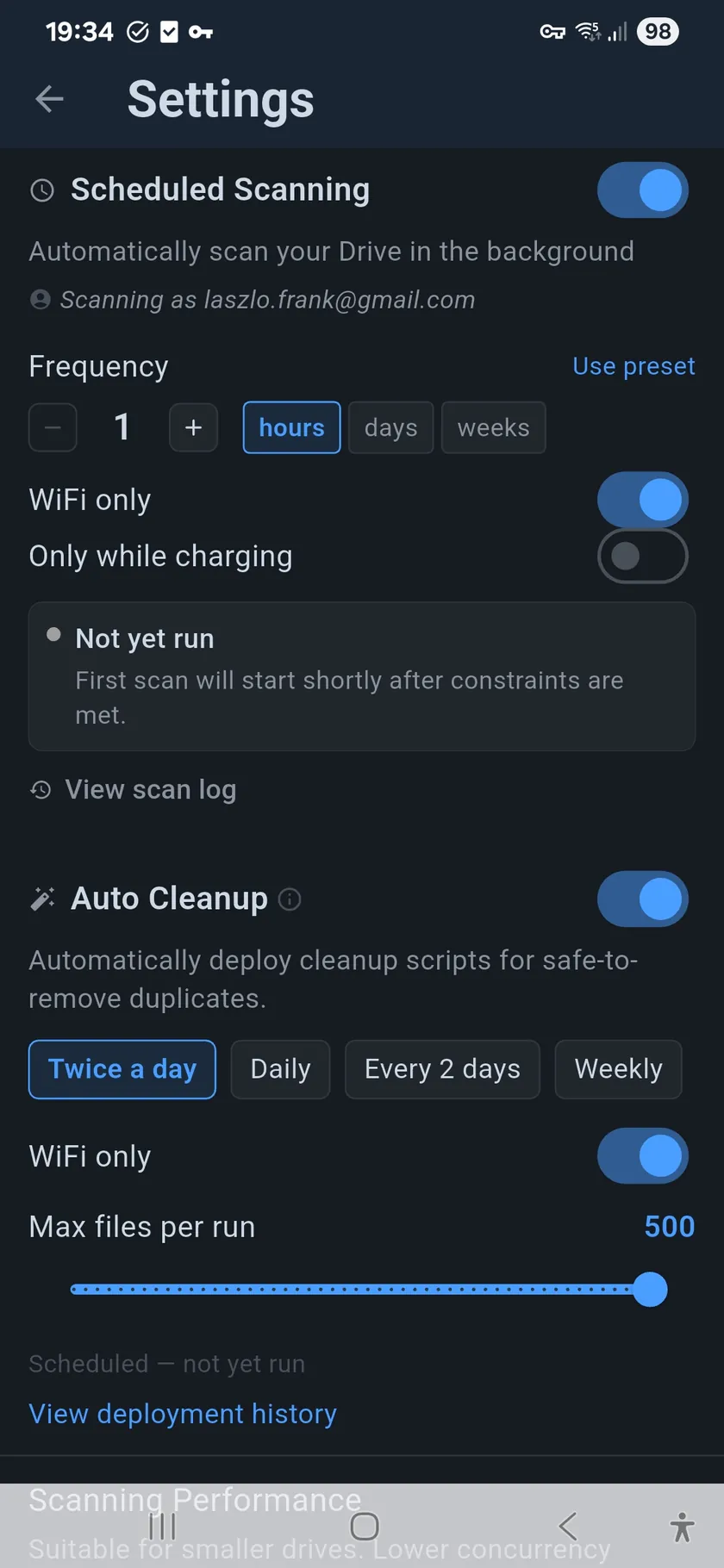
It reads only your storage metadata — names, sizes, folders, and sharing info, never the contents of your files — and runs all of its analysis on your device. There is no DriveNest server, there are no ads, and nothing tracks you. Nothing leaves your phone except a cleanup script you deploy to your own Google account and, once you switch on the optional AI assistant, the metadata it examines, sent to the AI provider you choose. On Google Drive its access is read-only and it cannot change anything at all; on OneDrive it asks for write permission only when you first approve an in-app action, and never holds it if you don’t.
Two clouds, one app. Connect your Google account, your Microsoft account, or both.
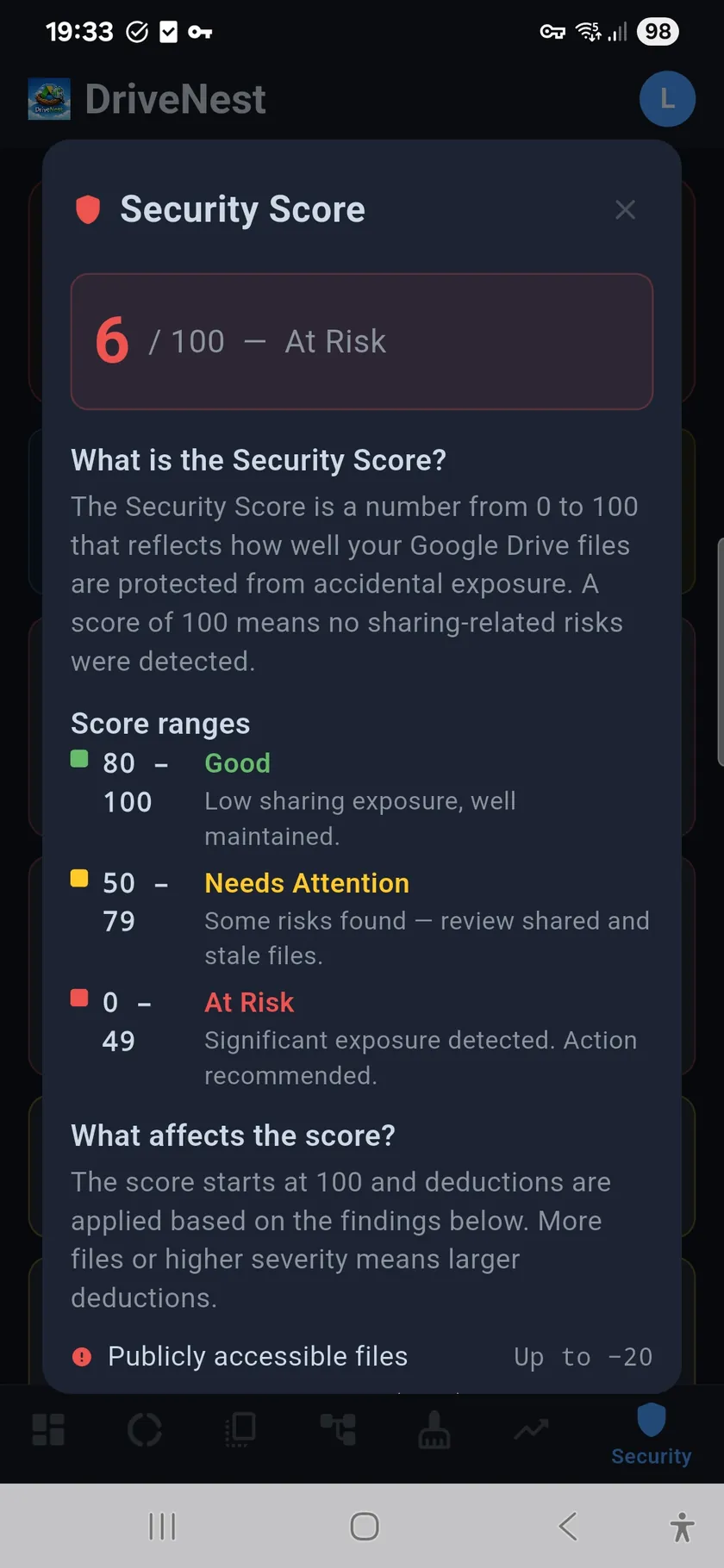
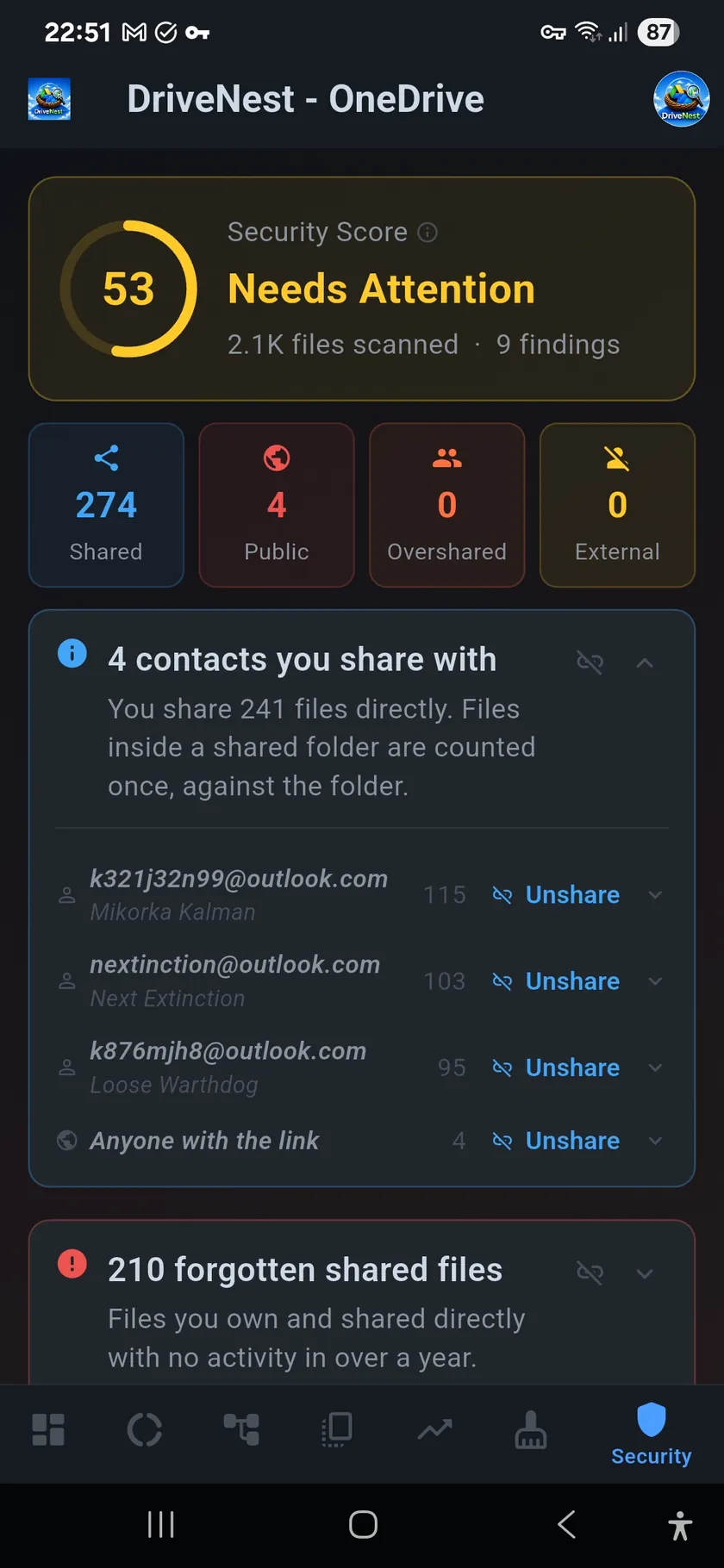
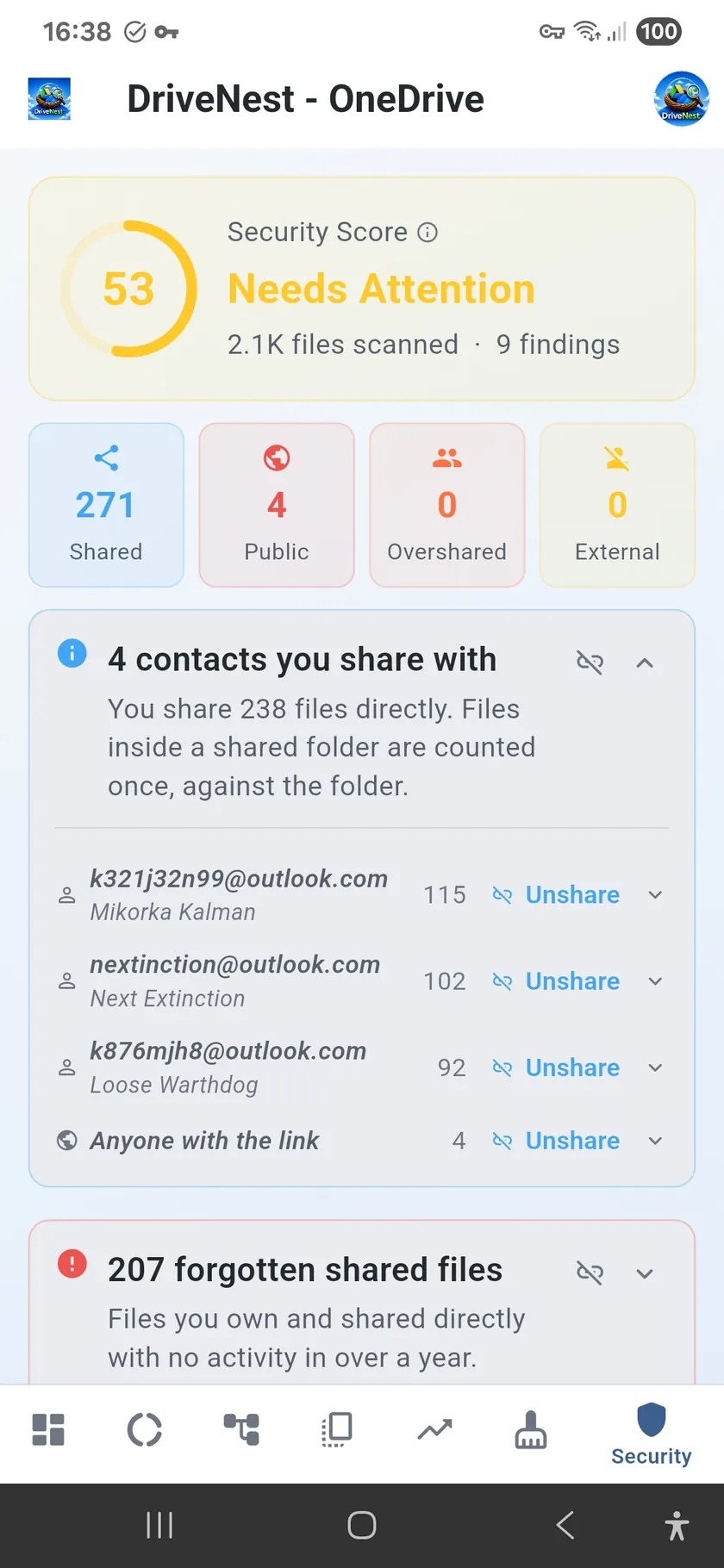
Each cloud gets its own dashboard, sunburst chart, duplicate finder, folder tree, cleanup analysis, security score,
and trend history — the full feature set, not a cut-down second-class version. Your plan covers every provider
you connect.
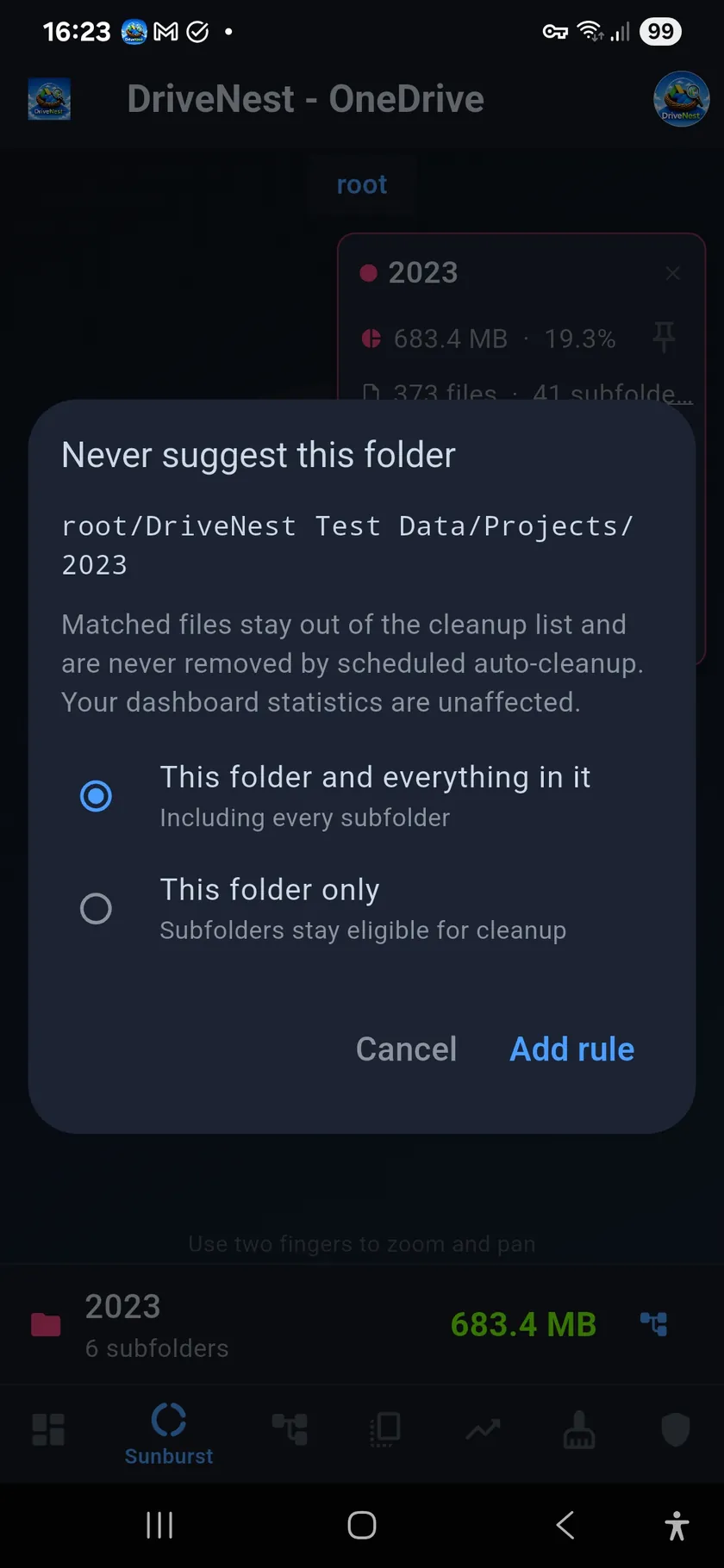
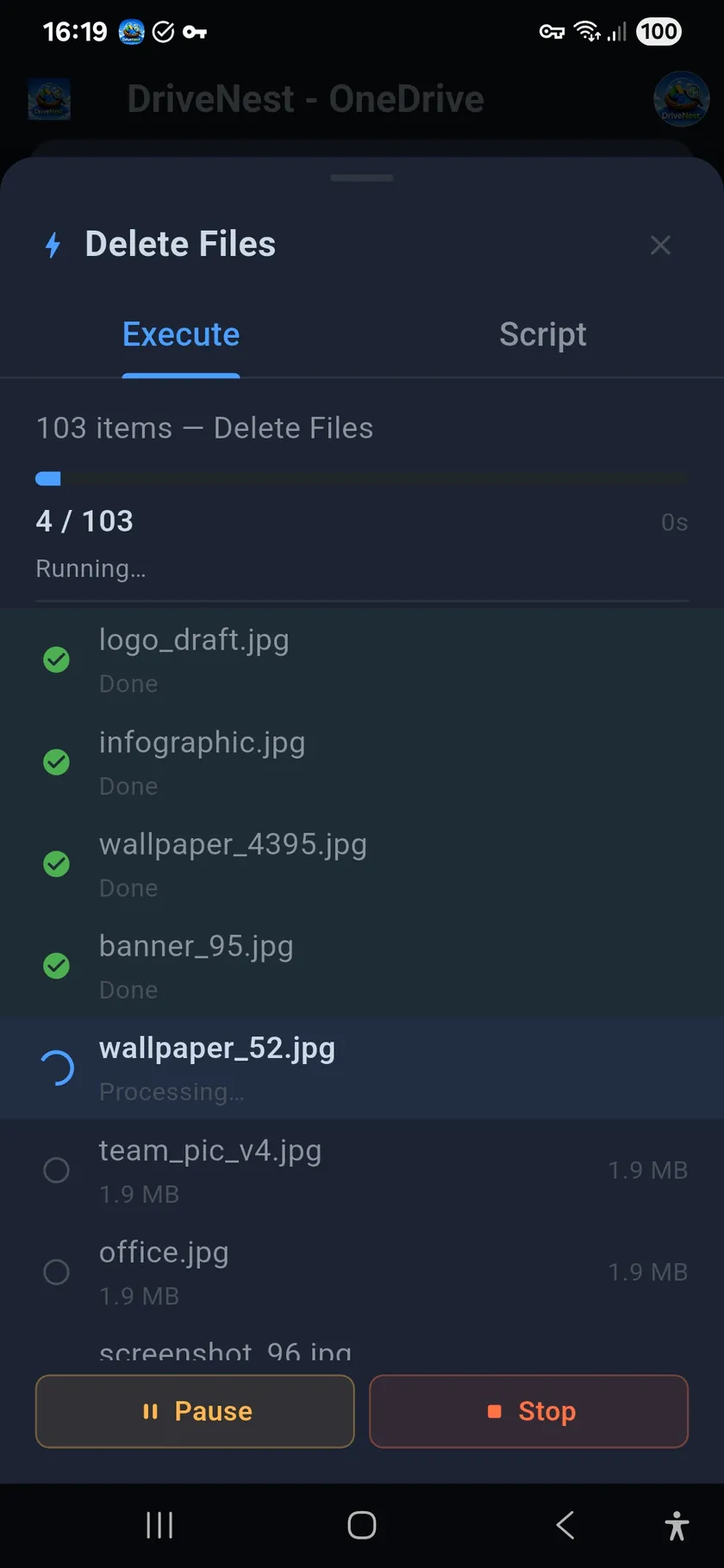
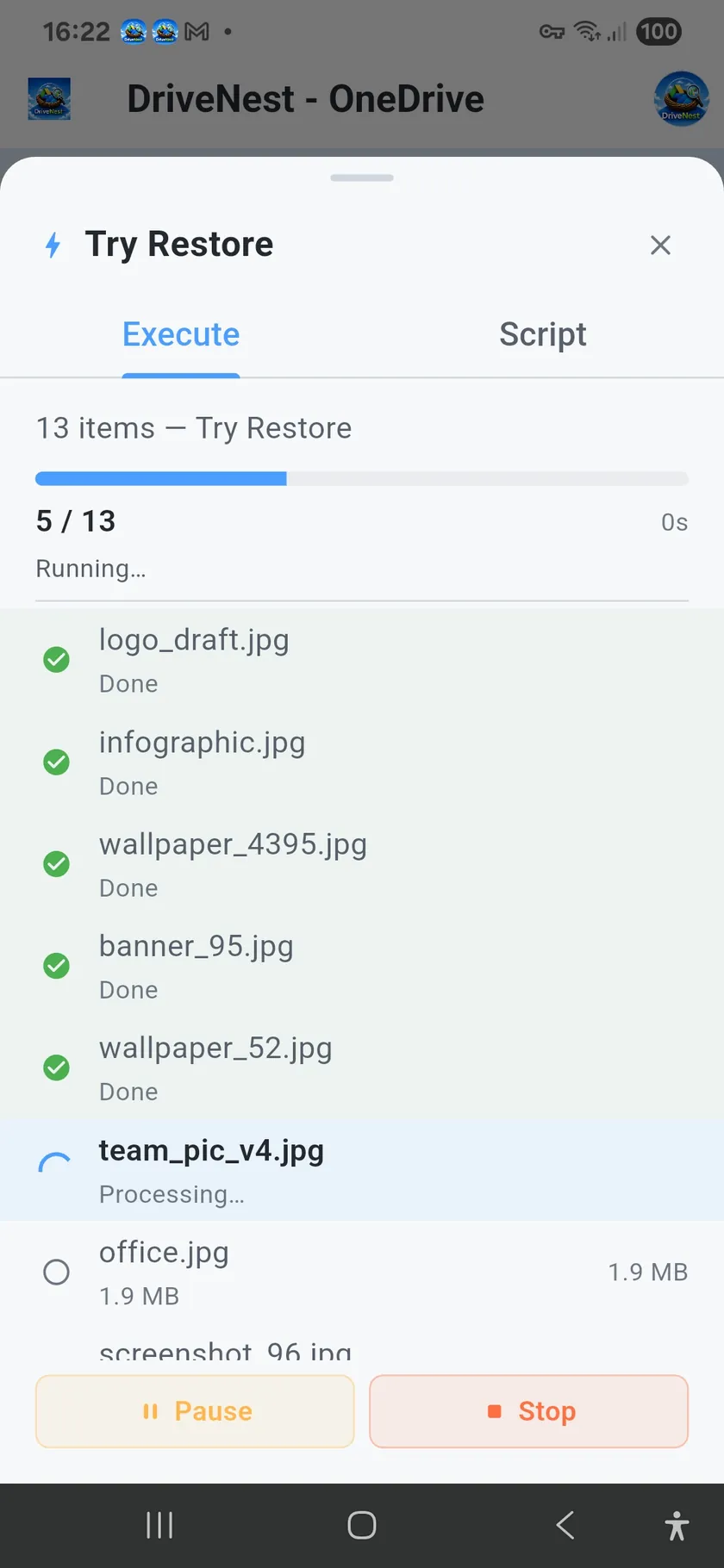
A new way to act on your files: v2 introduces in-app execution of cleanup, unshare,
and version actions — a capability our users asked for repeatedly through feature requests. Where
DriveNest used to only hand you a script to run elsewhere, it can now carry the action through for you, end to end.
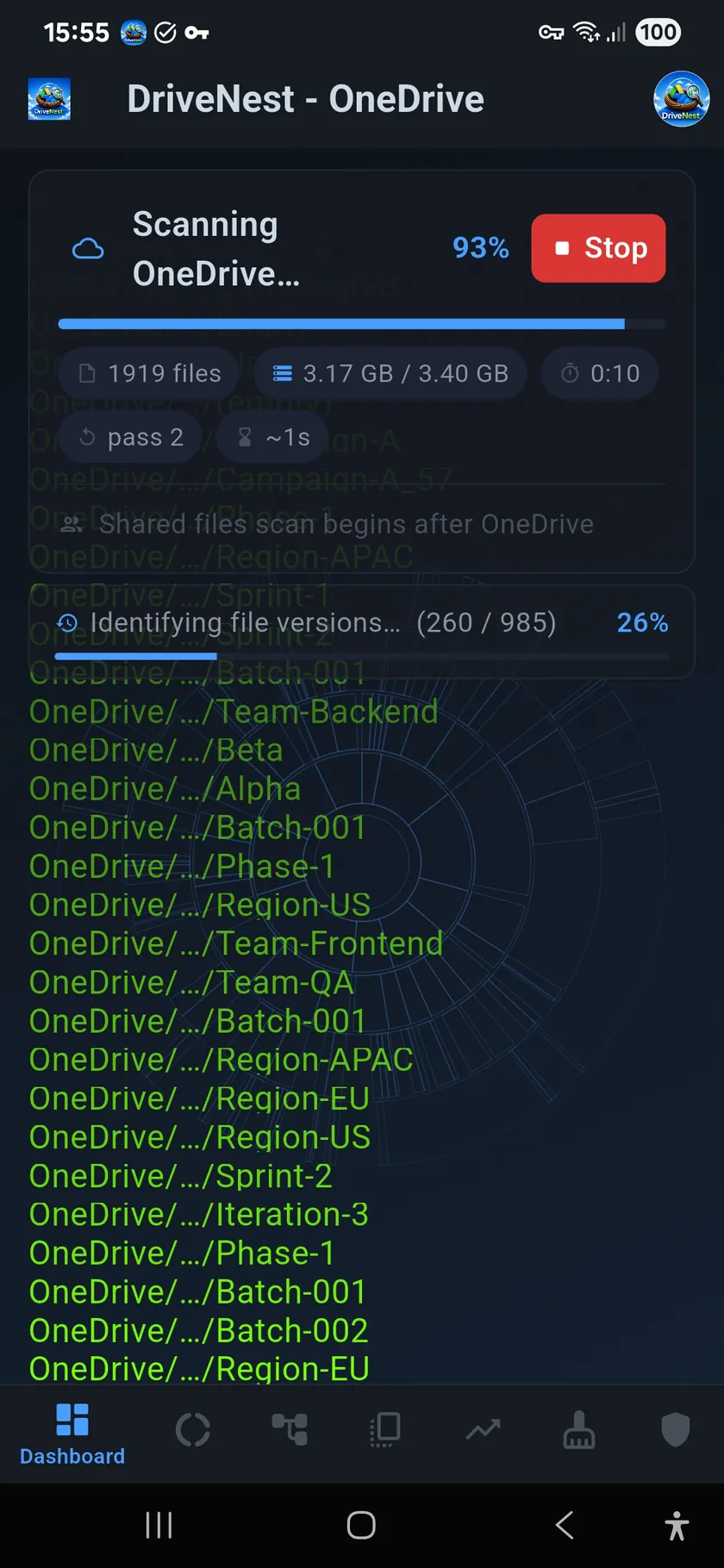
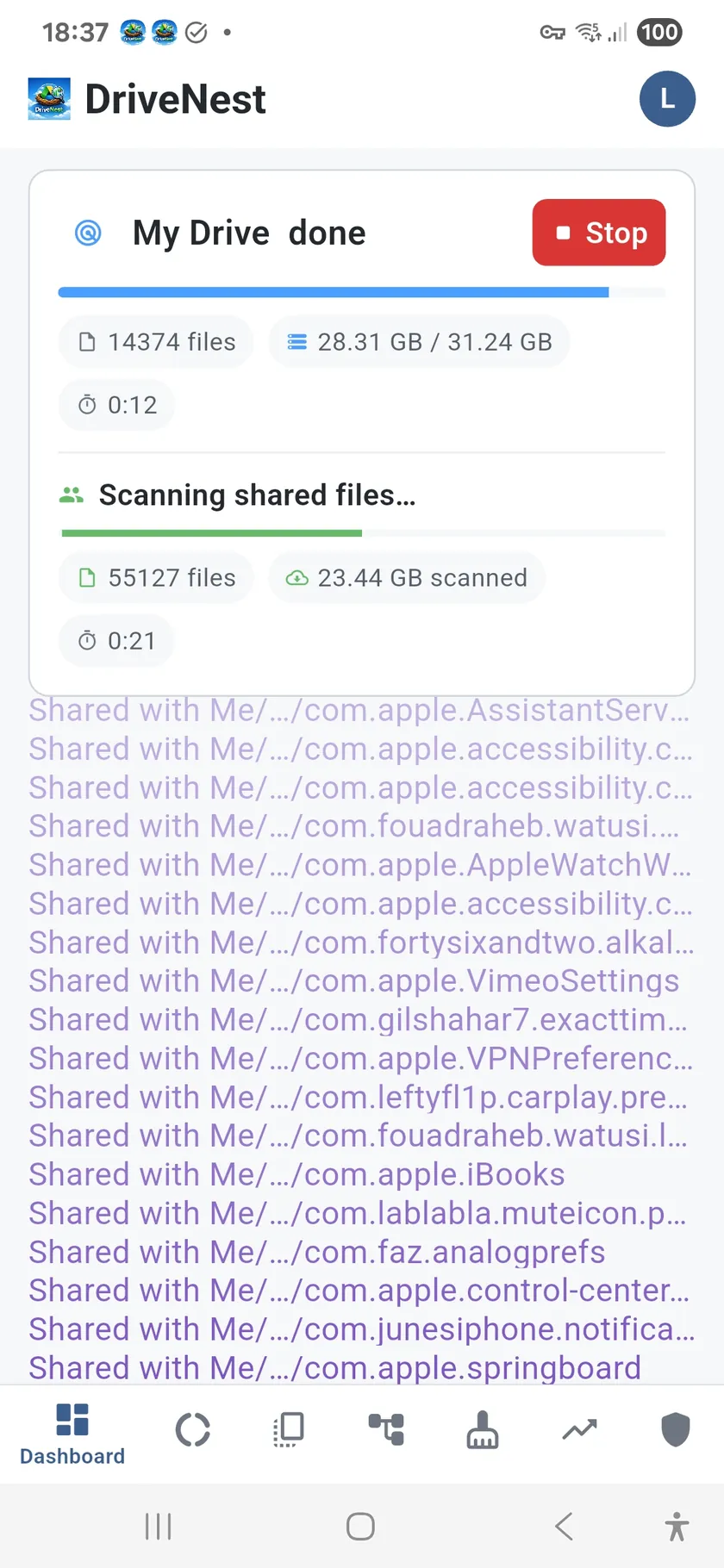
Long jobs keep running when you leave the app, show progress in a notification, and can be paused and resumed.
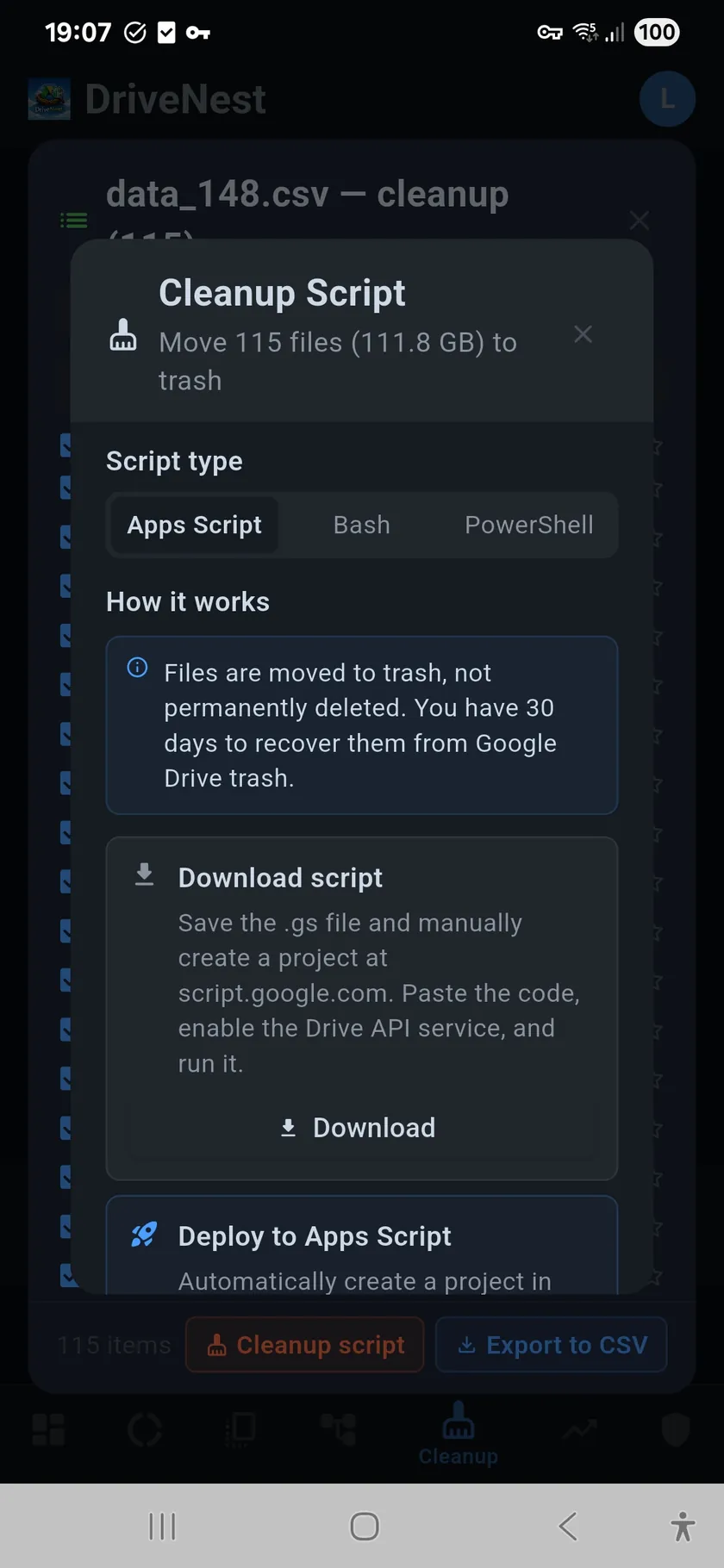
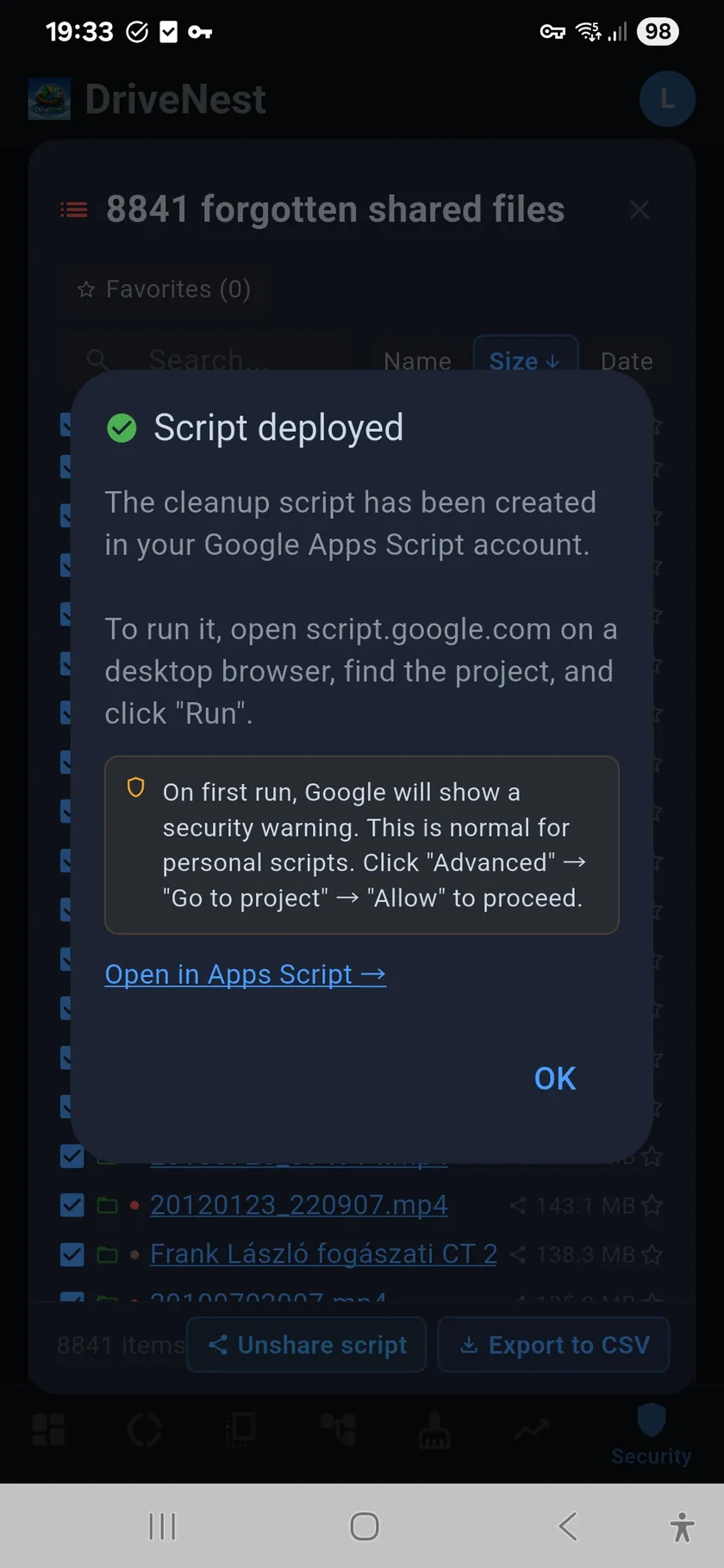
This is OneDrive only: Google Drive keeps the established Apps Script model,
where DriveNest deploys the script to your own account and you run it yourself. Either way you review every action
first, and nothing ever runs silently.
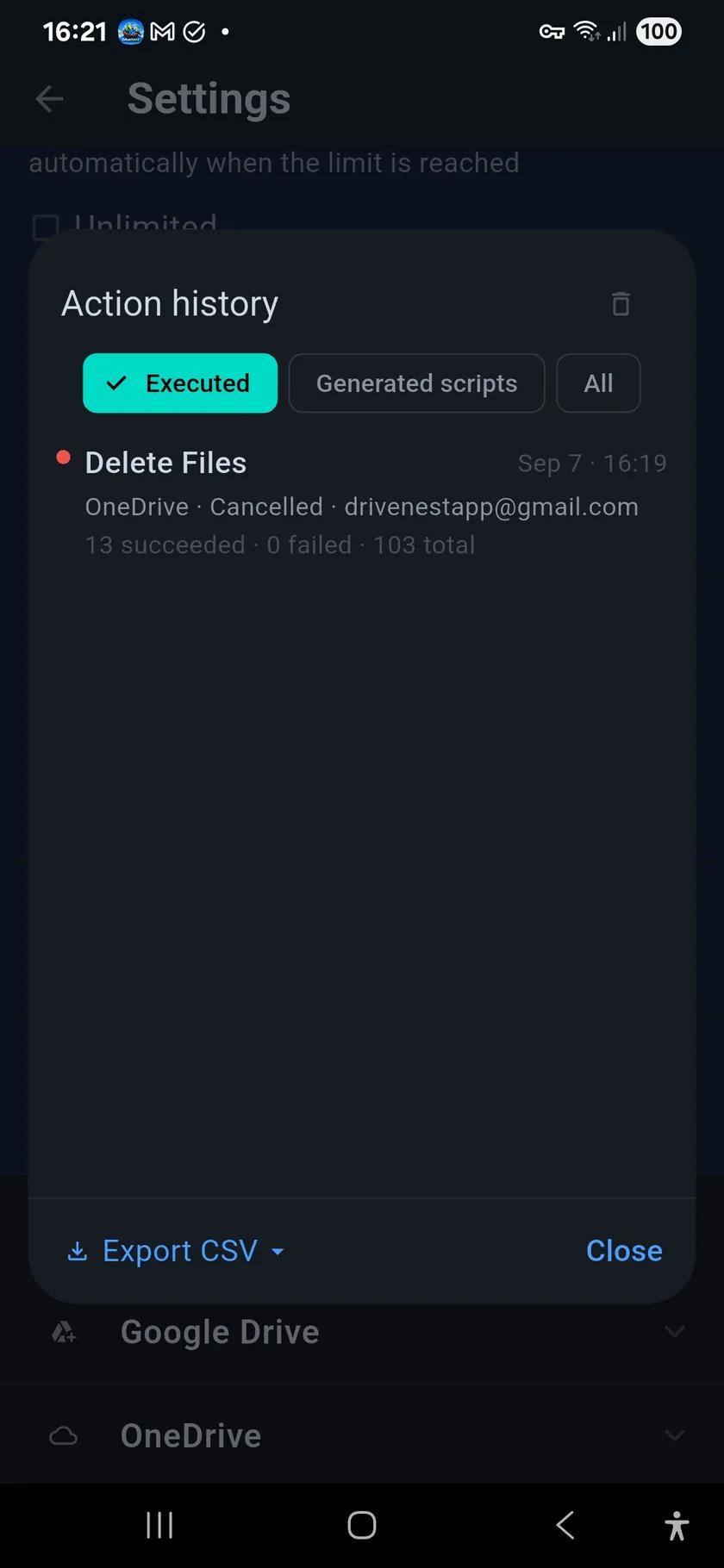
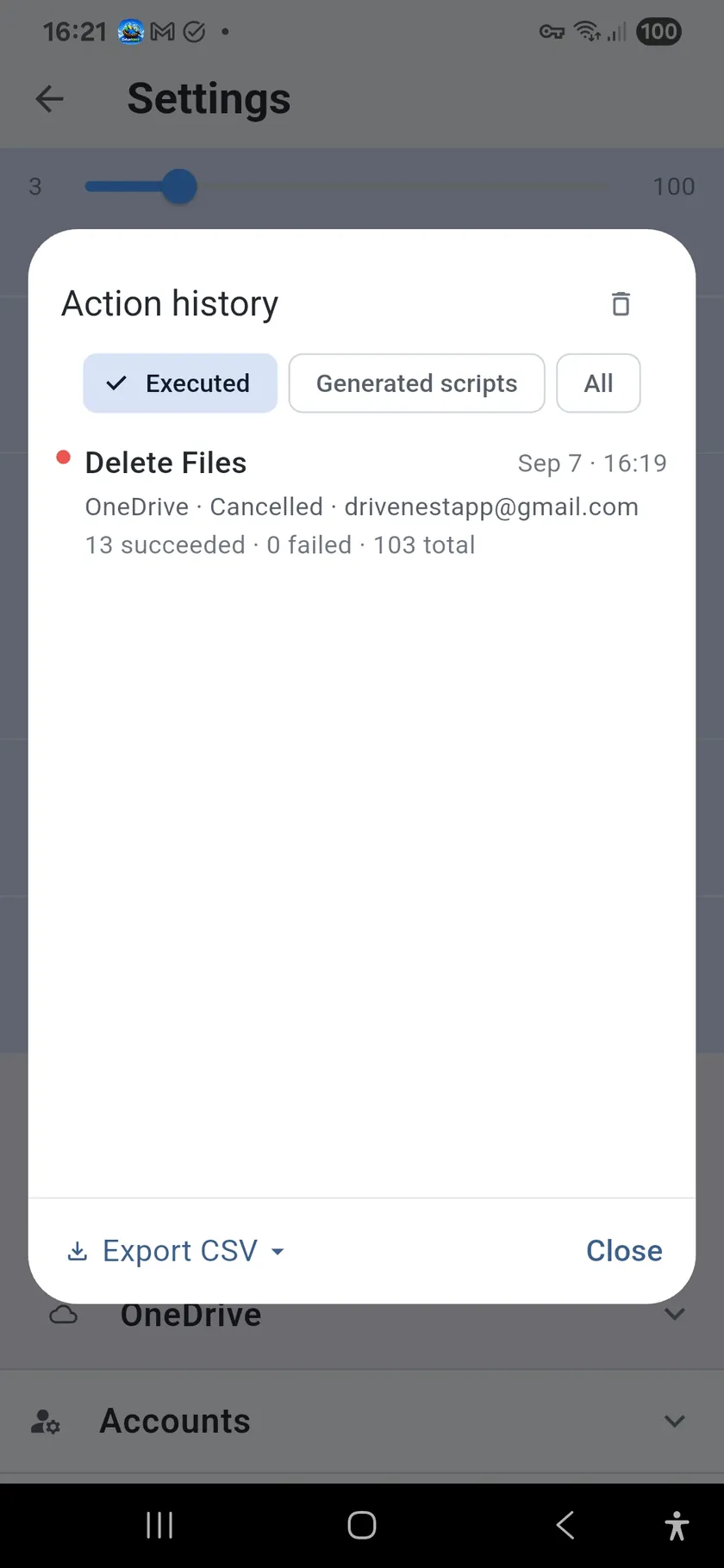
Built for the long run: v2 also adds an action log recording every script
DriveNest generated and every action it executed — filterable by cloud and by kind, down to per-file
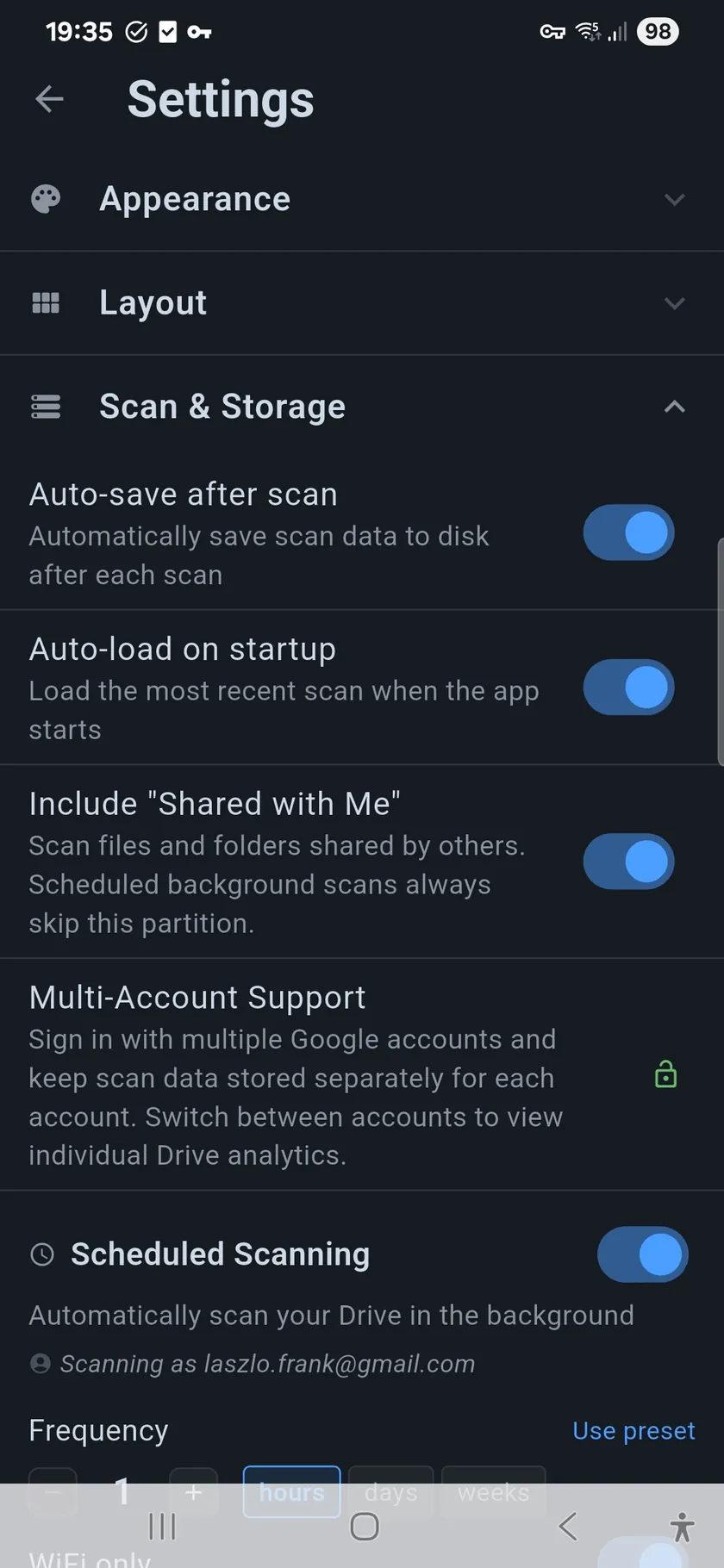
outcomes — plus settings export and import so your setup moves
with you to a new device, and per-provider layout customization that lets you choose which
dashboard panels and navigation tabs each cloud shows.
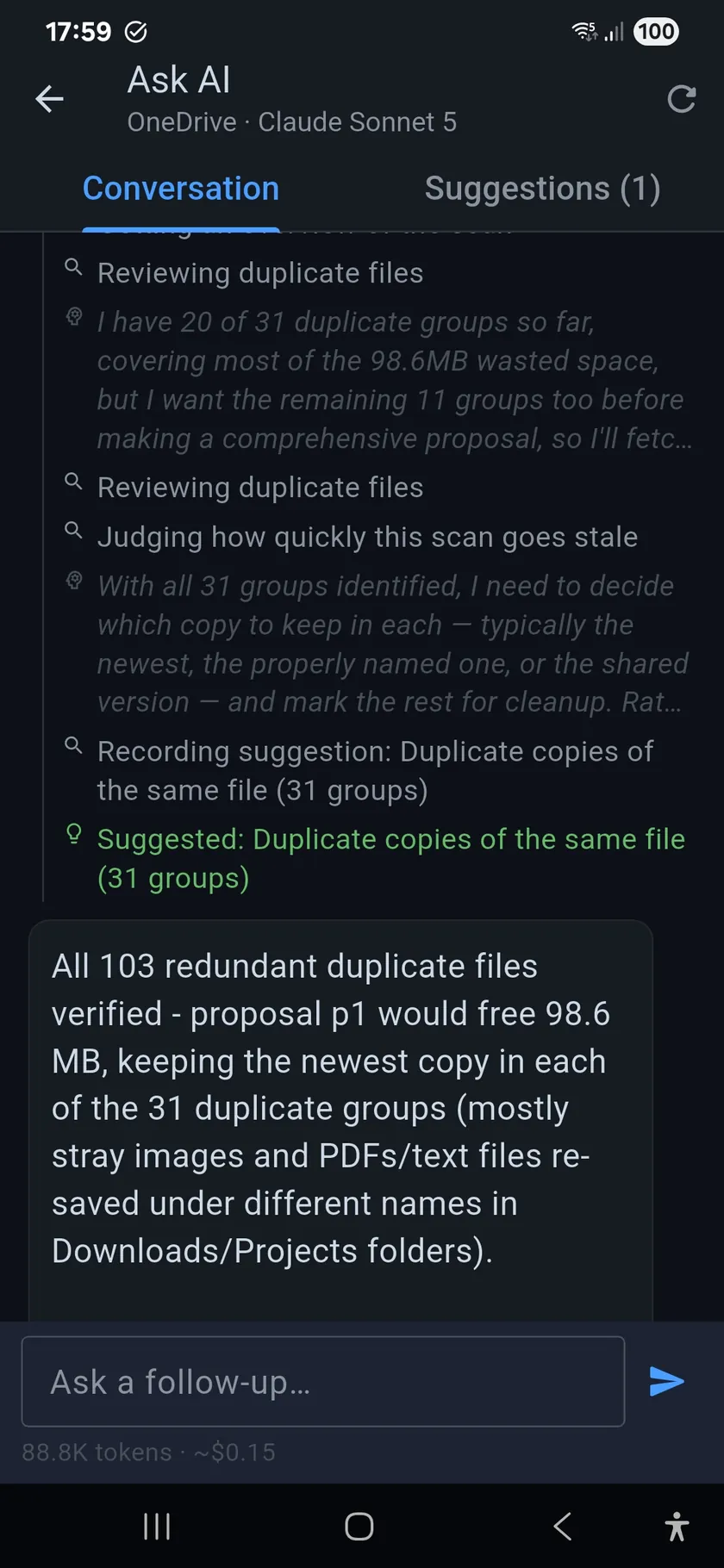
New in version 2.1: an optional AI assistant. Bring your own Anthropic or OpenAI API key
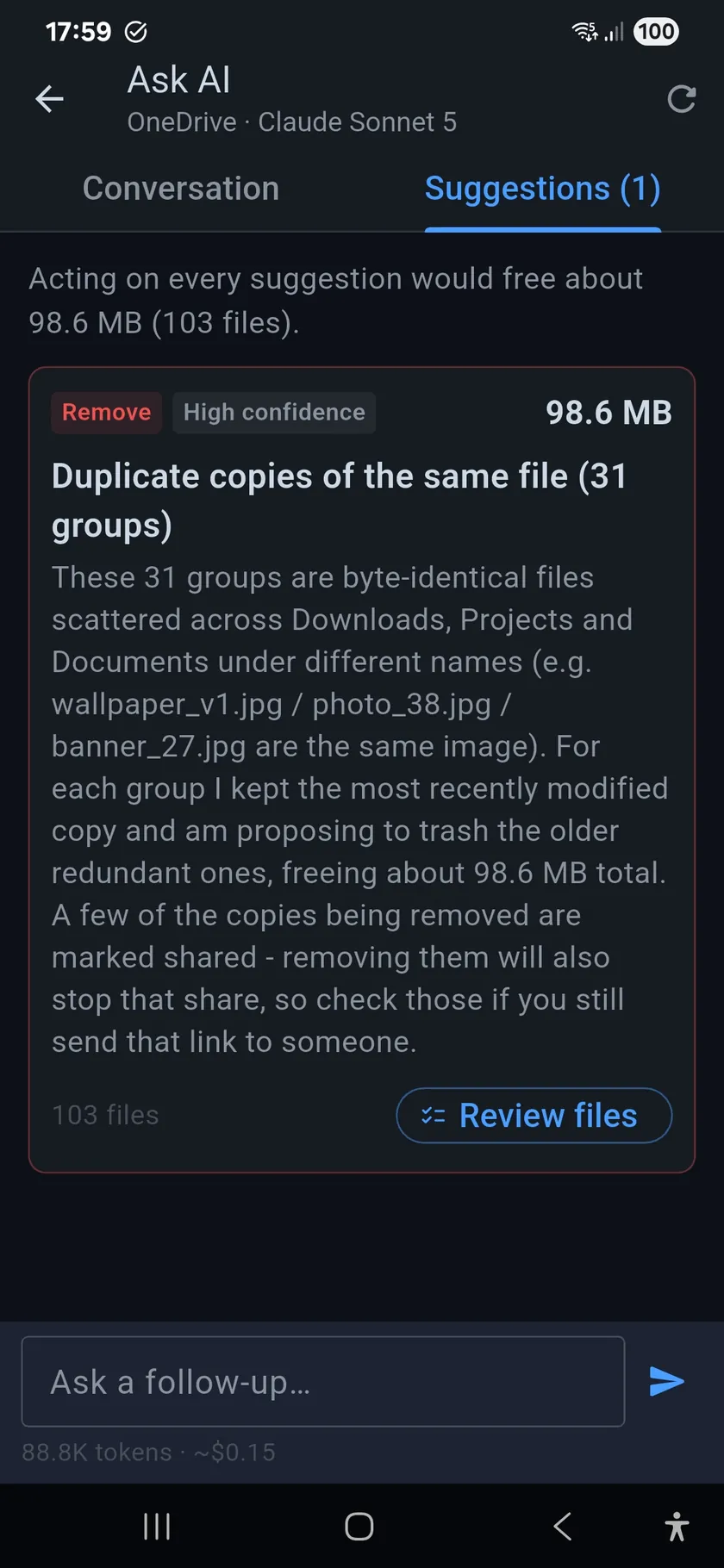
and Claude or GPT explores your latest scan, then proposes cleanup suggestions you review and confirm yourself —
it sees metadata only and cannot change anything on its own. How the AI assistant works →
Under the hood, DriveNest was designed as a provider-agnostic cloud storage framework — Google Drive is simply the first provider it speaks to, OneDrive is the second, and Dropbox is coming next, bringing the same analysis, security audit, and safe cleanup tools to every cloud you use, from one app.
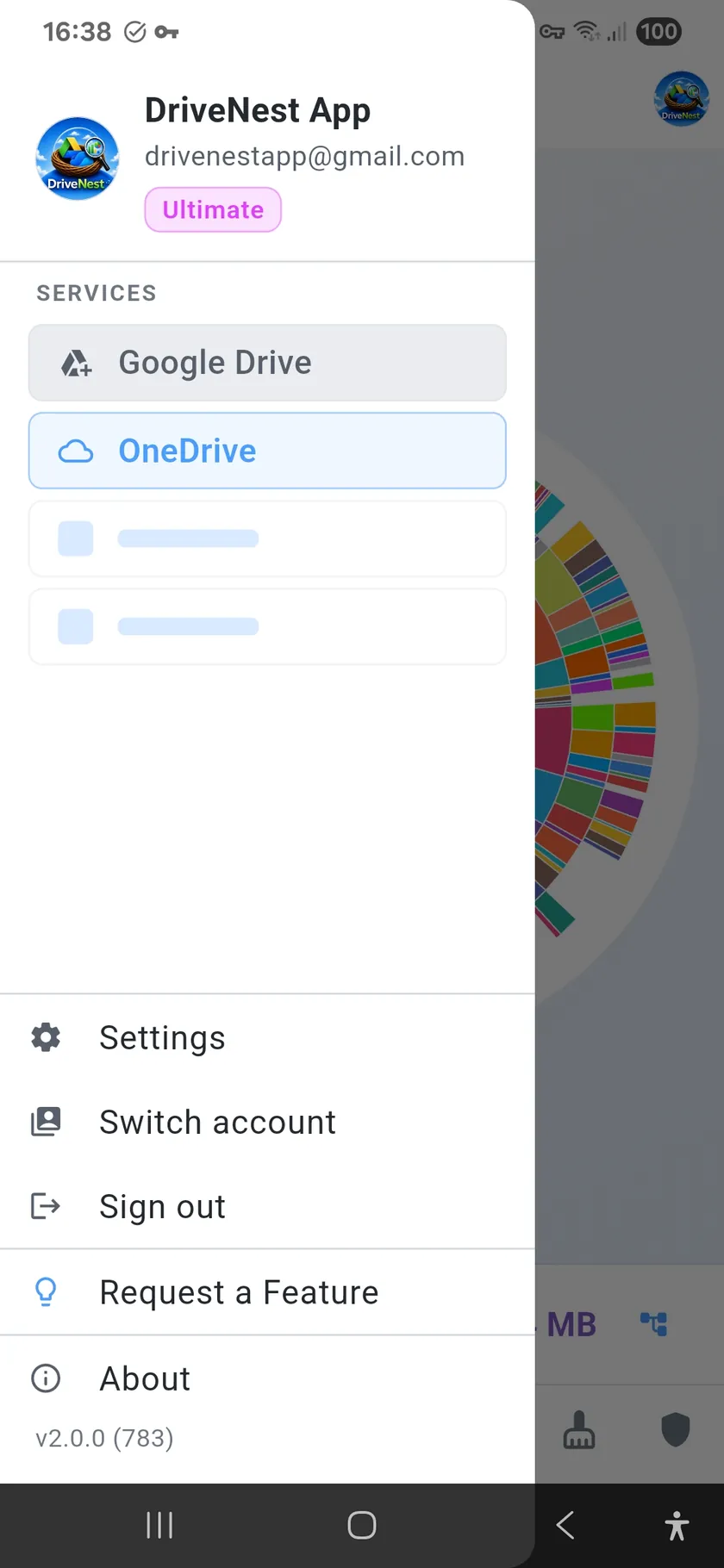
Both clouds live in the same drawer
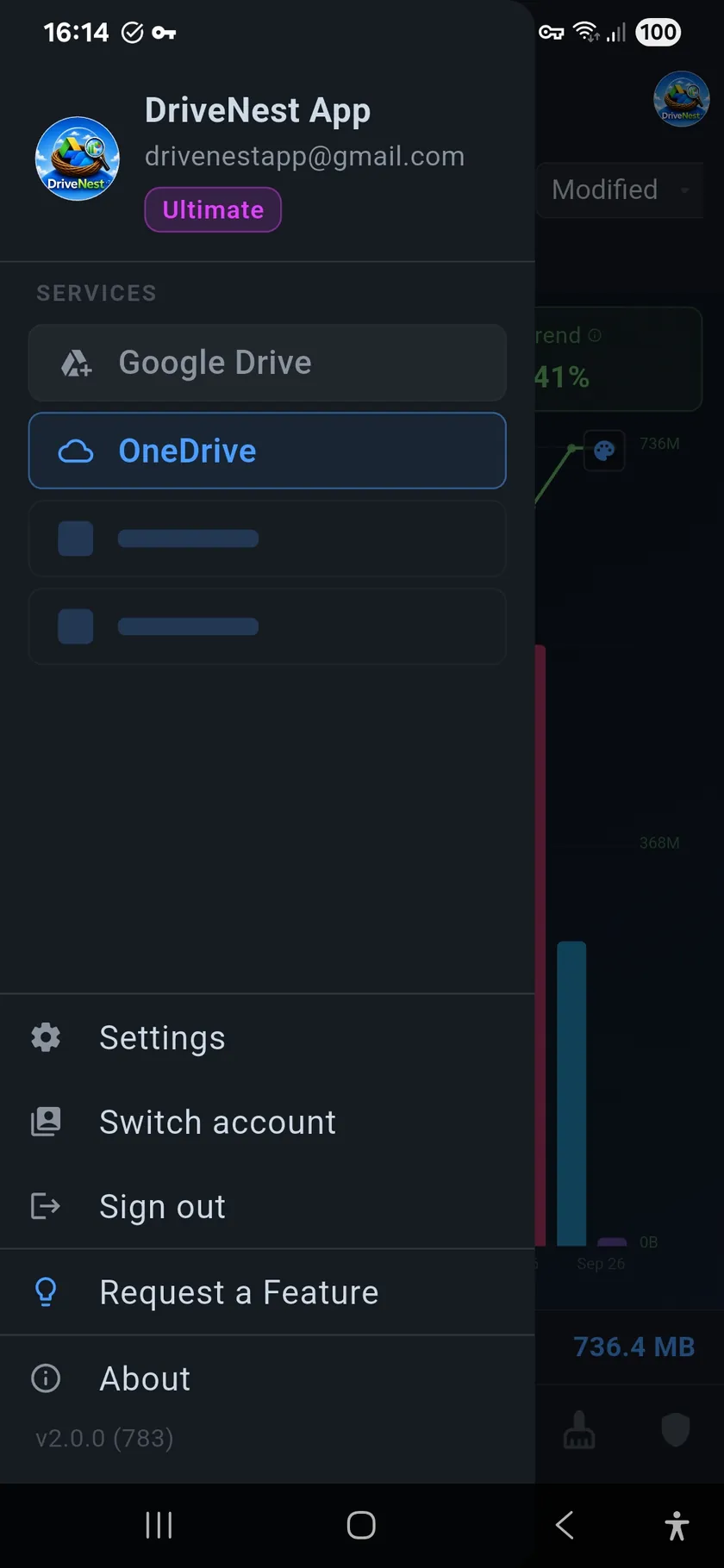
Open the menu and your storage providers sit side by side under Services:
Google Drive and Microsoft OneDrive, both fully supported since
version 2. Tap one to switch — the whole app follows, with that cloud’s own scan data,
dashboard, charts, cleanup analysis and security score.
Neither provider is a bolt-on. Both get the complete feature set, and
one subscription covers every cloud you connect — you are not billed per provider.
Sign in with one account or with both (a Google account and a personal Microsoft account); DriveNest keeps them cleanly separated rather than merging them into
one blurred total.
That is the point of the architecture underneath: DriveNest is a
provider-agnostic storage framework, not a Google Drive app with OneDrive stapled on. Google
Drive was the first provider it learned to speak to, OneDrive is the second, and
Dropbox is next — each one slotting into the same drawer.