A security score for your cloud storage
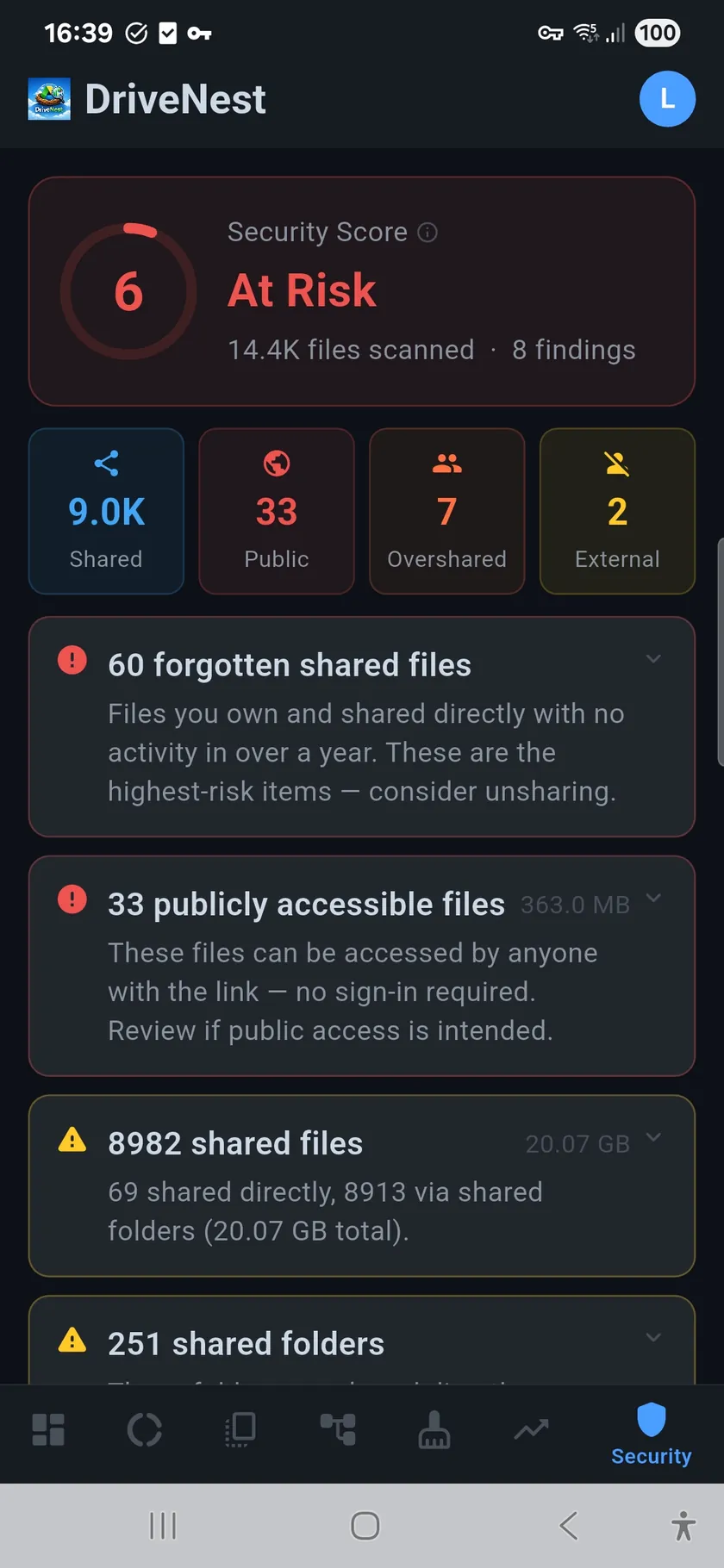
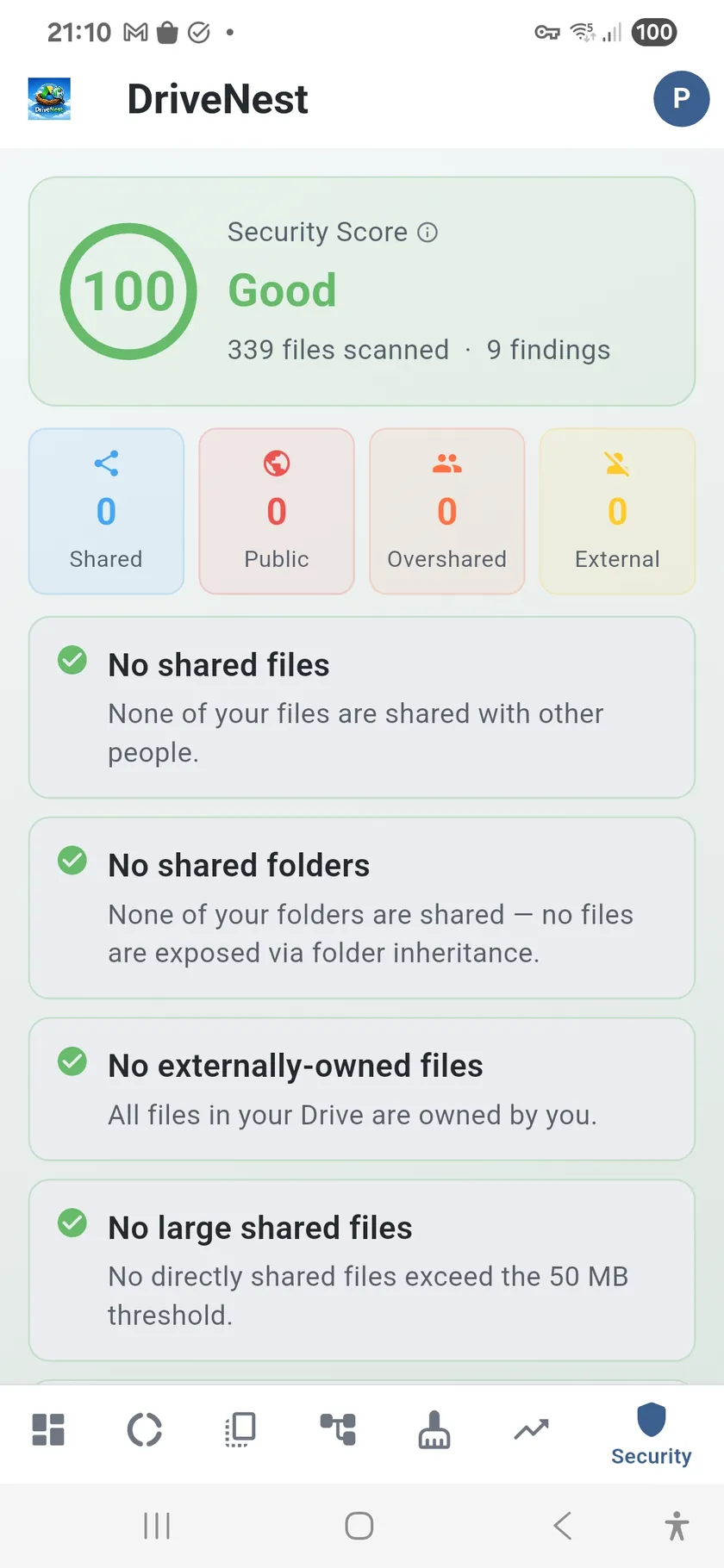
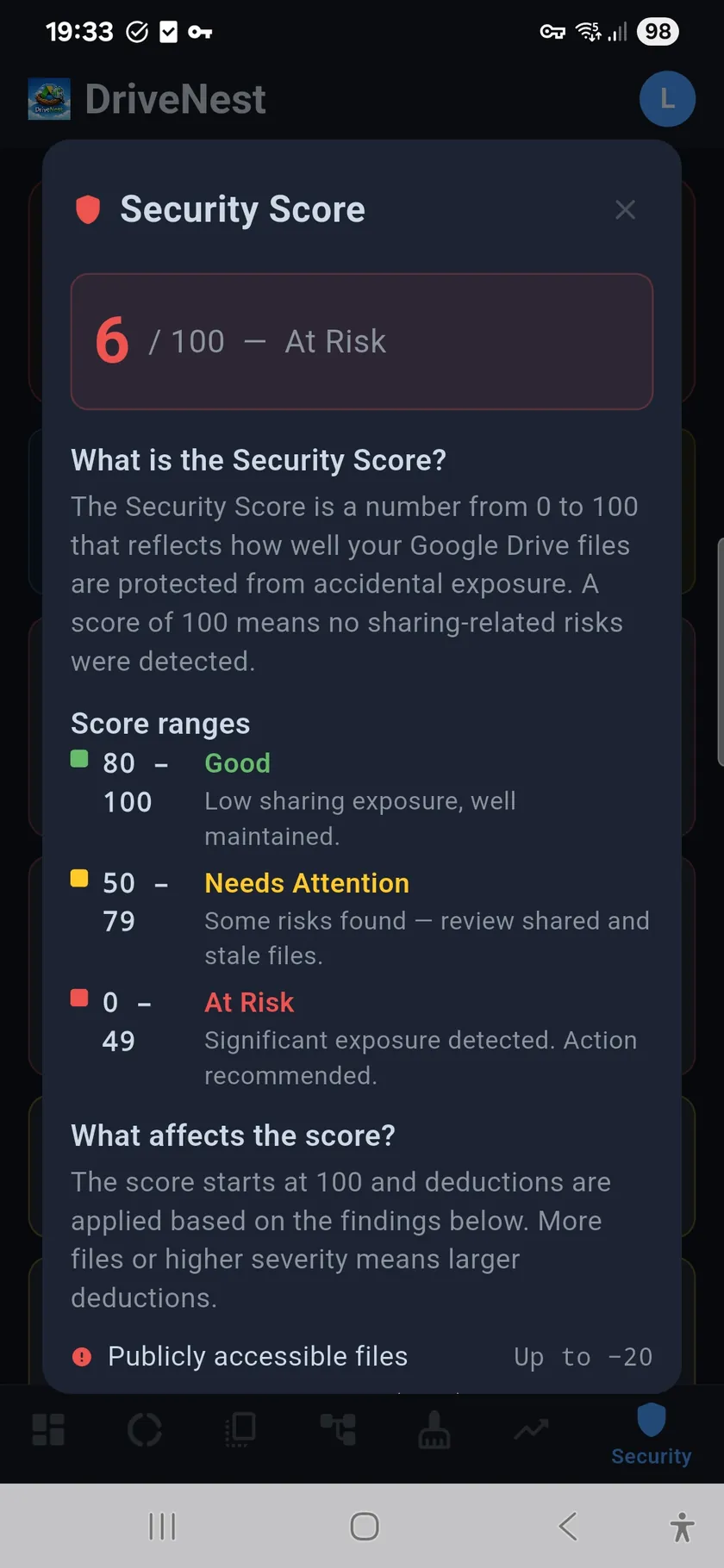
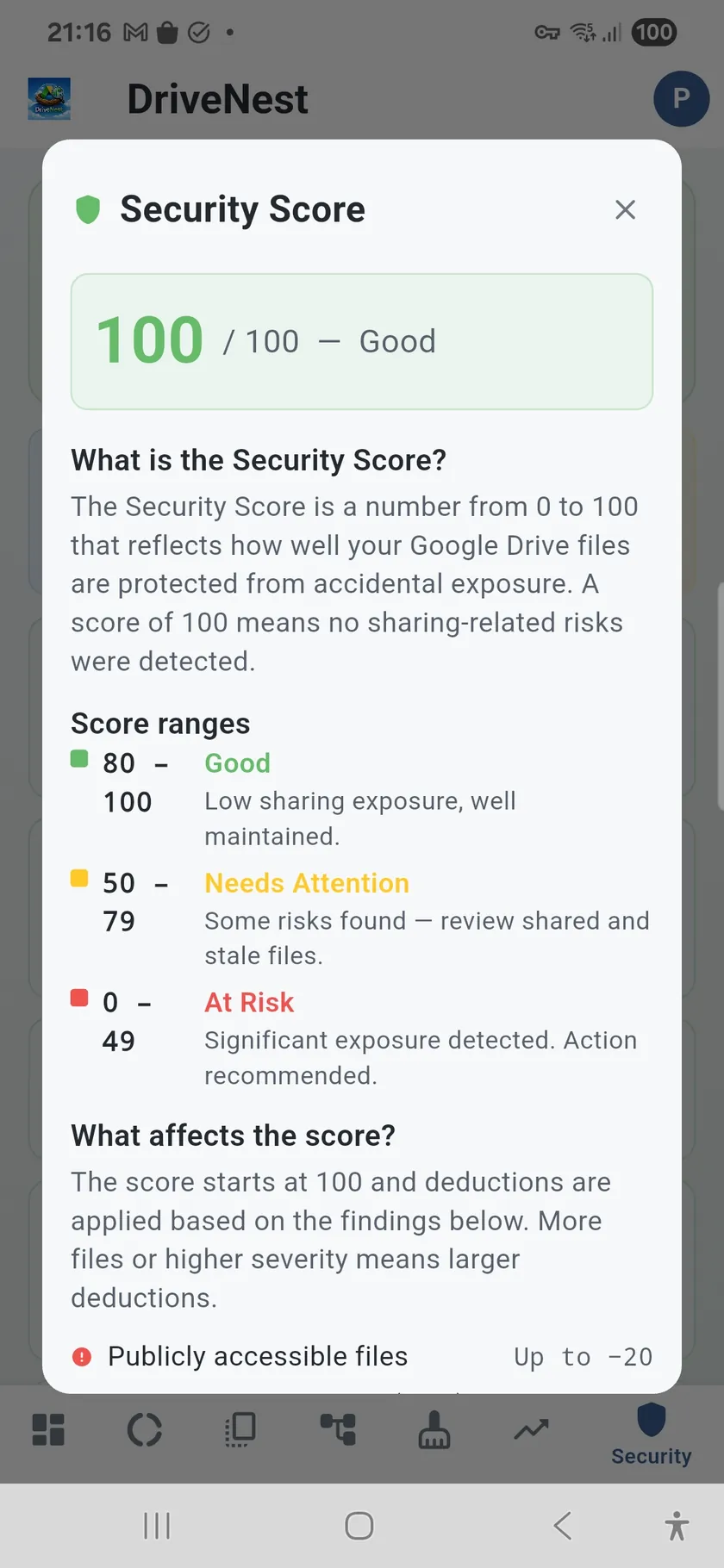
Google Drive and OneDrive both make sharing easy — too easy. Over time, you accumulate publicly accessible links, forgotten shares with former colleagues, and files shared individually when they should be in a shared folder. The Security Audit scans all your sharing permissions and distills them into a single 0–100 score. A high score means your sharing is tight. A low score means you have exposure worth reviewing.
Know what is shared and why
DriveNest distinguishes between two types of sharing: direct sharing (you explicitly shared this file) and inherited sharing (this file lives in a shared folder). This matters because revoking access on an inherited share is different from revoking a direct share. The two-tier display makes it clear where each permission comes from.
What the Security Audit detects
- Public access — files and folders accessible to anyone with the link
- Oversharing alerts — files shared with many individual users instead of a group
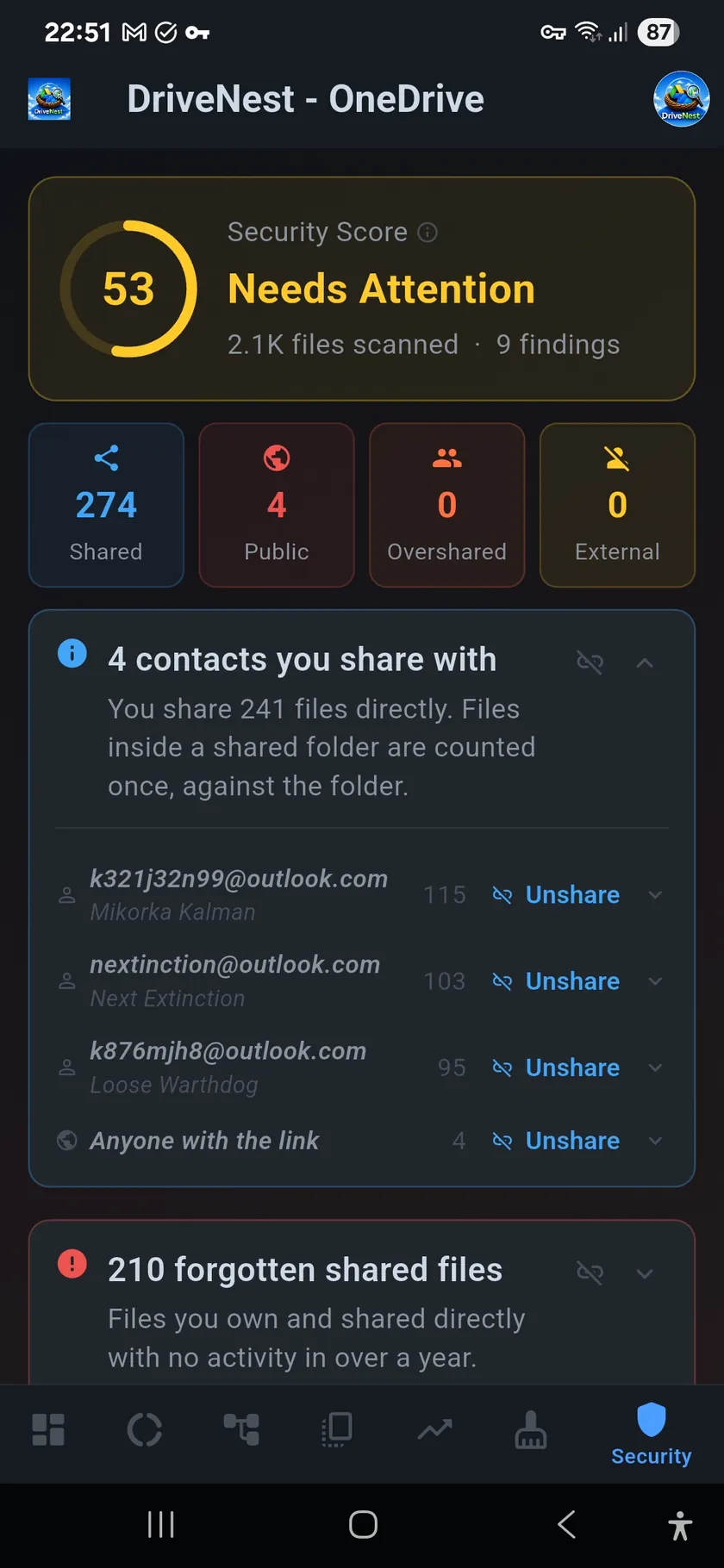
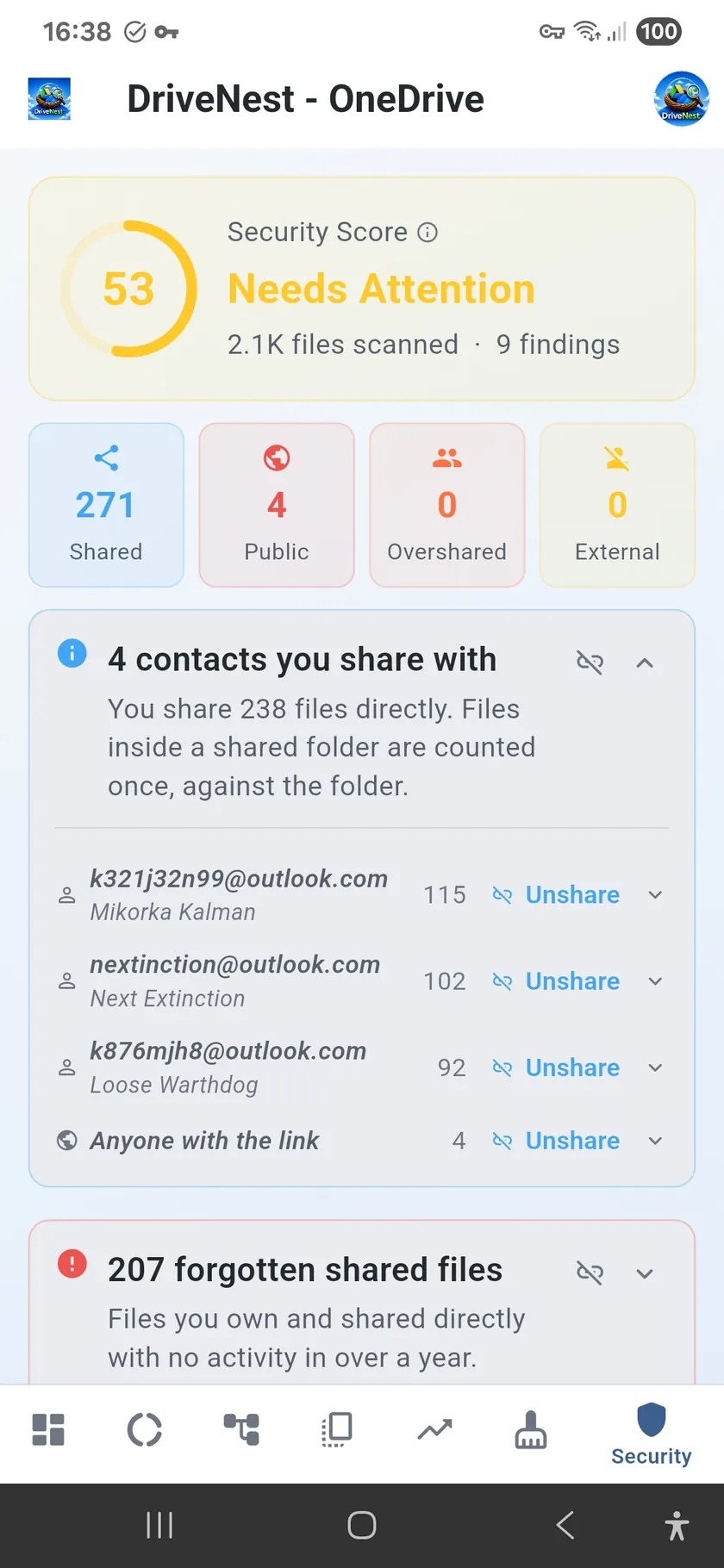
- Per-contact breakdown — every person you share with, ranked by how many items they can reach
- Public links in the same list — “Anyone with the link” ranked alongside named contacts
- Per-contact unshare — revoke one person, or expand the row and pick individual files
- Forgotten shares — files shared long ago and never accessed since
- Stale shared files — shared files that have not been modified in months
- Shared folders vs. individual shares — inherited vs. direct permission tracking
- Unshare script generation — generate scripts to revoke specific permissions
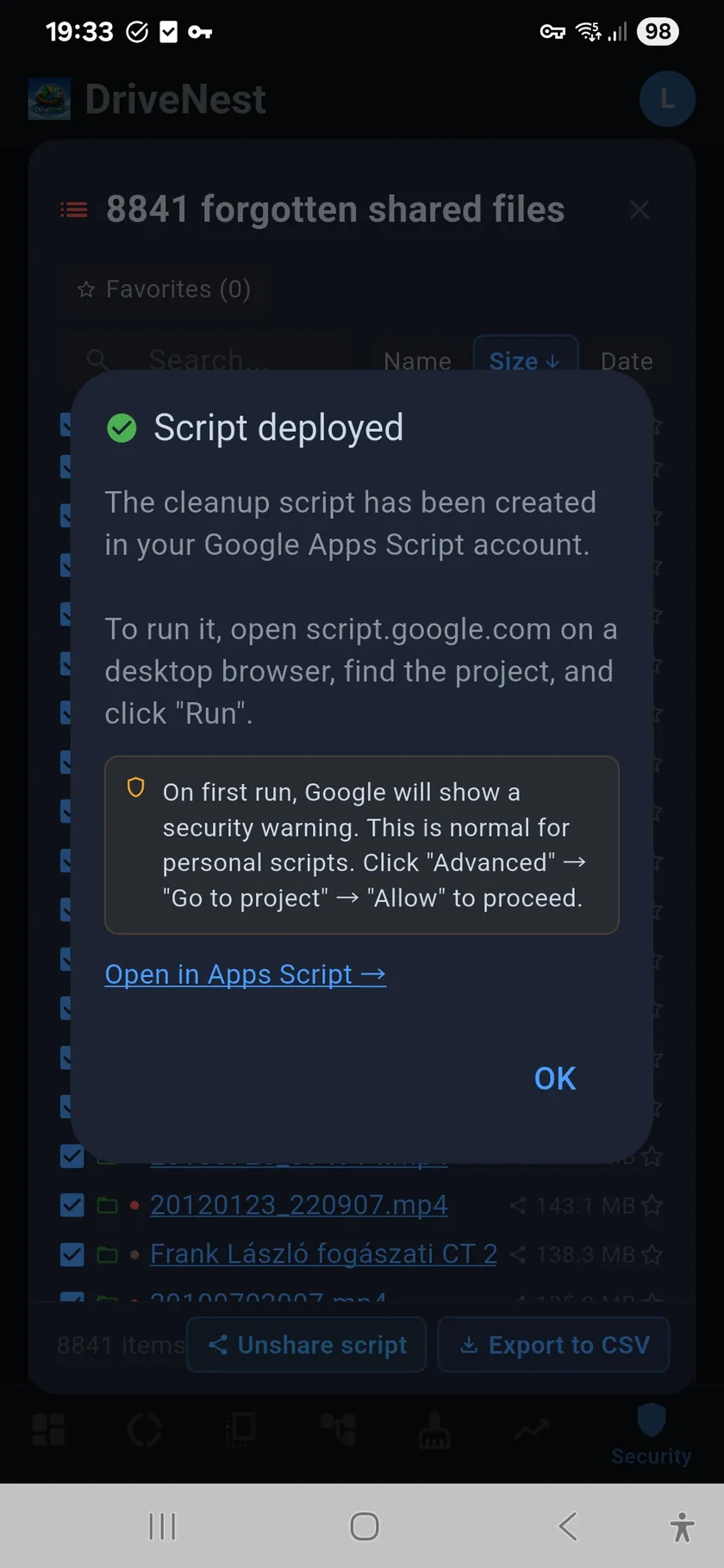
- Apps Script deployment — deploy unshare scripts directly to your Google account
Not just how many — who
A count of shared files tells you the size of the problem. It does not tell you who is on the other end. The Security Audit now breaks your sharing down by contact: every person your files are shared with, listed by name and address, with the number of items each one can reach. Public exposure is folded into the same list as “Anyone with the link”, so a link you generated once and forgot sits in the ranking next to your real collaborators instead of hiding in a separate statistic.
Counted the way you would count it
The per-contact figures count direct shares. A file a contact can open only because it lives inside a folder you shared is counted once, against that folder, not once for every file underneath it — so sharing a single project folder of two thousand files shows up as one item, not two thousand. That keeps the numbers meaningful: a contact sitting at the top of the list really does have a wide spread of individually shared files, and is worth a closer look.
Act on one contact at a time
Each row expands to show exactly which files that contact can reach, and carries its own Unshare action. That turns a vague worry — “how much does my old team still have access to?” — into a decision you can actually make: revoke a former colleague wholesale, kill a stale public link, or open the row and unpick individual files. As everywhere in DriveNest nothing is revoked until you confirm; on Google Drive the change goes out as an unshare script you run, and on OneDrive it can run as an in-app action you approve.
Take action with unshare scripts
Identifying risks is only half the job. For every sharing issue found, you can generate an unshare script that revokes the specific permissions. Deploy it directly to Google Apps Script from within the app, or export it as a standalone script. Either way, you review and run it yourself — DriveNest never modifies permissions automatically. See the Scripts page for full details.