Your Google Drive and OneDrive folders as a city you can spin, zoom and step inside.
On the Sunburst screen, one tap away from the chart, on the button
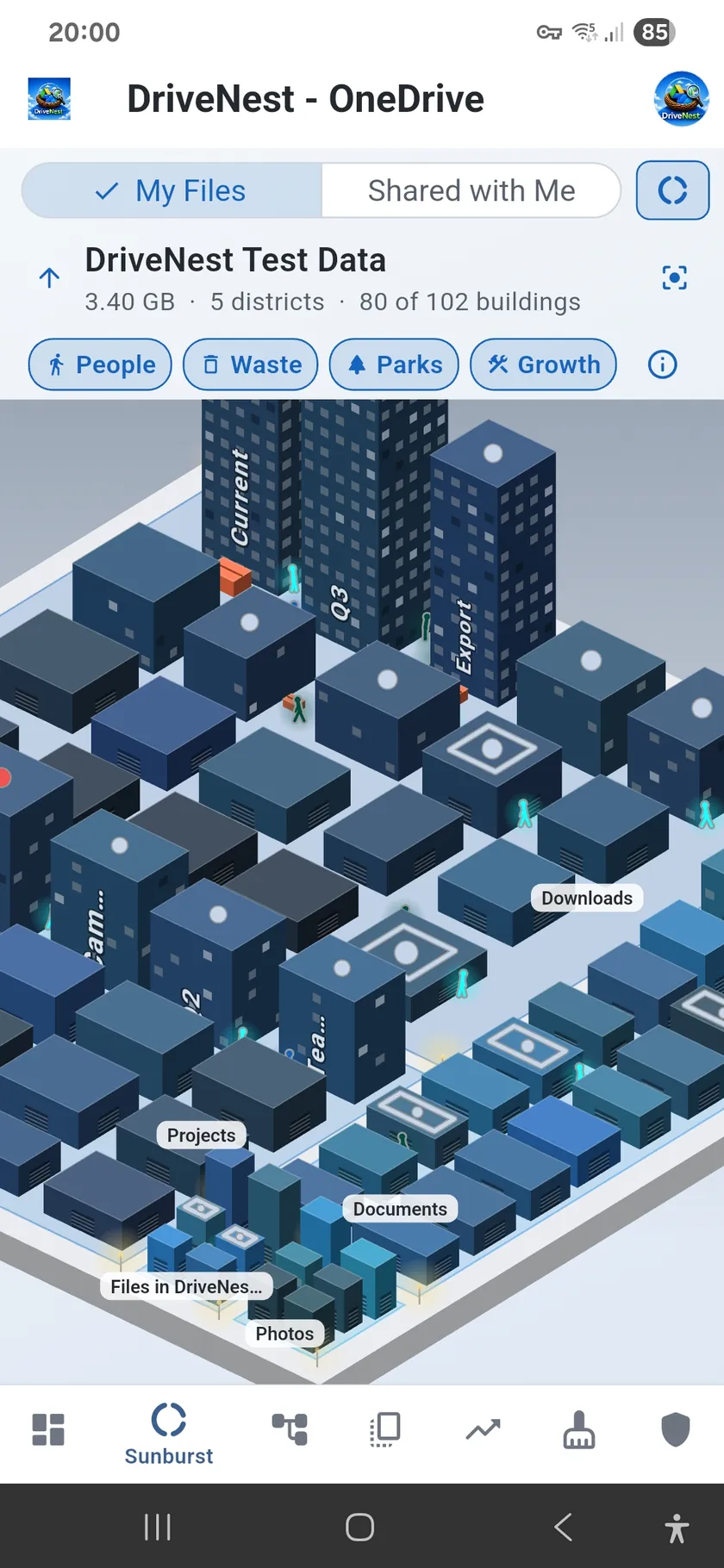
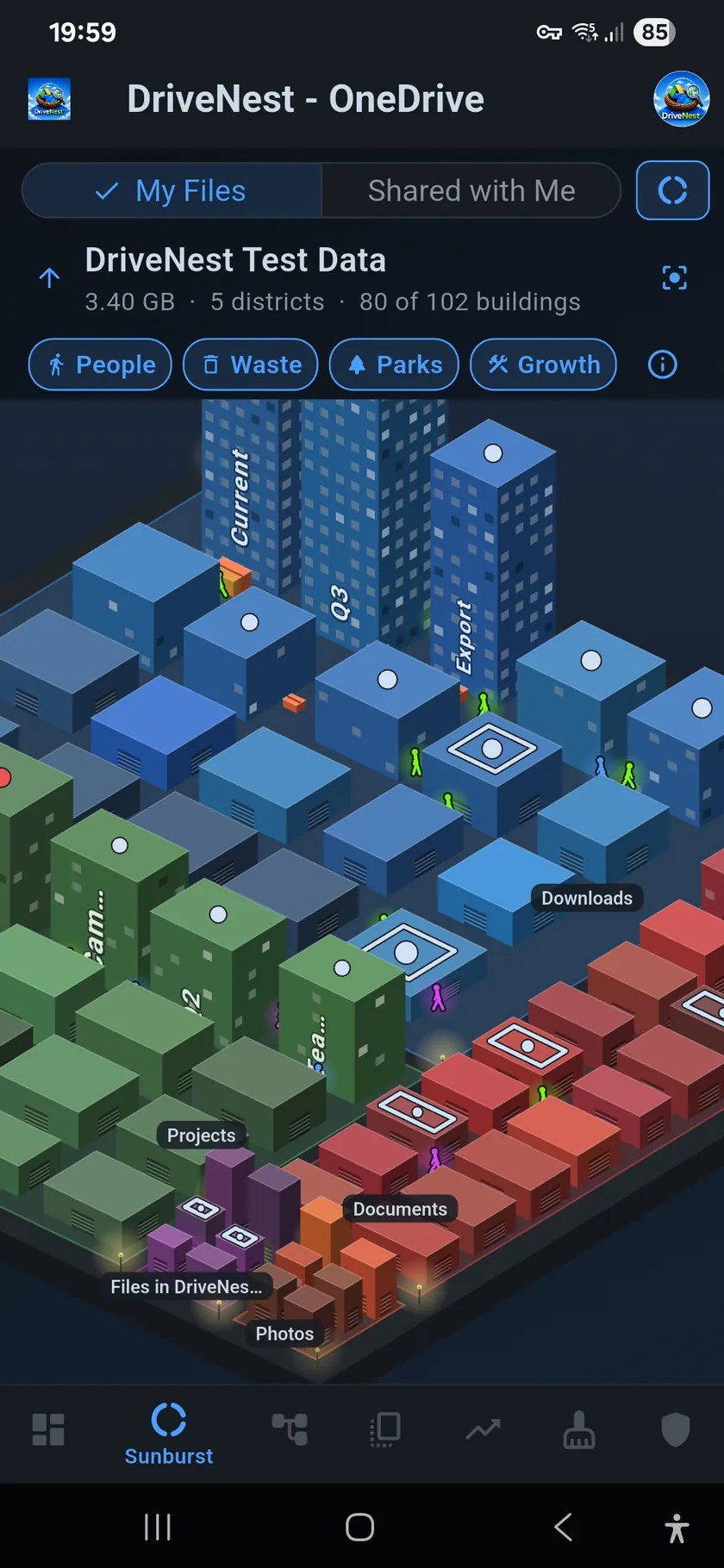
Your folders as a city. Each subfolder becomes a district in its own colour. Folders stand on it as offices and files as houses, sized by how much they hold, and red beacons top the three tallest. The share of lit windows is the share of fresh files inside, and fresh files glow with a warm light. The sky follows your local time: dawn, the sun crossing a day sky with clouds, dusk, then stars and street lamps.
Walk in. One finger moves the city; two fingers turn, zoom and tilt it. Tap for details, double-tap to enter a folder or open a file, and the back button walks you out again. The folders you came through lie under the city as outlines, and a tap on one takes you back. The city and the sunburst stay in step: select a folder in one and it is selected in the other.
Come closer. As you zoom in, the largest buildings show their names. From 3× cranes and machines are modelled, from 6× they work and the brook flows, and from 20× people and name boards show their full detail. When a window of an office’s lowest row fills about half the view, you see the room behind it. From 60× there are mushrooms in the forest and, where there is a brook, ducks and frogs at its pool.
Four layers show who has access, duplicate waste, free space and what changed since your previous saved scan. Here is how each one works.
2:51 · Storage City.
Watch on YouTube ↗Hosted on YouTube. Nothing is loaded from YouTube until you press play; then it plays here in YouTube’s privacy-enhanced mode (Privacy Policy, 9.4).

What each part does, what it is for and what data it uses. All of this describes DriveNest 2.2, which is not out yet.
The Sunburst shows how your storage divides up by folder. The city draws the same folders and adds, in one view, how recently files changed, who has access, where the duplicates are and what changed since your previous saved scan. From a building you can go on to its files and to the cleanup and unshare actions.
Your latest scan, already stored on your phone. That is metadata only: folder and file names, sizes, dates, and who each item is shared with. DriveNest never reads the contents of your files, and drawing the city sends no request to Google Drive or OneDrive. It only contacts your cloud storage provider when you open a file or choose an action such as unsharing.
On top of the folder tree, the layers use results DriveNest already has: the duplicate groups, your storage quota and budget, and the comparison of your latest scan with the previous saved one. Google Drive and OneDrive work the same. The city also draws Shared with Me, where the Free space layer has nothing to show, because those files take none of your quota.
Shows: each subfolder of the folder on show, in its own colour. Files lying directly in that folder stand together in a district of their own.
Limit: the 14 largest subfolders get a district of their own. The rest share one, “N smaller folders”, which you can enter like any folder; each of them then becomes a district.
Good to know: a district with fewer than 12 items opens up its largest folders and builds what is inside them, so one big subfolder does not stand as a lone block.
Shows: a folder. Height follows its size against the largest folder on show, on a square-root scale, so small folders stay visible beside a giant.
Detail: a fuller car park means a larger folder, and red beacons top the three tallest buildings.
Shows: a single file, from a cottage to a villa. There are eight sizes, one for each factor of ten, from under 10 KB to over 10 GB.
Why: the sizes are fixed, so a file is the same kind of house on every level. Files never tower: their size is in the lot and the house.
Up close: a house’s ground floor shows the kind of file: a television for video, a slide show for images, a book for text and PDFs, a desk with a computer for office files. Audio, archives and other types have no room of their own.
Shows: ground is shared out by size class, each class getting twice the area of the one below. True to scale, a few giants would leave no room for anything else.
Opening up the land: a lot too small for a building stays a bare parcel. The slider at the side, or a tap on a bare parcel, spreads the ground while buildings keep their size, so smaller items get room. The card says when not all fit, as in “24 of 3012 shown”.
Shows: the share of lit windows is the share of fresh files inside. Fresh files also glow with a warm light that fades as they age.
Data: the dates in your scan, by the app’s age setting: last used or last modified. OneDrive reports no views, so there “last used” means last changed. What counts as fresh comes from your own scan, and the legend shows the actual number of days.
Tap: a building and it lights up with its district, with a card for both; bare ground selects the district alone. Walkers, dumpsters, cranes and the land each open their own details.
Card: one tab gives place and size, the other status: duplicates, new files and sharing, each opening the files it counts.
Act: enter a folder, open it in the Folder Tree, or open a file in the usual file popup with its actions.
All four start on, and you can switch each one off in Settings → Storage City. The legend, from the info button, explains them in the app and says when one has no data to show.
Shows: a walker for each person with access, up to five per building: anyone with the link first, then by how much they can open.
For: seeing which folders and files other people can open. Tap a walker for who it is and what they can open there, with the unshare actions, aimed at that person only. If their access comes through a folder above, it can only be removed at that folder.
Data: the sharing recorded on each item in your scan, including access that comes from a folder above.
Public links: what is open to anyone with the link rises as a shaft of red light. Red sparks mean something inside is open: more sparks, more files.
Roof marks: solid ring, shared itself; dashed ring, shared through a folder above; dot, holds shared items; red, open to anyone with the link; faint diamond, shared with you.
Shows: a dumpster beside a building holds its duplicate copies, every copy but the newest. The bigger the dumpster, the more space wasted.
For: seeing which buildings hold the most duplicate waste. Tap it for the copies, with the cleanup actions.
Data: the duplicate groups from your scan. Only groups that reach the same confidence the Cleanup screen requires for “safe to remove” get a dumpster.
Shows: at the top level the city’s ground covers the share of your quota in use, and the land around it is what is free: forest with a brook from 30% free, the forest alone below that, desert under 5%.
For: seeing how much room is left. Tap the land for the amount free and, if you have a budget, how it stands.
Data: the storage quota your provider reports. On Google Drive it also counts Gmail and Photos; on OneDrive, OneDrive alone. On a subscription, if you set a storage budget, the land follows that instead: under its warning level, past it, or over budget.
Shows: a crane where files were added or changed since your previous saved scan; a bulldozer or, for more, an excavator where files were removed or got smaller.
For: seeing which folders changed since the previous saved scan. Tap one to list what changed.
Data: your latest scan compared with the previous saved one, so it needs one to compare with. Every office with something new gets a crane; among houses only those that added the most do, one for every eight houses in the district, so a district of new files is not a forest of cranes.
Day and night are atmosphere, not data: the sky follows your local time over the mountains round the horizon, with sunrise and sunset at set hours.
Your own sky, on Ultimate. Turn on Settings → Storage City → Use my location for the sky and the sun and the moon stand where they stand for you, the land and the city take the season, and the sky shows the weather outside: cloud, rain, snow, fog or a thunderstorm. It is off by default.
What it uses: your approximate location, rounded to about a kilometre, looked up at most once an hour and only while a city is on screen, never in the background. The sun and the moon are worked out on your phone. For the weather, the rounded location goes from your phone to OpenWeather at most every half hour, with no account details or scan data. Turning it off deletes the stored place and weather. See the Privacy Policy, 1.10.
Storage City is coming soon in DriveNest 2.2, as an update on Google Play. It is not in the current version yet.
Premium and Ultimate, on both the perpetual licence and the subscription, for Google Drive and OneDrive. On the Free plan you will see a still, sharp preview of your own city. The local sky is part of Ultimate.
Only if you turn on one option. Storage City is drawn on your phone from the scan already stored there, which holds metadata only, never file contents, and there is no DriveNest server. The one exception is the local sky on Ultimate, which is off by default: with it on, your approximate location, rounded to about a kilometre, goes straight from your phone to OpenWeather to get the weather. Nothing about your files goes with it. See the Privacy Policy, 1.10.
No. It draws your latest scan on the phone. Scan again to see what has changed since then.
It compares your latest scan with the previous saved one, so it needs one to compare with. Until there is one, the city’s legend shows it as not available.