In this guide
Why a selection needs to outlive the screen
Real cleanups are never one list. A few oversized videos turn up on the cleanup screen, a handful of extra copies turn up under duplicates, and then the sunburst chart shows a whole project folder from 2023 you forgot existed. Each of those is a different view, and each view has its own selection.
Google Drive on the web
You can multi-select inside one folder or one search result. Open another folder or run another search and the selection is gone, so a cleanup spread across the drive becomes many small deletions, each done from memory.
OneDrive on the web
Same story: checkboxes live in the current folder view. Navigating away clears them, and the What’s taking up space view has no way to add items found elsewhere.
DriveNest’s pinning is the missing basket. You pin items wherever you find them, the pins stay put while you move between screens, and at the end one Pinned list feeds one script.
How pinning works
- Pin from anywhere. Every file list in the app has a pin on each row, plus a pin in the header row that pins (or unpins) every selected item currently in view. The sunburst chart pins a folder from its callout, and the cleanup bubble chart pins a whole group.
- One list per cloud. Google Drive and OneDrive keep separate Pinned lists, because each runs its own kind of script. Switching cloud switches the list.
- It persists. Pins are saved on your phone by file ID and matched against the latest scan, so they survive closing the app and rescanning. An item that no longer exists simply drops out of the list.
- A file is pinned once. The same file can show up on several screens; pinning it on one lights the pin on all of them, and it appears once in the Pinned list.
- Duplicates keep a keeper. Pinning a duplicate group on the bubble chart pins every copy except the most recently active one, so you never pin away your last copy by accident.
- Exclusions win. Anything covered by a cleanup exclusion rule can never be pinned for cleanup.
- Pinning changes nothing in the cloud. It is a list inside the app. Nothing is touched until you generate a script, review it and run it.
- Every plan. Pinning and the Pinned list are available on the free tier too.
Not the same as a pinned revision. Google Drive also uses “pinned” for revisions marked Keep forever — a Drive setting on file versions, covered on the version history overhead page. DriveNest pinning is unrelated: it marks whole files and folders for an action you run later.
The walkthrough below uses OneDrive; the Google Drive flow is identical up to step 5, where the two clouds run the result differently.
1Pin items from the cleanup list
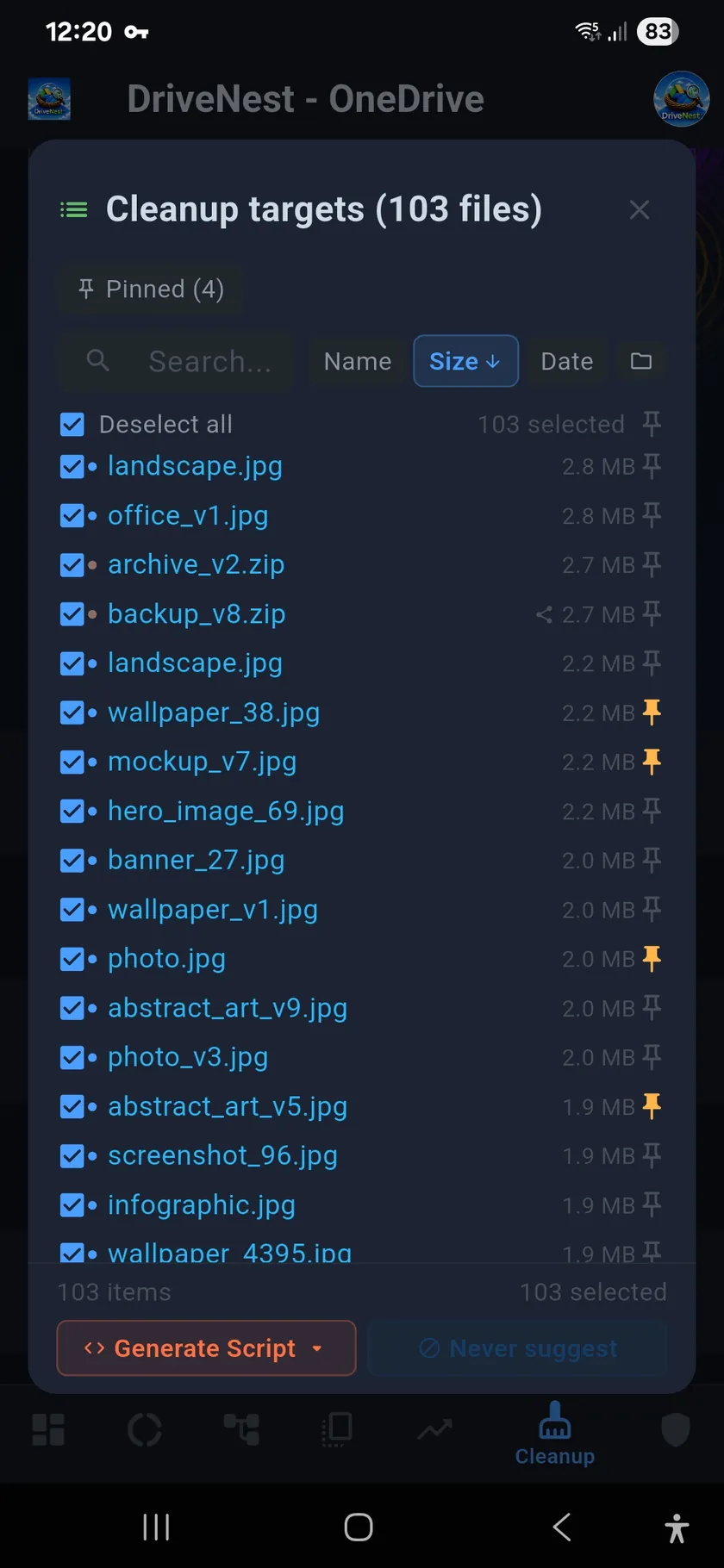
Open the Cleanup screen and tap into a list, such as the cleanup targets. Sort by size or date, search by name, then tap the pin at the end of each row you want in the batch. Pinned rows turn orange.
To pin a lot at once, narrow the list with search, tick what you want and tap the pin in the header row: it pins every selected item in the current view. The Pinned (N) chip at the top keeps the running count.
2Pin more from the duplicates
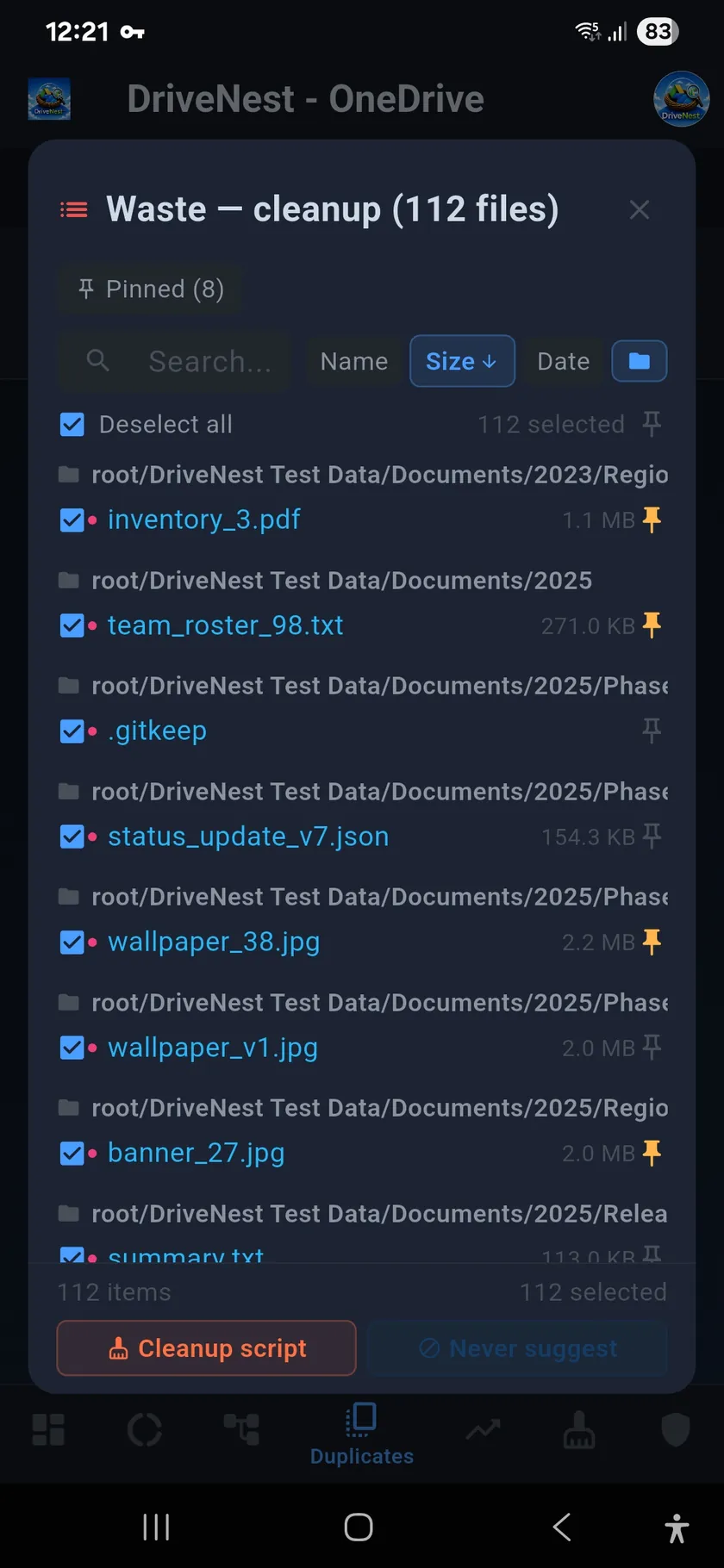
Switch to Duplicates and open a list. The folder toggle groups rows by their parent path, which makes it easy to pin the copy in the messy folder and leave the one in the tidy folder alone.
The pins from step 1 are still there — a file you already pinned on the cleanup screen shows its orange pin here too — and the Pinned chip keeps counting across screens.
3Pin a whole folder from the sunburst chart
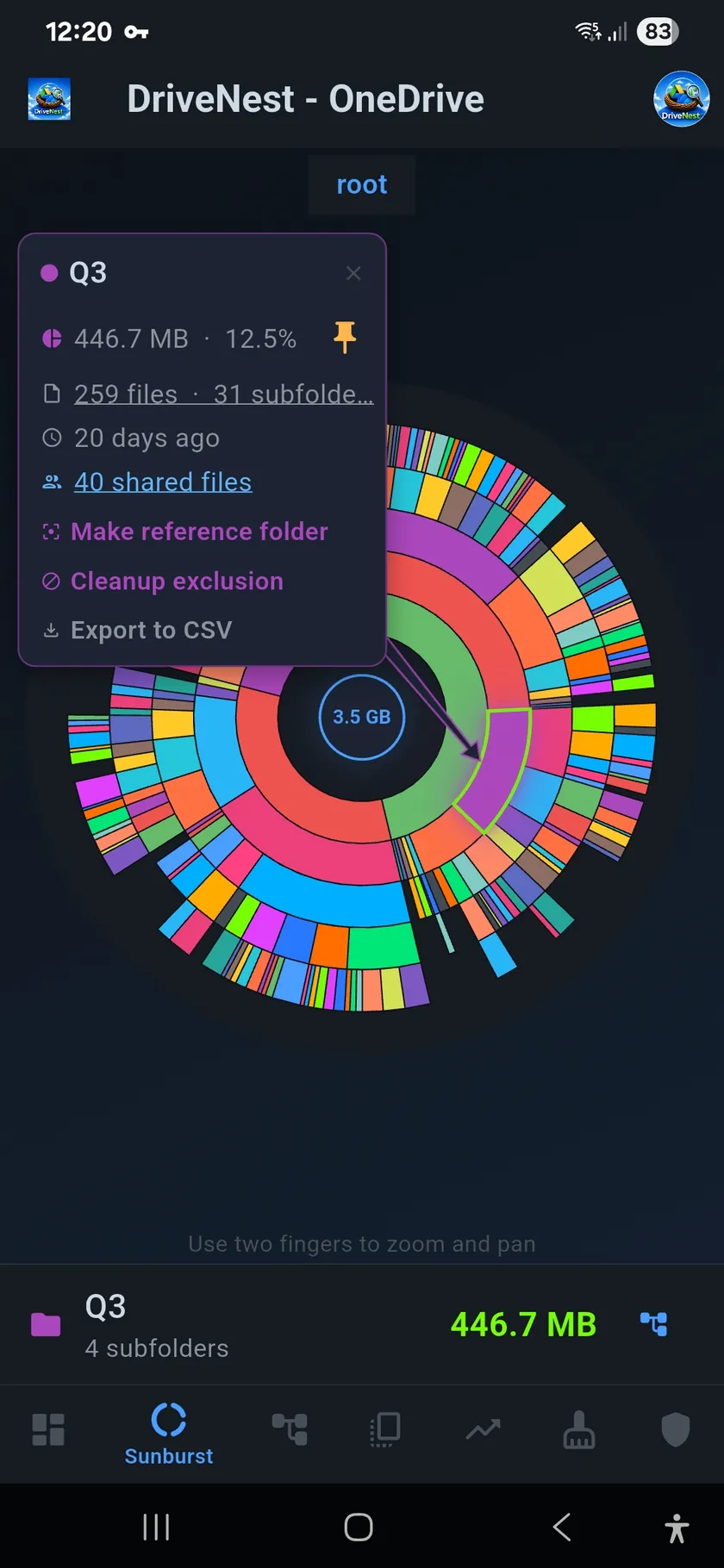
Some waste is easier to see as a shape than as a list. On the sunburst chart, tap a segment to open its callout — size, share of the drive, file and subfolder count, last activity — and tap the pin next to the size.
This pins the folder itself, not a snapshot of its files. When the batch runs, the folder goes to the trash or recycle bin as one item, with everything inside it. If you also pinned files that live inside that folder, they are handled with the folder rather than a second time.
4Review the Pinned list and pick a script
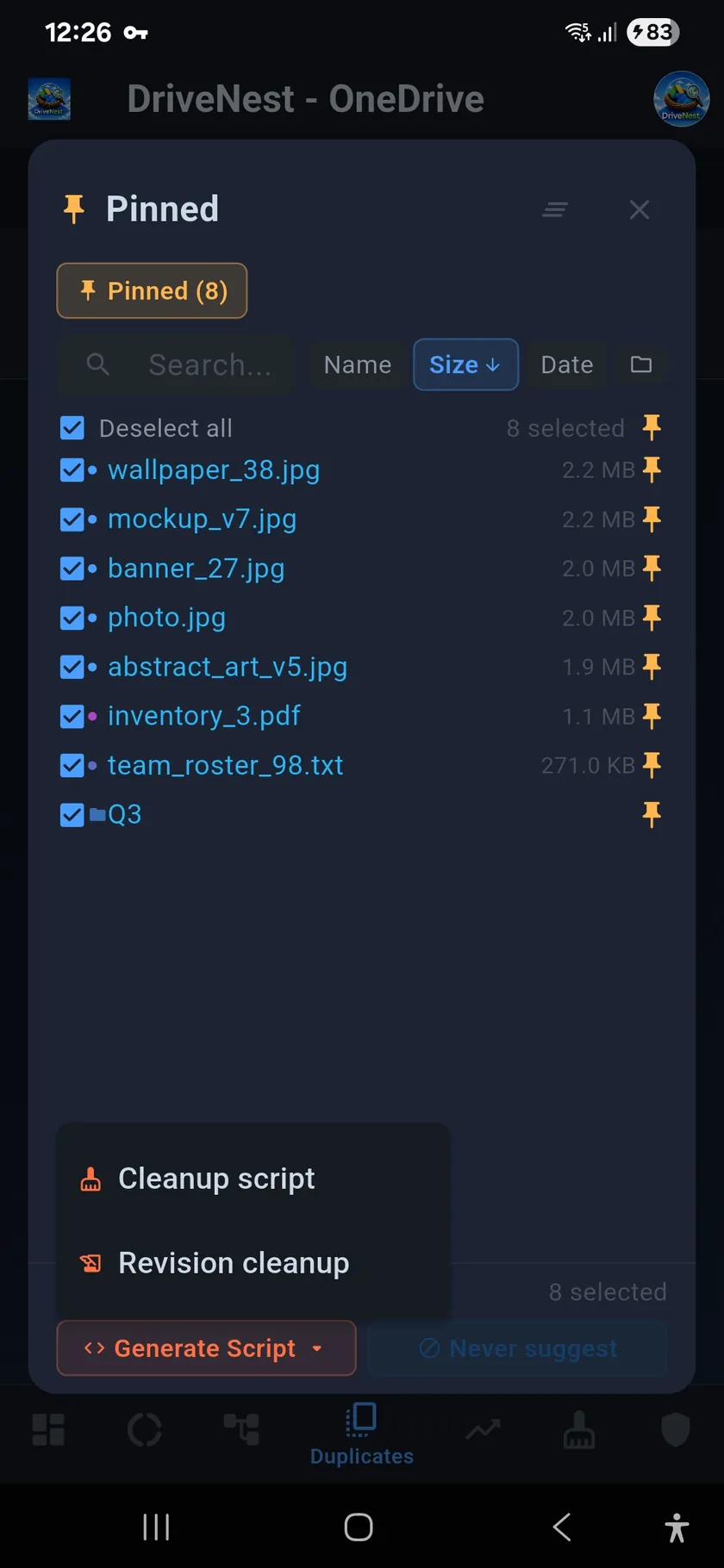
Tap the Pinned (N) chip on any file list. The list switches to your whole collection: the files from the cleanup list, the copies from duplicates and the folder from the sunburst, side by side, with the same search, sort and group-by-folder controls.
- Untick anything you want to leave out of this run without losing it; the partial selection is remembered next time you open the list.
- Tap a pin to drop an item from the collection for good.
- Clear pinned (the icon next to the close button) empties the list after a confirmation.
Then open Generate Script ▾. What it offers depends on what is ticked: Cleanup script is always there; Unshare script appears when a ticked item is shared; Revision cleanup appears when a ticked file carries stored versions. Next to it, Never suggest turns the selection into an exclusion rule instead.
5Review the script
This is the step where the two clouds differ. Either way, you see exactly what will be touched before anything is.
OneDrive
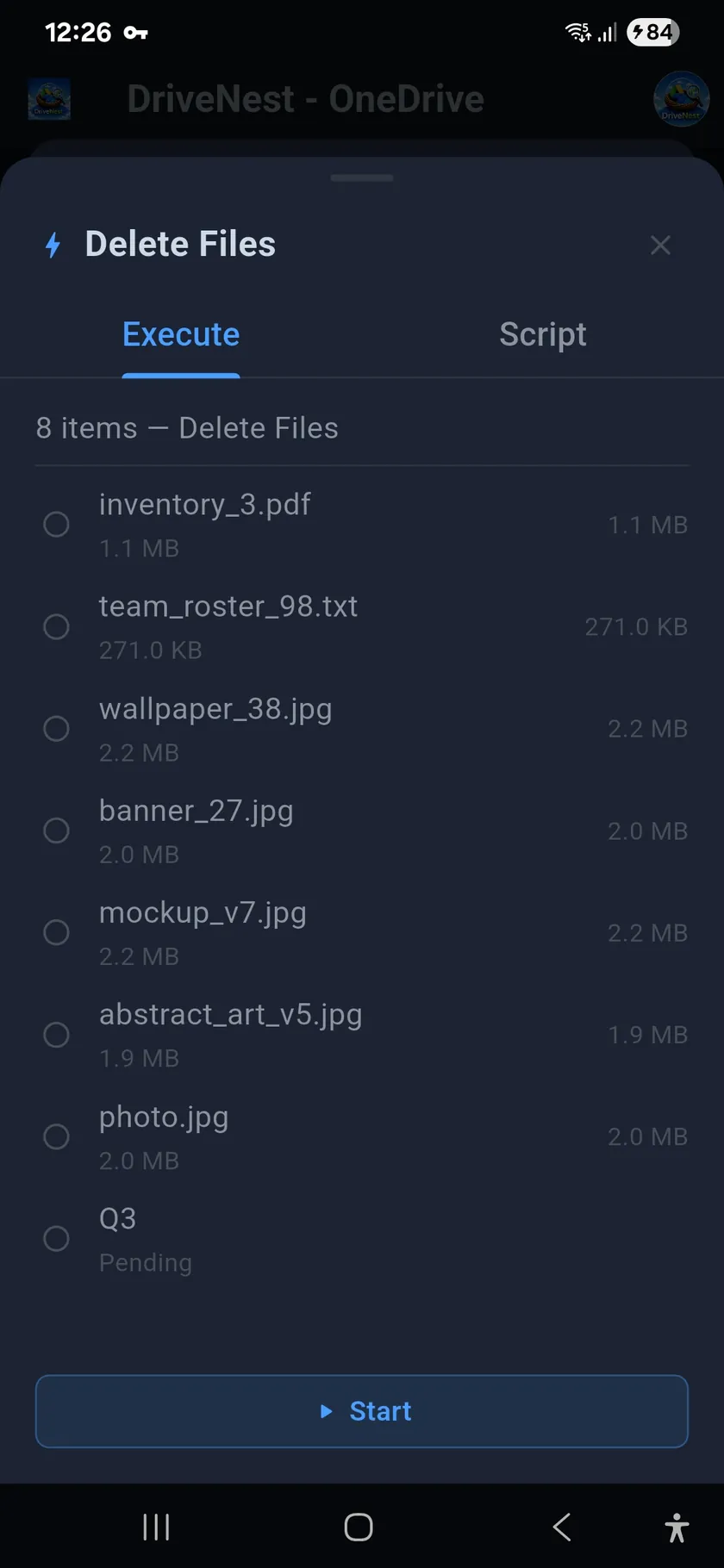
A Delete Files sheet opens. The Execute tab lists every item with its size (the folder shows as pending). The Script tab holds the same job as a Bash or PowerShell script, if you would rather copy it and run it yourself. Nothing has run yet.
Google Drive
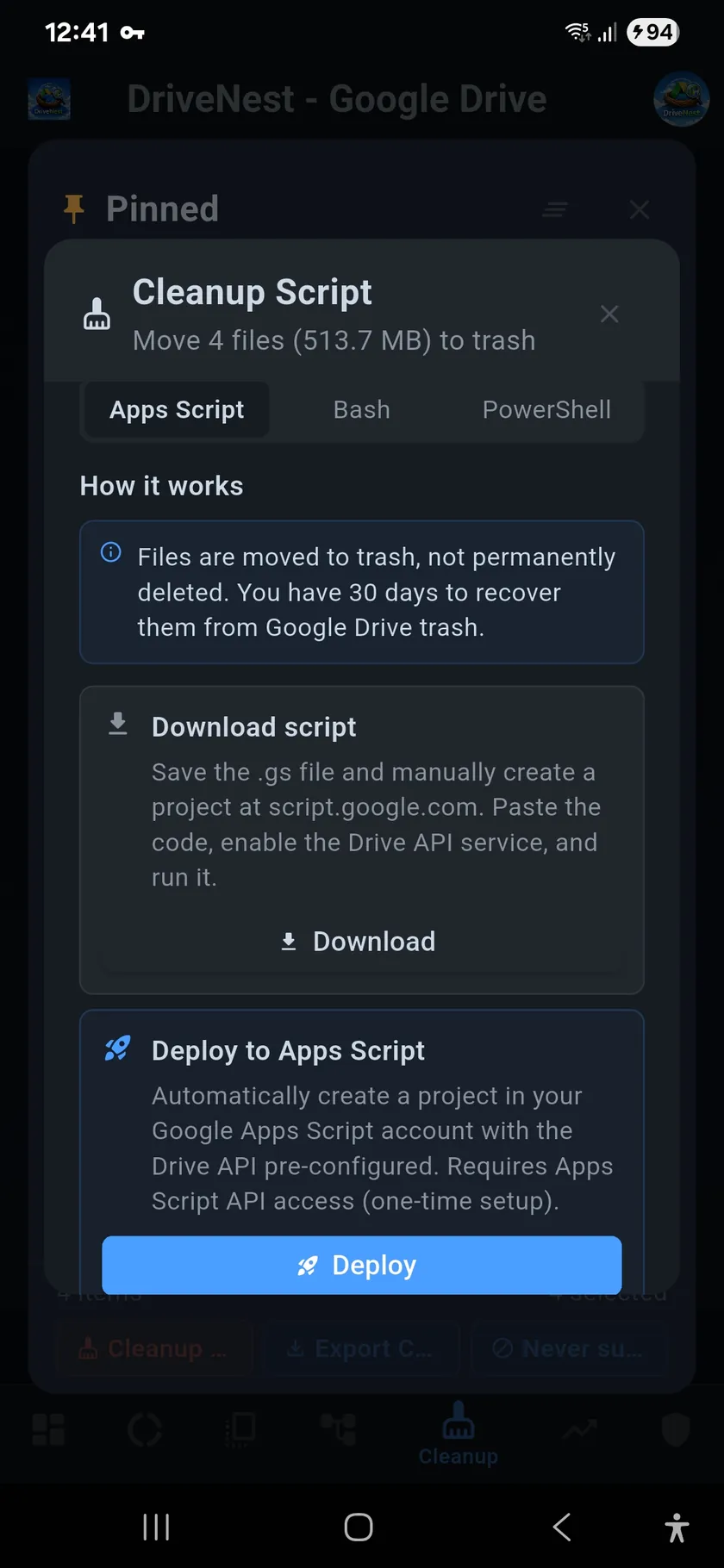
A Cleanup Script dialog opens with the total, e.g. “Move 4 files (513.7 MB) to trash”. Pick Apps Script, Bash or PowerShell, then Download the file or Deploy it to your own Apps Script account in one tap. See the Scripts page for the details.
6Run it
OneDrive
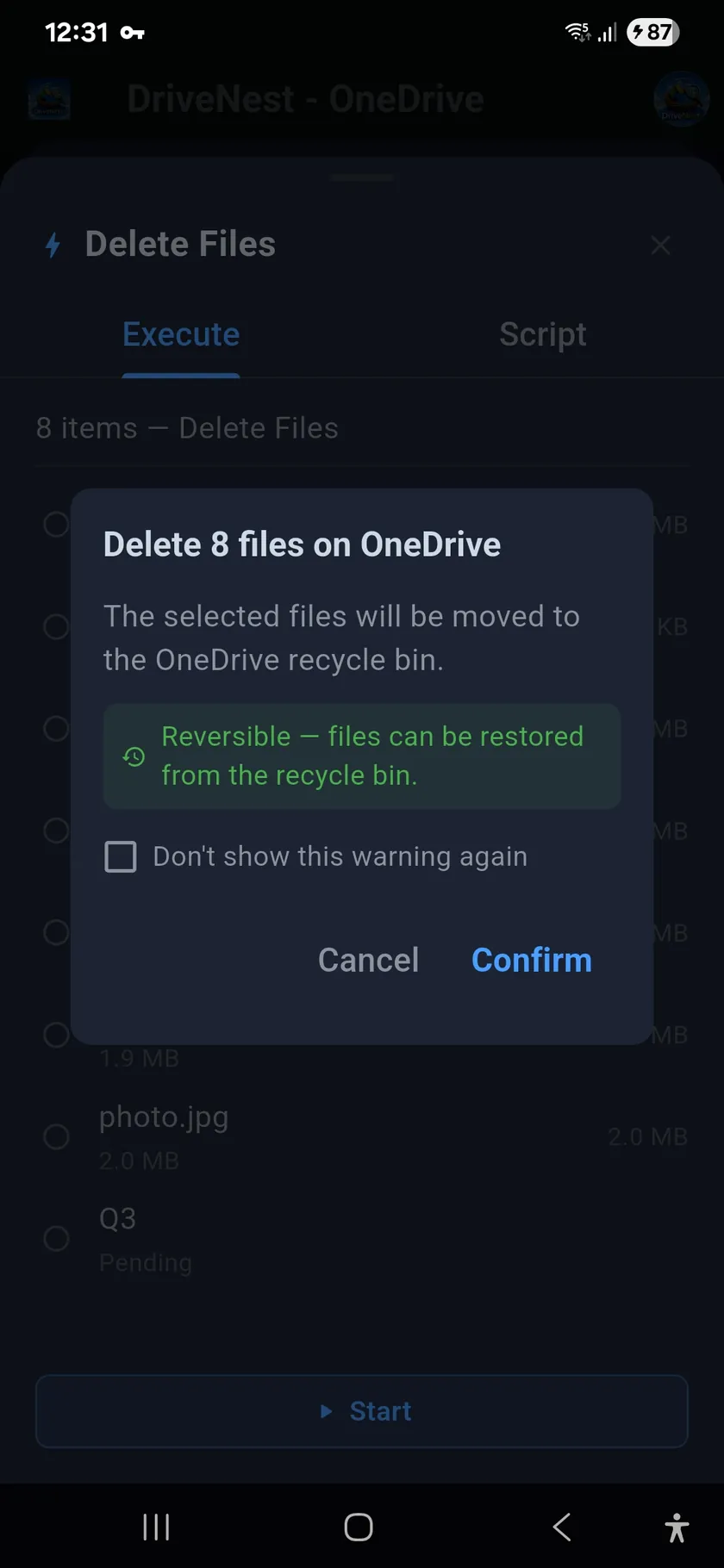
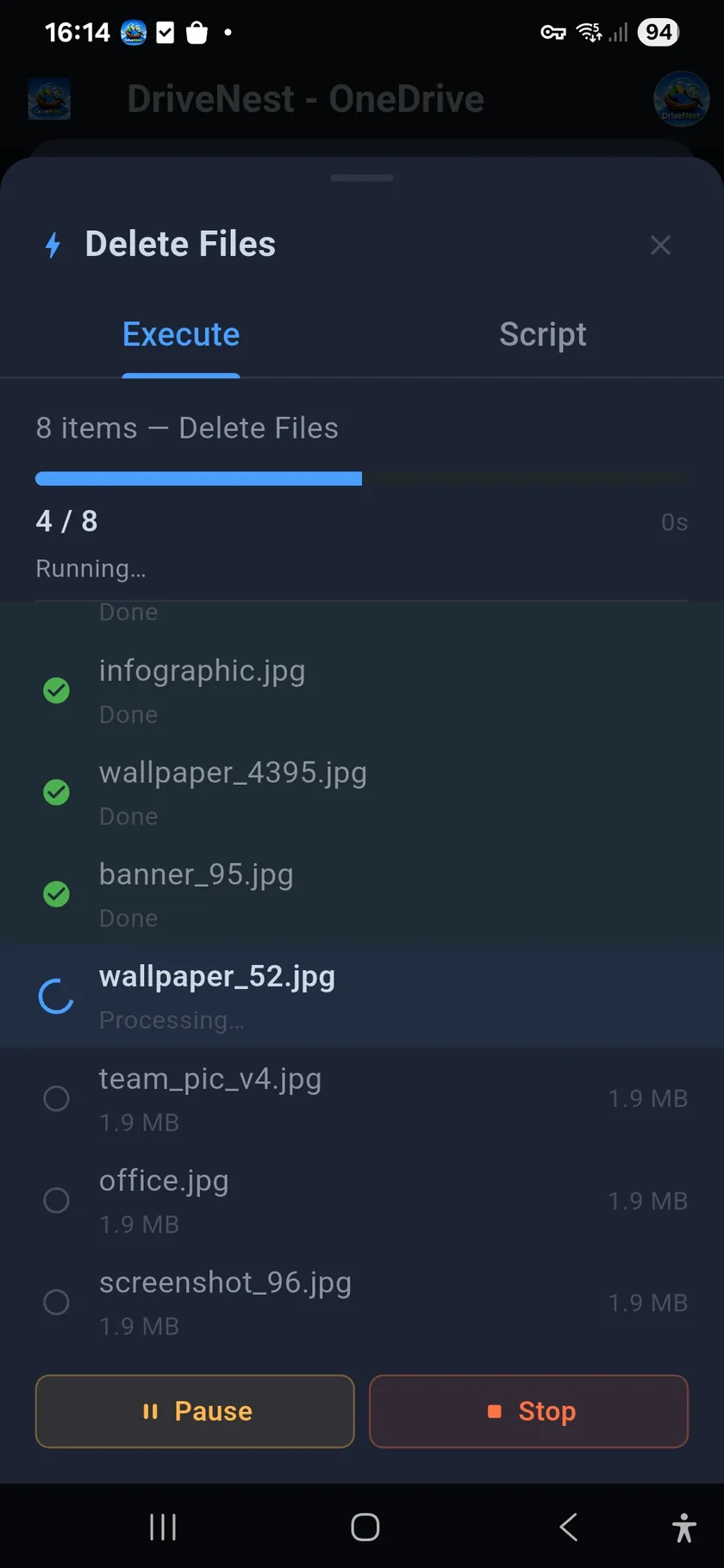
Tap Start. A confirmation states how many items will go and that they are moved to the OneDrive recycle bin, where they can be restored. After Confirm, DriveNest works through the list in-app: a progress bar, a tick per finished item, and Pause and Stop if you change your mind halfway. Write access is requested only at this moment, the first time you run an action.
Google Drive
Open the deployed project in Apps Script (or run the Bash/PowerShell file) and run it. The script runs in your own Google account, not on our servers, and moves the items to the Drive trash, where they stay recoverable for 30 days.
After the run
- Pins are not cleared automatically. Removed items drop out of the Pinned list once they are gone from the scan data; anything you left unticked stays pinned for the next run.
- To start a fresh batch, open the Pinned list and tap Clear pinned.
- Deleted items keep using quota until the trash or recycle bin is emptied — see step 2 of the cleanup guide.
- Every in-app run is recorded in the action history.
Free to try, no ads. Pinning works on every plan, on Google Drive and OneDrive alike.

Frequently asked questions
Do pinned items stay pinned after I close the app or rescan?
Yes. Pins are saved on your phone and matched by file ID against the latest scan, so they survive app restarts and rescans. An item that no longer exists in the scan simply drops out of the Pinned list.
Can I mix Google Drive and OneDrive items in one pinned batch?
No. Each connected cloud keeps its own Pinned list, because each cloud runs its own kind of script: Apps Script for Google Drive, in-app execution for OneDrive. Switch cloud and you see that cloud’s pins.
What happens if I pin a folder and also files inside it?
The cleanup handles the folder once and everything inside goes with it; the files you pinned inside it are not processed a second time. Pinning a folder means the whole folder, with all its subfolders, goes to the trash or recycle bin.
Are pins cleared after the script runs?
Not automatically. Items that were removed drop out of the list once they are gone from the scan data. Anything you left unticked stays pinned for the next run. Use Clear pinned on the Pinned list to start over.
Is this the same as a pinned (Keep forever) revision on Google Drive?
No. Google Drive also calls Keep forever revisions pinned; that is a Drive setting on file versions. DriveNest pinning is a shopping list of files and folders inside the app and changes nothing in your cloud until you run a script.
Which plan do I need for pinning?
Pinning and the Pinned list are available on every plan, on Google Drive and OneDrive alike.