In this guide
A full cloud drive is almost never full of things you need. Across the drives DriveNest has scanned, 15–30% of used space is typically duplicates, forgotten downloads, hidden version history and old backups. The steps below go in order of payoff per minute, and each one is written for Google Drive and OneDrive side by side, because the two services hide waste in slightly different places.
1. First, see what is actually using the quota
Your quota is shared by Drive, Gmail and Google Photos. Open one.google.com/storage for the split. If Gmail or Photos is the big slice, cleaning Drive will not fix it. Inside Drive, remember that Computers (desktop backups) is separate from My Drive.
Microsoft
Your quota is shared by OneDrive and Outlook.com attachments. Open OneDrive on the web → Settings → Options → Manage storage for the breakdown and the What’s taking up space view.
On both services, files that other people have shared with you do not count against your quota, so there is no point cleaning up “Shared with me”. Only what you own matters.
2. Empty the trash or recycle bin
Deleted files keep using quota until the bin is emptied — Google Drive holds them for 30 days, OneDrive for 30 days on personal accounts and 93 on work and school accounts (DriveNest itself connects to personal OneDrive accounts). If you have been deleting things and the quota has not moved, this is usually why. Open Trash (Google Drive) or the Recycle bin (OneDrive), glance through for anything you regret, then empty it. On Google, empty Gmail’s Trash and Spam too; they share the same quota.
3. Remove the largest files you no longer need
This is the highest-payoff step per file. Both services will list your files largest first:
Google Drive
Click Storage in the left sidebar. The list is sorted by size. Work down from the top; videos, disk images and zip archives usually dominate. Add owner:me to any search to keep shared files out.
OneDrive
Settings → Options → Manage storage → What’s taking up space. Same idea: largest first. Also check the Personal Vault and Pictures for camera roll video.
Stop when you reach files you might need. The remaining waste is spread over thousands of smaller files, and that is where the next steps — and a tool — earn their keep.
4. Remove duplicate files
Neither service has a duplicate finder. By hand you can search for the default copy names — “Copy of” on Google Drive, “ - Copy” on OneDrive, and (1) on both — and compare same-size neighbours on the size-sorted list. That catches a fraction of them. Renamed copies, photos uploaded from two devices and folders mirrored by the sync client need a content-based comparison; the duplicate files guide covers both approaches in detail. Keep one copy of each, in the organised location, and trash the rest.
5. Trim version history
This is the waste almost nobody knows about. Both Google Drive and OneDrive keep earlier versions of a file every time it is saved or re-uploaded, and both bill every stored version against your quota even though only the current one is visible in the file list. A 40 MB presentation that has been saved thirty times can be sitting on a gigabyte. Google calls them revisions, Microsoft calls them versions; the effect is the same.
Google Drive
Revisions of non-Google files — PDFs, images, video, Office documents, ZIP archives — count toward quota. Drive keeps them for 30 days or 100 versions, and indefinitely for any marked Keep forever. Google Docs, Sheets and Slides revisions are free. To trim by hand: right-click a file → Manage versions → delete the old ones. There is no view that shows which files carry the most revision weight, so you are guessing which files to open.
OneDrive
Versions of every file type are kept and count toward quota. To trim by hand: on OneDrive on the web, right-click a file → Version history → delete older versions one at a time. As on Google Drive, nothing tells you which files have accumulated the most versions, so the manual route only works for a handful of files you already suspect.
DriveNest’s version history overhead panel measures the extra quota each file’s stored versions consume beyond the current file, ranks the top offenders, and shows the version count — including keep-forever revisions on Google Drive. From there it generates a revision cleanup script for Google Drive, or runs version cleanup as an in-app action on OneDrive, keeping the current version and a configurable number of recent ones.
6. Trim sync-client backups
Google Drive
Open the Computers section in the sidebar. Every machine you ever ran Google Drive for desktop on has a folder here. Backups of computers you no longer own, or folders you also keep in My Drive, can go.
OneDrive
OneDrive app → Settings → Sync and backup → Manage backup. Desktop, Documents and Pictures from every PC you signed into are uploaded. Old machines’ folders and anything duplicated in a synced project folder are the usual waste.
Be careful removing anything that a desktop client still mirrors: deleting it in the cloud deletes it on the computer too. Stop the backup or move the files first.
7. Stale files, mail attachments and photos
- Old files. Google Drive: search before:2023-01-01 owner:me (adjust the date). OneDrive: sort any folder by Modified. Downloads, installers and exported reports from years ago rarely survive a second look.
- Mail attachments (Google). In Gmail, search larger:10M and delete what you no longer need, then empty Gmail’s Trash. Attachments are frequently the single largest slice of a Google quota.
- Photos. Google Photos backups count toward the same quota; switching to Storage saver quality compresses future uploads. OneDrive camera upload lands in Pictures/Camera Roll — check it is not also being synced from a phone folder.
8. Doing all of it at once with DriveNest
Steps 3 to 6 are the same work repeated on every folder: what is big, what is old, what exists twice, what is safe to touch. DriveNest is a multi-cloud Android app that does that pass over a whole Google Drive or OneDrive in one scan and turns it into a ranked cleanup plan, one per connected cloud.
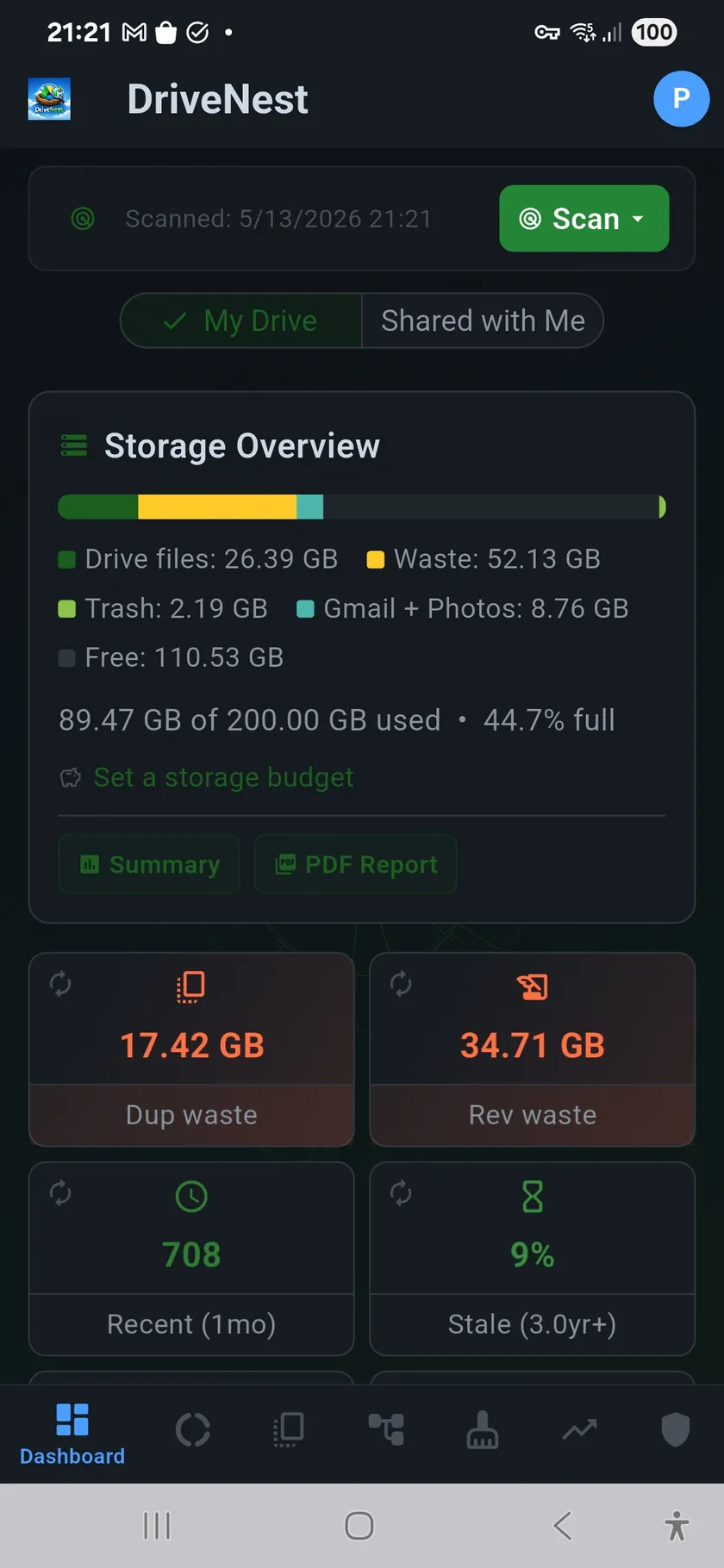
- The dashboard shows the split between large files, duplicates, stale content, ghost files and version history overhead before you touch anything.
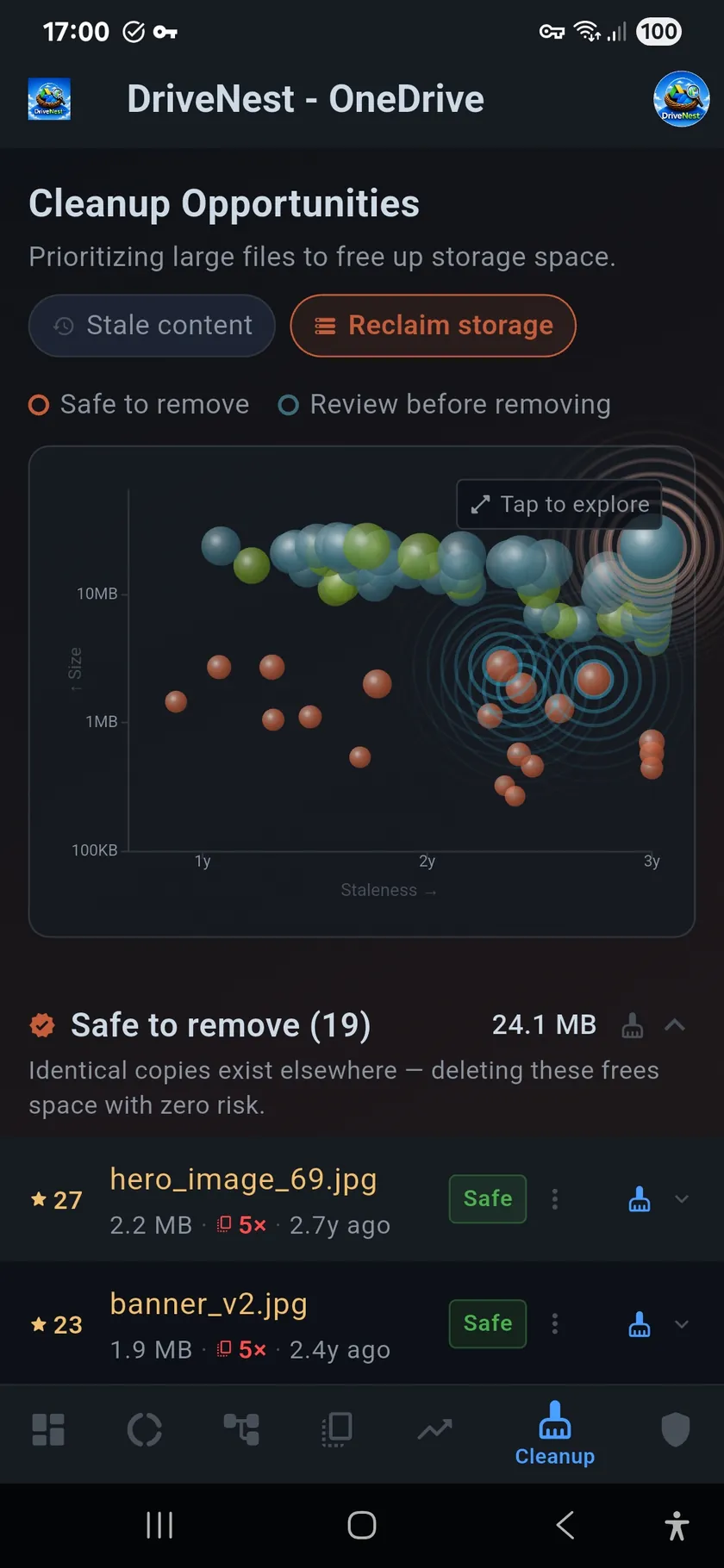
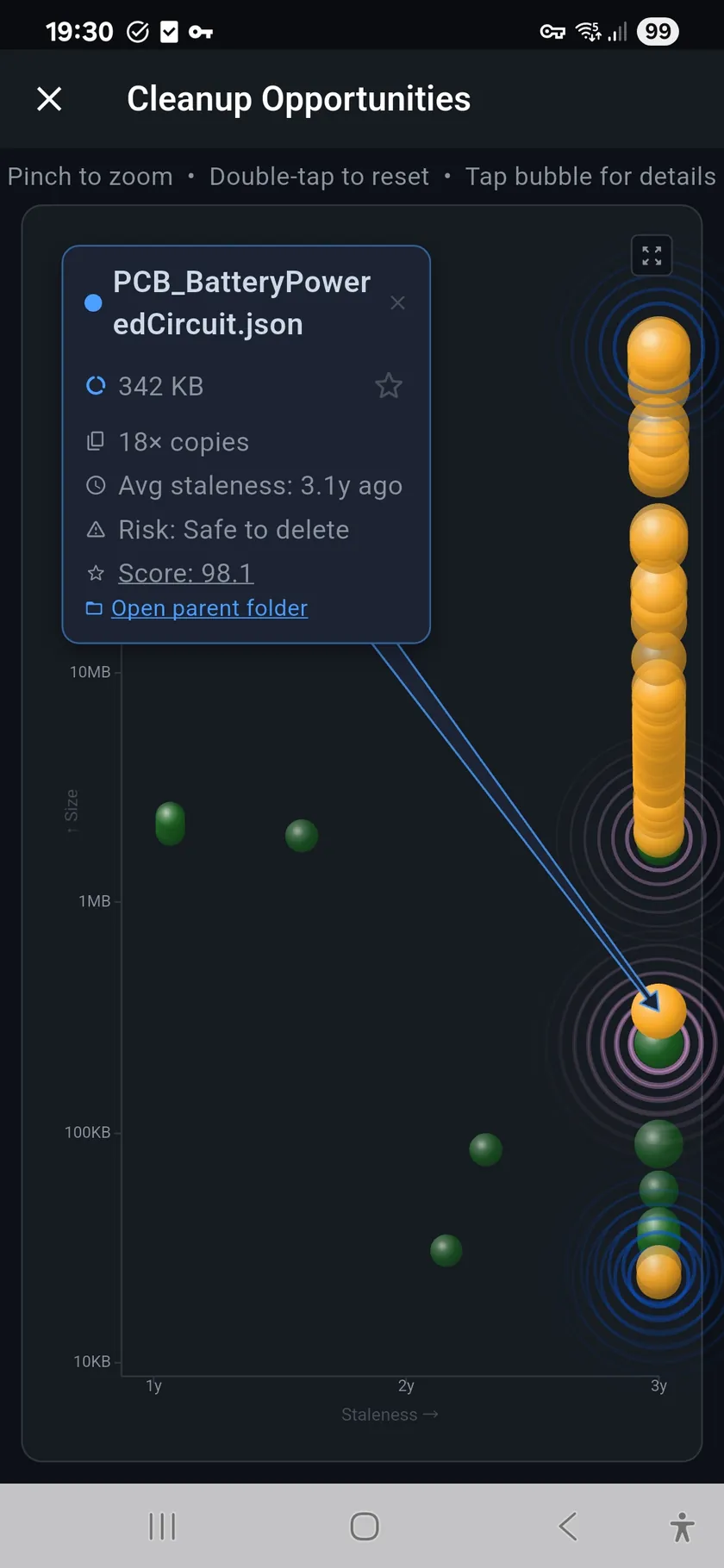
- The cleanup screen scores every candidate on size, age and duplicate status and labels it Safe, Caution or Risky. Reclaim Storage mode ranks purely by size; Stale Content mode ranks by neglect.
- Exclusion rules keep folders you never want suggested — tax records, finished archives — out of the list for good.
- Nothing is deleted by the app on its own. On Google Drive it generates an Apps Script you run in your own account; on OneDrive it executes in-app after you confirm. Files go to trash or the recycle bin either way.
- It reads only file metadata with a read-only permission, never file contents, and nothing leaves your phone unless you turn on the optional AI assistant, which sends metadata only to the AI provider you choose.
Free to try, no ads. The free tier scans your whole cloud, no file or size cap — you see exactly where your space went.

9. Keeping it clean
- Give every laptop folder one home in the cloud: backed up by the sync client, or synced, not both.
- Save mail attachments to the drive only when you will need them again; the mail keeps its own copy.
- Empty the trash or recycle bin monthly, once you are sure nothing in it is missed.
- Rescan periodically. DriveNest’s scheduled scans and trend history show growth as it happens, so the next cleanup is a ten-minute job rather than a weekend.
Frequently asked questions
What counts toward my storage quota?
Google: Drive, Gmail and Google Photos share one quota. Inside Drive that includes My Drive, the Computers partition, stored revisions of non-Google files, and the trash. OneDrive: the quota is shared with Outlook.com attachments and includes the recycle bin until it is emptied. On both, files other people have shared with you do not count against you.
Why is my storage still full after deleting files?
Deleted files sit in the trash (Google Drive, 30 days) or recycle bin (OneDrive, 30 or 93 days) and keep using quota until the bin is emptied. On Google, Gmail and Photos may be the real consumer — check the breakdown at one.google.com/storage. Quota figures can also take a few hours to update.
Do old versions of files use storage on Google Drive and OneDrive?
Yes, on both clouds. Google Drive bills every stored revision of non-Google files (PDFs, images, Office documents, archives) against your quota; Drive keeps them for 30 days or 100 versions, and forever for any marked Keep forever. Google Docs, Sheets and Slides revisions are free. OneDrive keeps versions of every file type and counts them toward quota as well. Neither service shows which files carry the most version weight; DriveNest’s version history overhead panel does.
What is the safest way to delete in bulk?
Move to trash rather than deleting permanently, do it in batches you have reviewed, and leave the trash alone for a few days before emptying it. Never bulk-delete inside a folder that a desktop sync client mirrors without first checking what that will do to the computer.
Can DriveNest clean up both Google Drive and OneDrive?
Yes. The scan, dashboard, cleanup ranking, exclusion rules and risk scoring are the same on both clouds. On Google Drive the cleanup runs through a generated Apps Script you execute in your own account; on OneDrive DriveNest can execute it in-app after you confirm. Dropbox is next.
Does DriveNest ever delete anything on its own?
No. It holds read-only access by default, never deletes without your explicit approval, and every removal goes to trash or the recycle bin, not to permanent deletion. Scheduled auto-cleanup on Google Drive runs only the actions you configured and skips any folder covered by an exclusion rule.