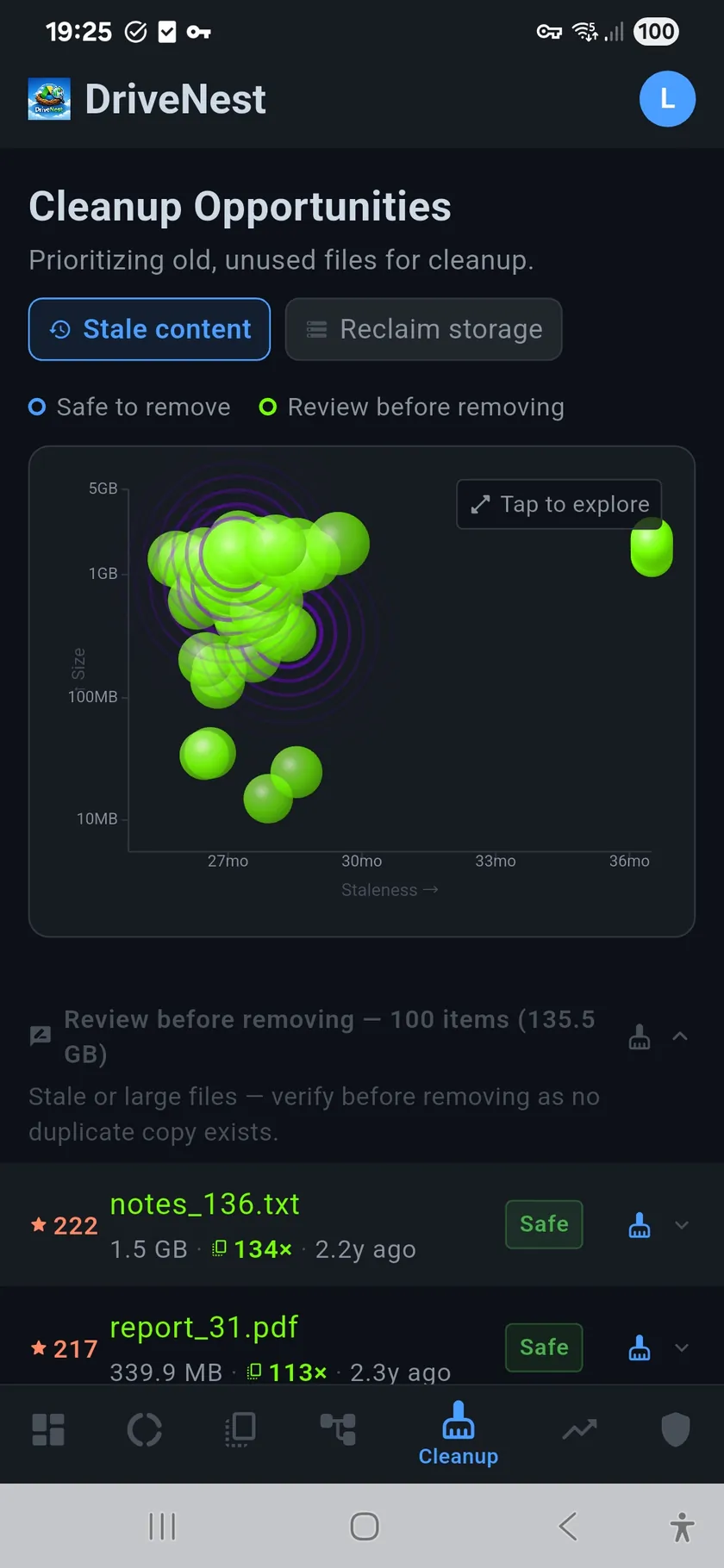
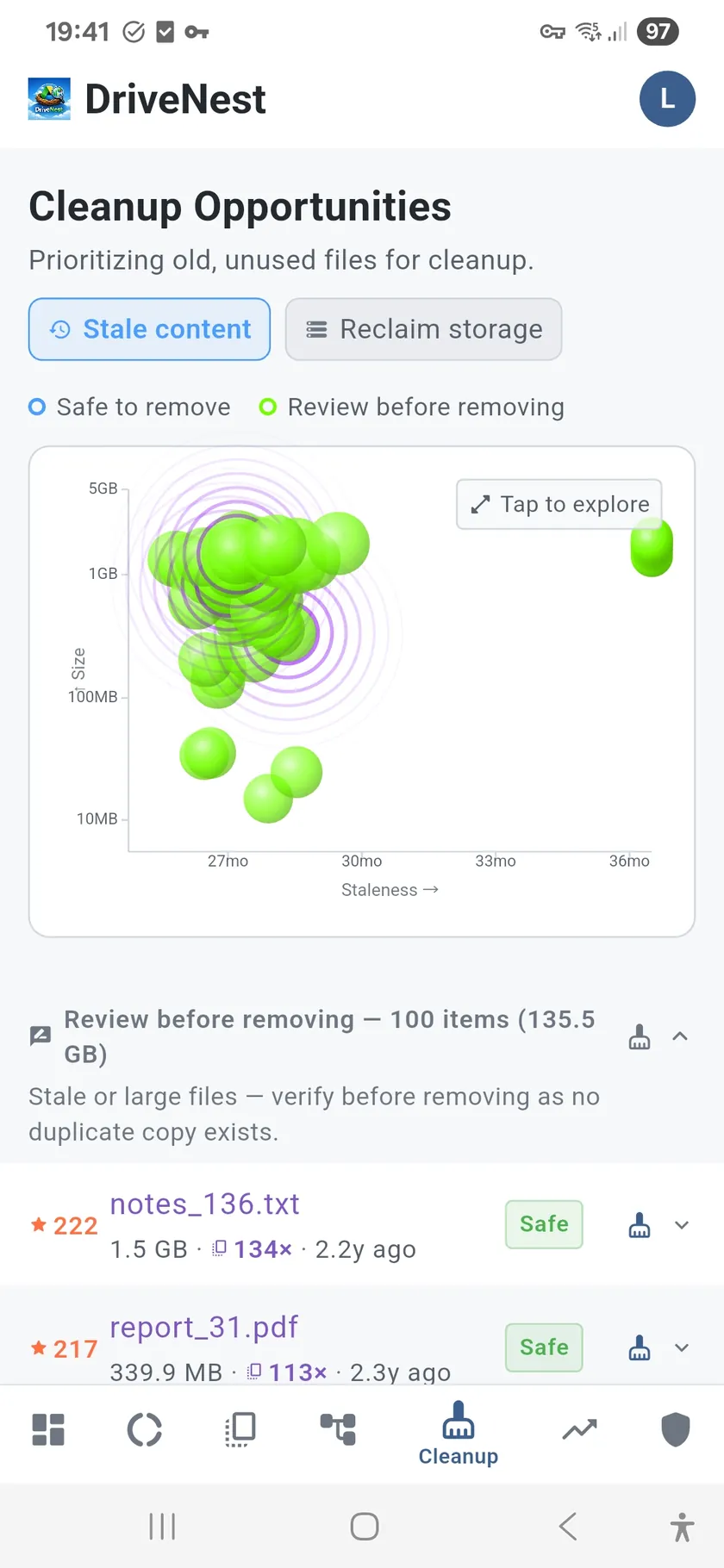
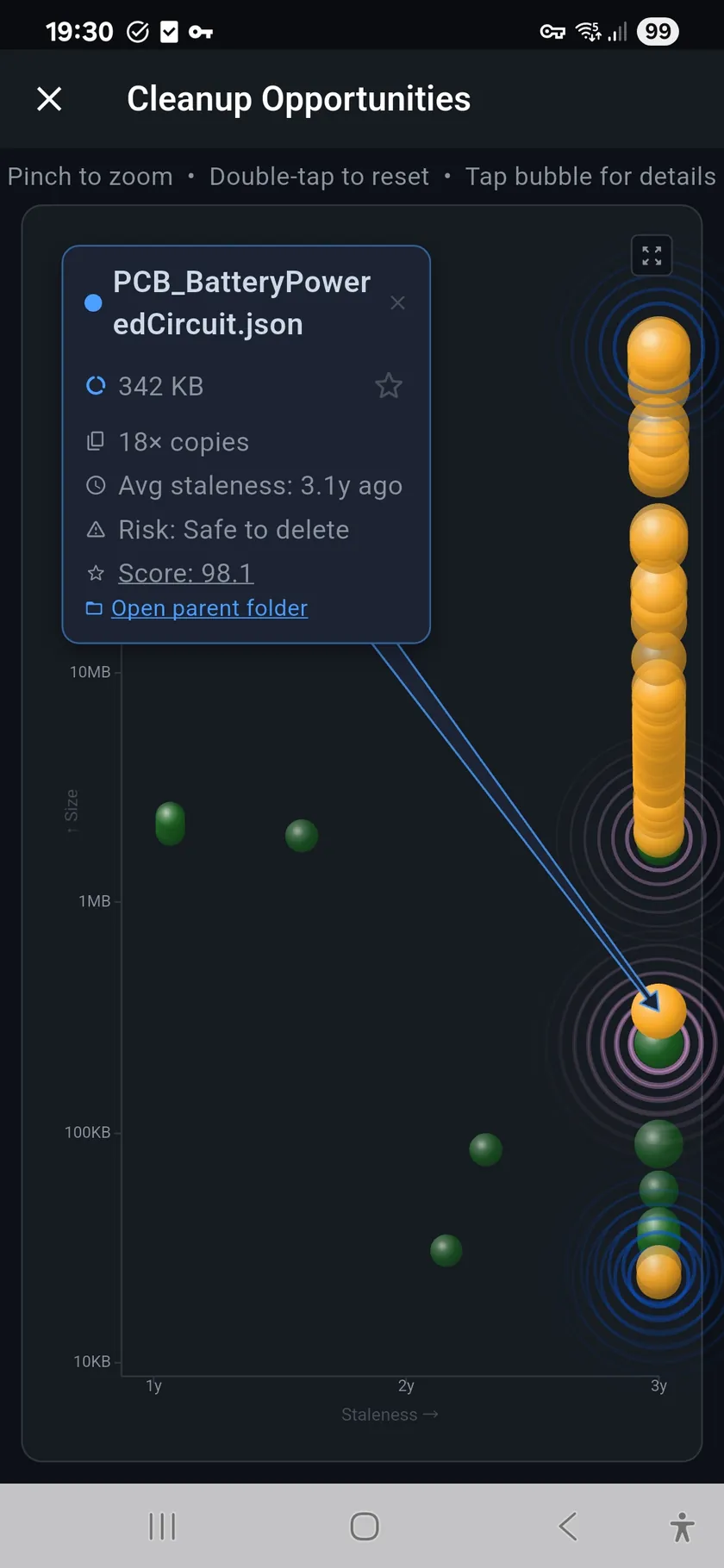
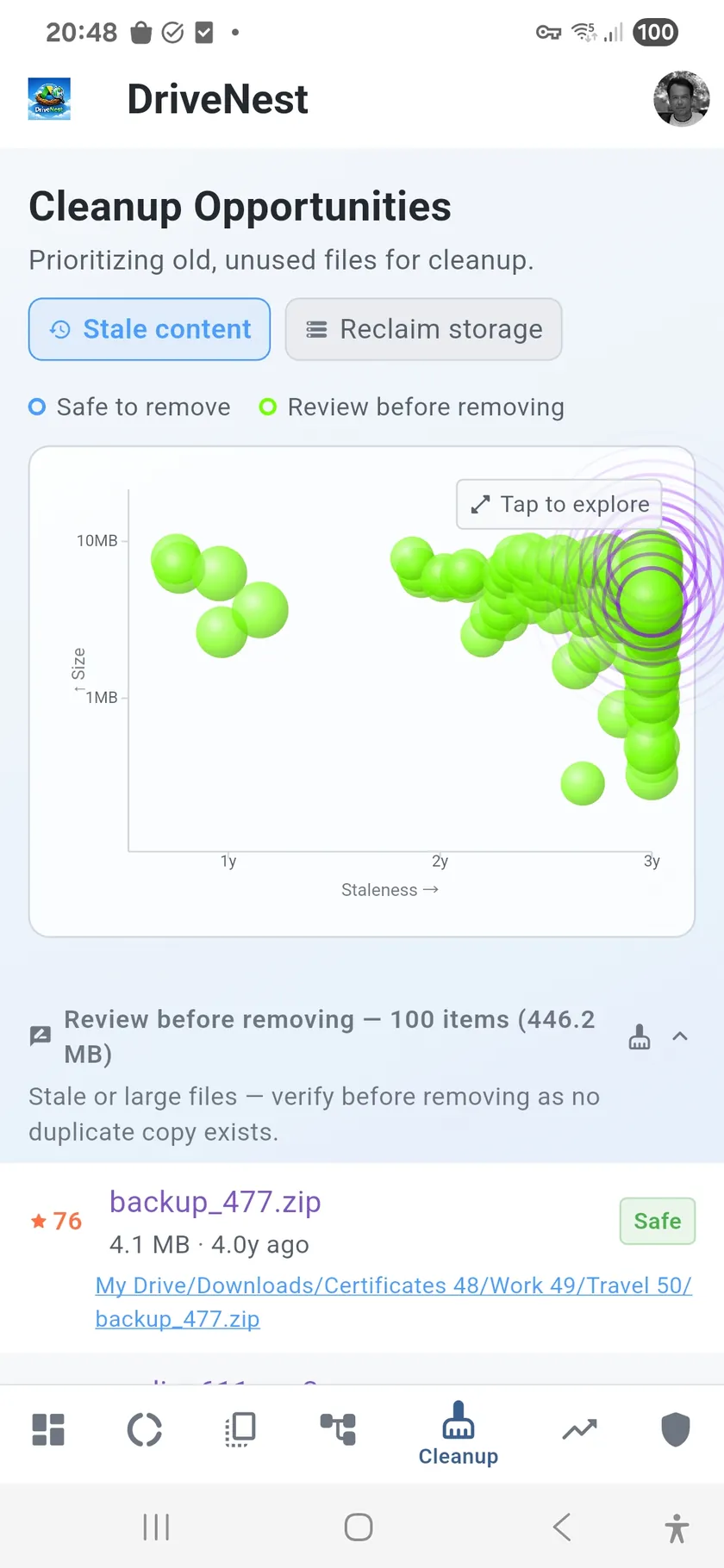
Two modes for two goals
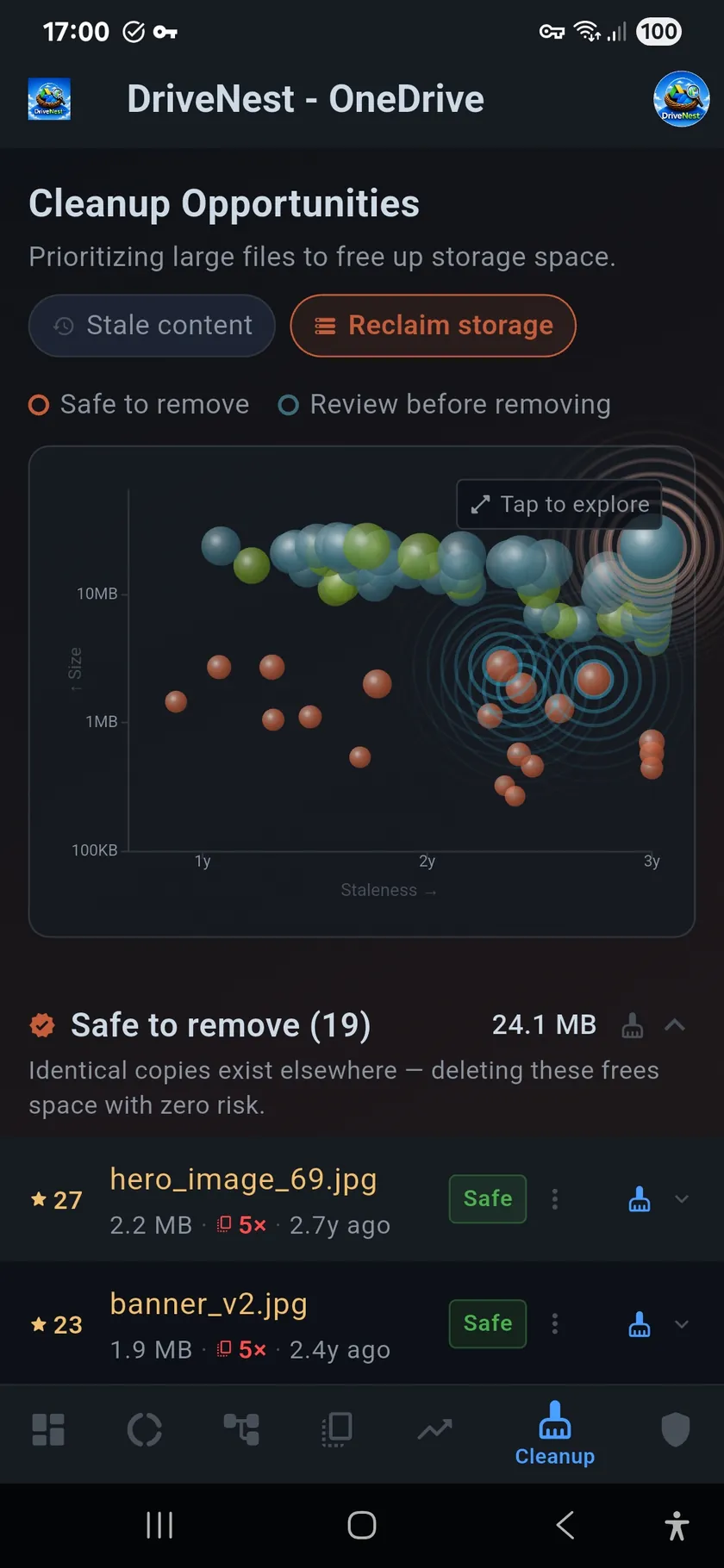
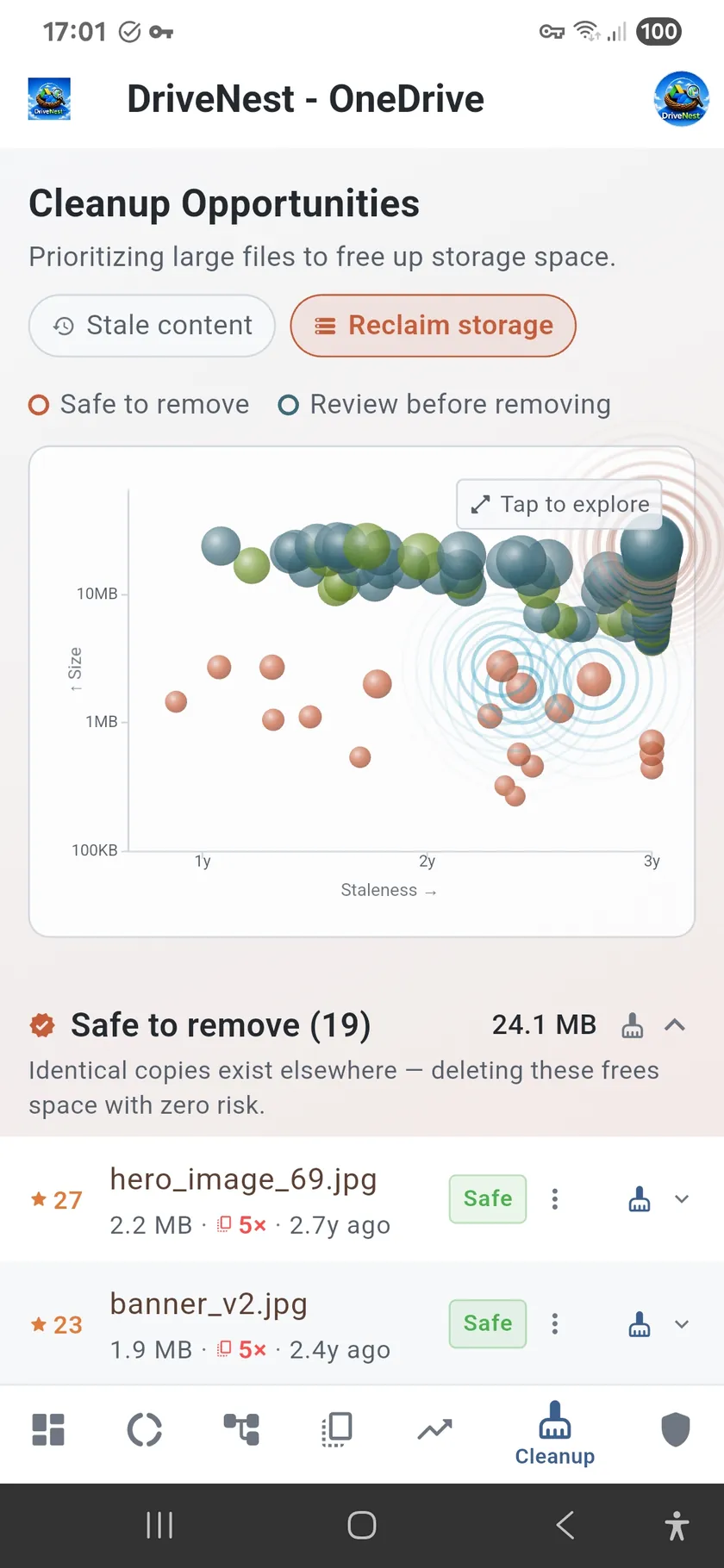
Stale Content surfaces files you have not touched in months — old downloads, forgotten attachments, abandoned project files. Reclaim Storage focuses purely on size, showing you the files that would free the most space if removed. Switch between them depending on whether you want to tidy up or free up gigabytes fast.
See the big picture with the bubble chart
The bubble chart plots every cleanup candidate as a bubble. Bubble size represents file size, position maps to staleness and duplicate risk. Large bubbles in the upper-right corner are your best cleanup targets — big, old, and likely duplicated. Small bubbles in the lower-left are small, recent, and unique. The chart makes priorities obvious at a glance.
Safety built in
- Risk scoring — every file labeled Safe, Caution, or Risky
- Safe-to-remove classification — confirmed duplicates and stale files highlighted
- Never auto-deletes — DriveNest generates scripts, you decide what runs
- Exclusion rules — mark a folder “never suggest” and cleanup leaves it alone for good
- Trash, not delete — files go to Google Drive trash (30-day recovery) or the OneDrive recycle bin, never straight to permanent deletion
- Bubble chart visualization — size vs. staleness vs. duplicate risk in one view
- Two modes — stale content focus or maximum space reclaim
- Script generation — Apps Script, Bash, or PowerShell output
Exclusion rules — teach DriveNest what to leave alone
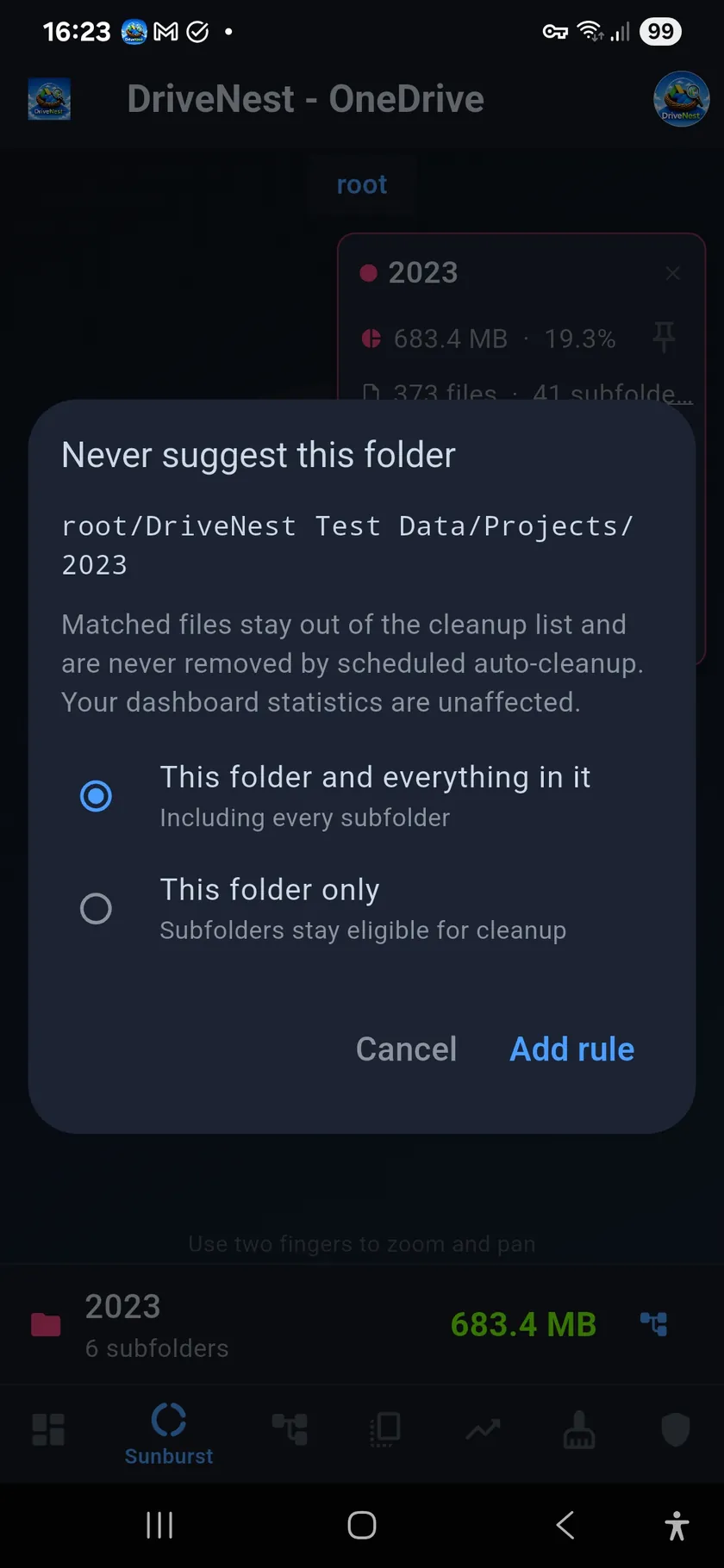
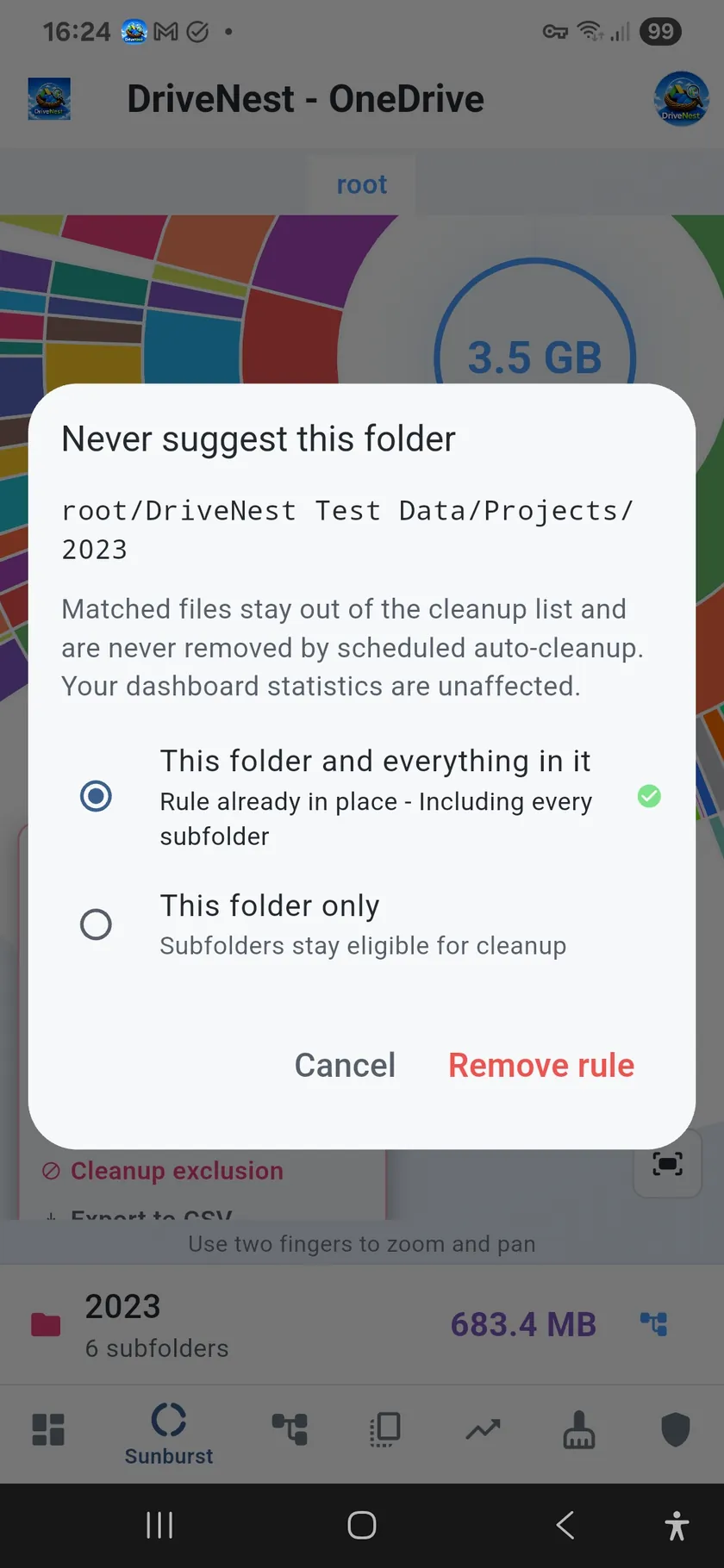
Every drive has folders that look like perfect cleanup candidates and absolutely are not: a finished project archive, a tax folder, a shared team drop-box, the year of photos you never open but would never delete. Dismissing them one scan at a time gets old fast. Exclusion rules make the decision stick. Open a folder’s detail card in the sunburst chart and choose “Never suggest this folder” — from then on its files stay out of the cleanup list and are never removed by scheduled auto-cleanup.
Whole branch, or just this folder
Each rule is scoped when you create it. This folder and everything in it protects the entire branch, every subfolder included — the right choice for an archive you want frozen as a whole. This folder only protects the files sitting directly in it while leaving its subfolders eligible, which is what you want when a tidy parent folder holds messy working directories underneath it. Rules are stored per cloud, so an exclusion you set on OneDrive does not silently change what DriveNest suggests on Google Drive.
Excluded space is still counted
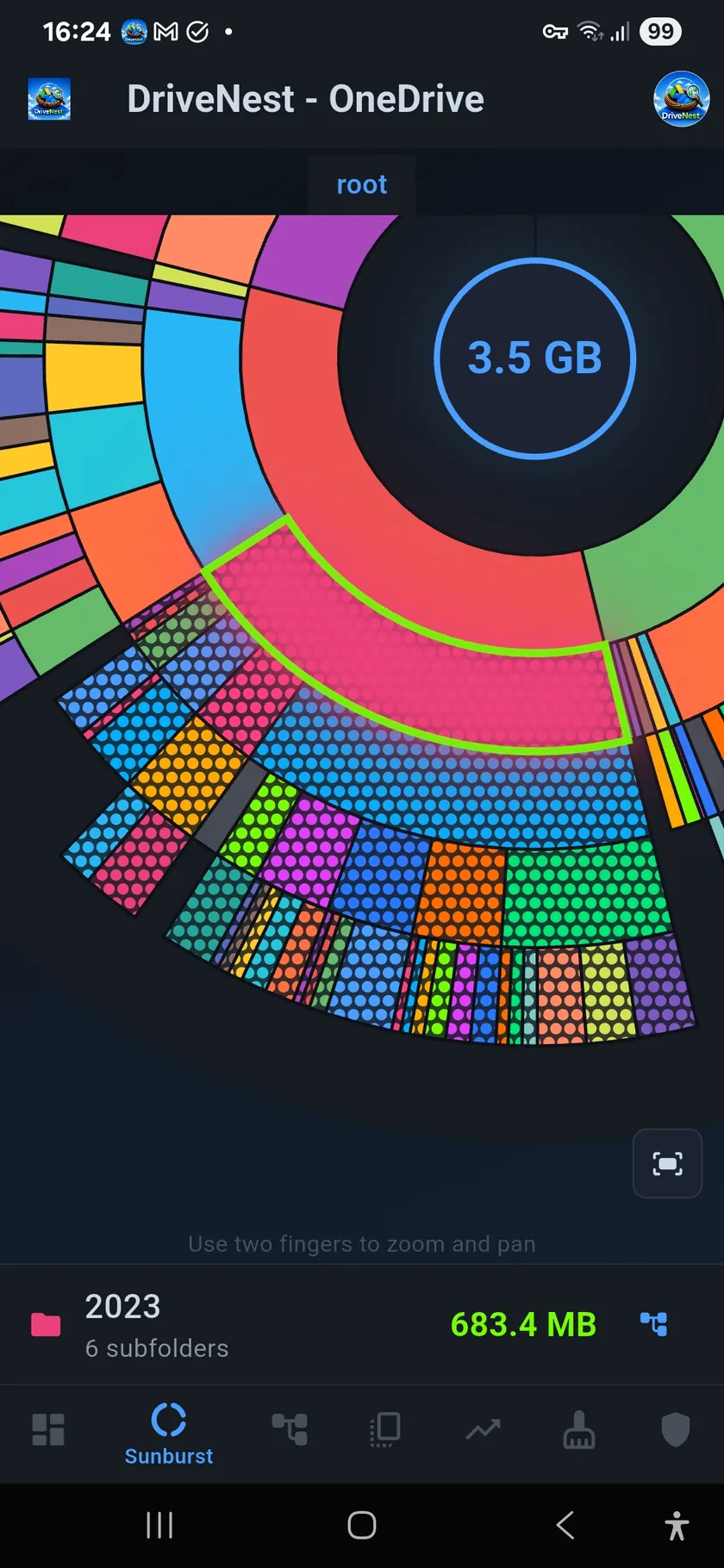
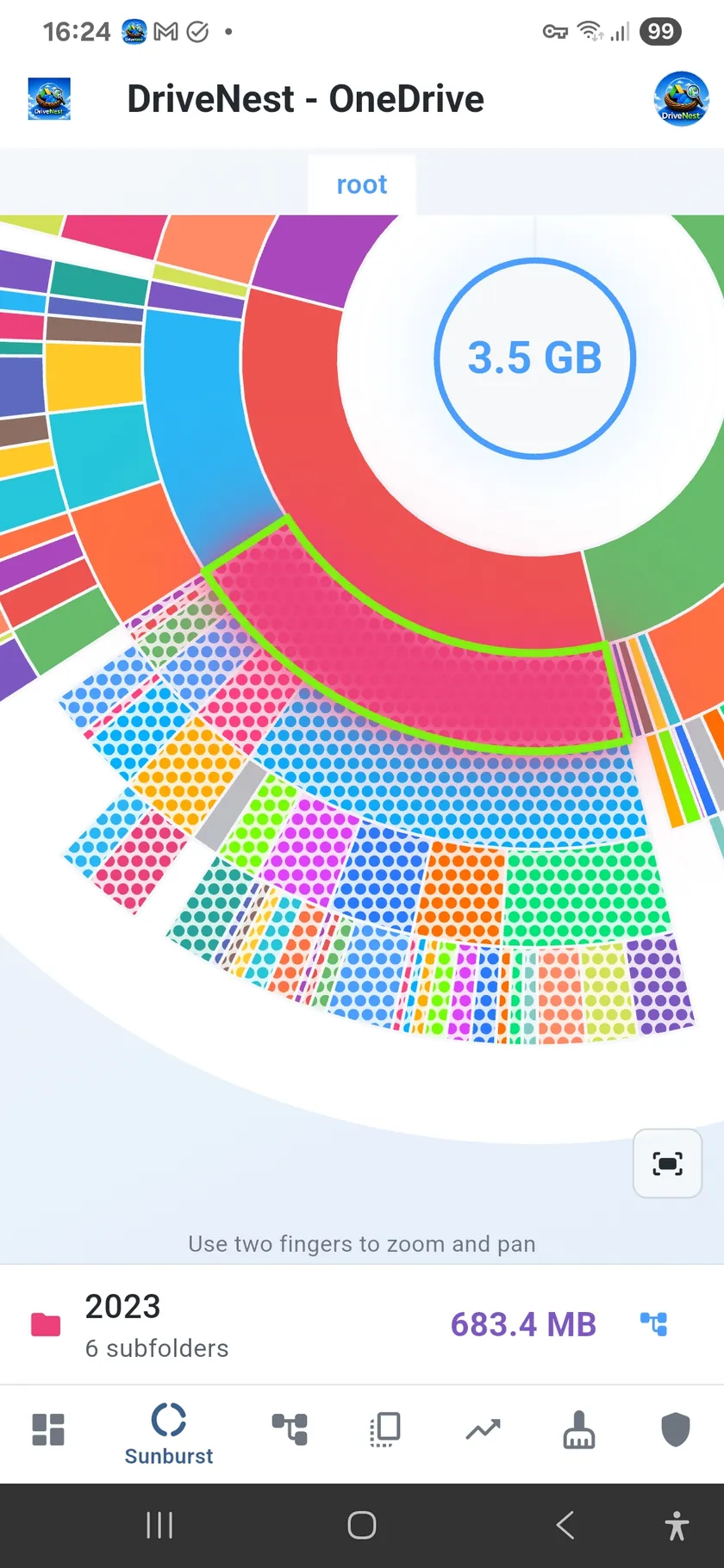
An exclusion rule changes what DriveNest suggests, not what it measures. Excluded folders keep contributing to your dashboard totals, quota figures, and trend history — hiding them from your numbers would defeat the point of an analyzer. The sunburst chart marks every excluded branch with a distinct stippled overlay, so you can see at a glance how much of your drive you have put out of scope and spot a rule you set months ago and forgot about.
How exclusion rules behave
- Set from the chart — open a folder’s detail card in the sunburst and add the rule there
- Two scopes — the whole branch including subfolders, or that folder only
- Cleanup list — matched files never appear as suggestions again
- Auto-cleanup — scheduled cleanup skips excluded folders entirely
- Statistics untouched — excluded folders still count toward dashboard and trend figures
- Visible on the chart — excluded branches carry a stippled overlay you can spot instantly
- Per cloud — rules apply to the provider they were created on
- Reversible — remove a rule and the folder becomes eligible again on the next scan
From analysis to action
Once you identify cleanup targets, generate a script to handle them. Choose Apps Script for one-tap deployment to your Google account, or Bash/PowerShell for local execution. Every script moves files to trash rather than permanently deleting them, giving you a 30-day safety net. See the Scripts page for full details on how scripts work, or the step-by-step guide to cleaning up Google Drive and OneDrive storage for the manual checks worth doing before you run anything. To collect targets from several screens into one run, pin them and clean them up as a single batch.
Where the space usually goes
Across the drives DriveNest has scanned, most of the reclaimable space falls into four buckets: duplicate files (the same content stored twice or more under different names or folders), stale downloads and attachments that were never opened again, superseded file revisions that Google Drive keeps billing against your quota, and old backups from the desktop sync clients — Google’s Computers partition or OneDrive’s backed-up PC folders. The dashboard shows how your own drive splits between them before you start.
Cleanup questions
What actually counts toward my Google Drive or OneDrive storage?
Google: the quota is shared by Drive, Gmail and Google Photos. Inside Drive it includes My Drive, the Computers partition (folders backed up from the desktop client), every stored revision of non-Google files such as PDFs and Office documents, and anything in the trash for its 30-day retention. OneDrive: the quota is shared with Outlook attachments and includes the recycle bin for its retention period. On both clouds, files that other people have shared with you do not count against your quota.
What is the fastest way to free up cloud storage space?
Empty the trash first, then remove the largest files you no longer need, then remove duplicate copies. DriveNest’s Reclaim Storage mode ranks everything by size so the biggest wins come first, and the duplicate finder shows which large files exist more than once.
Can DriveNest delete files for me?
Only with your approval, and never permanently. On Google Drive, DriveNest has read-only access and generates a Google Apps Script that you review and run in your own account. On OneDrive, it can carry out the cleanup in-app after you confirm and grant write permission for that action. In both cases, files go to the trash or recycle bin, where they can be restored.
How do I stop DriveNest suggesting a folder I want to keep?
Open the folder in the sunburst chart and choose “Never suggest this folder”. You can protect the whole branch or just that folder’s own files. Excluded folders stay out of the cleanup list and are skipped by scheduled auto-cleanup, but still count in your dashboard totals.
Does the cleanup work on OneDrive too?
Yes. The cleanup analysis, bubble chart, exclusion rules and risk scoring are identical on both clouds. OneDrive additionally supports in-app execution, while Google Drive uses a generated Apps Script you run yourself.